To be honest, even in the ChatGLM3 era, I tried to build my own knowledge base using Langchain-Chatchat.
But the fantasy was beautiful, while the reality was harsh. It really was… not very user-friendly.

Plain text content was relatively okay, barely within the usable range, but the recognition of documents like PPTs was very poor—I couldn’t even tell what it had recognized.
Later, this problem didn’t seem to have a very good solution.
Not long ago, Feishu officially launched ‘Feishu Knowledge Q&A’.
You don’t even need to do embedding yourself, with zero technical threshold. As long as you have permission to read Feishu documents, you can perform AI knowledge Q&A.
This reignited my idea of building a knowledge base.
And I actually found a solution to the PPT recognition problem that requires no technical threshold:
Use multi-dimensional tables + multimodal vision models to batch process images, parse PPTs, and then convert them into text documents.
Thinking carefully, it’s quite reasonable. The PPT presentation format itself is strongly related to visual effects.
Unlike articles, which are formed by a continuous string of text from beginning to end into a coherent whole, PPTs require text to be as concise as possible, with even plain text content needing jumps between points. The information expression is then completed through visual design like layout, combined with the reader’s imagination.
For example, like this:
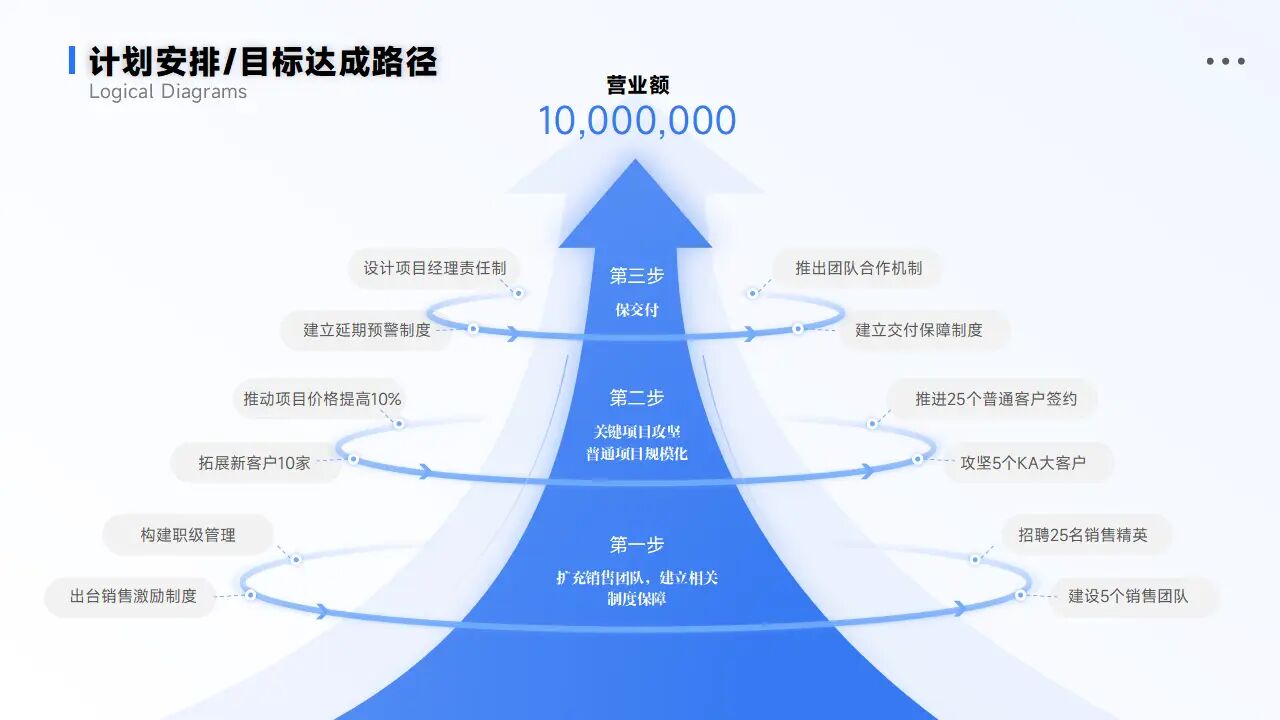
Even if the text is fully extracted without any order errors or garbled characters, the meaning cannot be understood from text alone. A multimodal large model with both visual and understanding capabilities is just right for this.
Thus, this multi-dimensional table template was born.
First, let’s show the effect, then explain how to use this table.
This is the original PPT (with both tables and text):
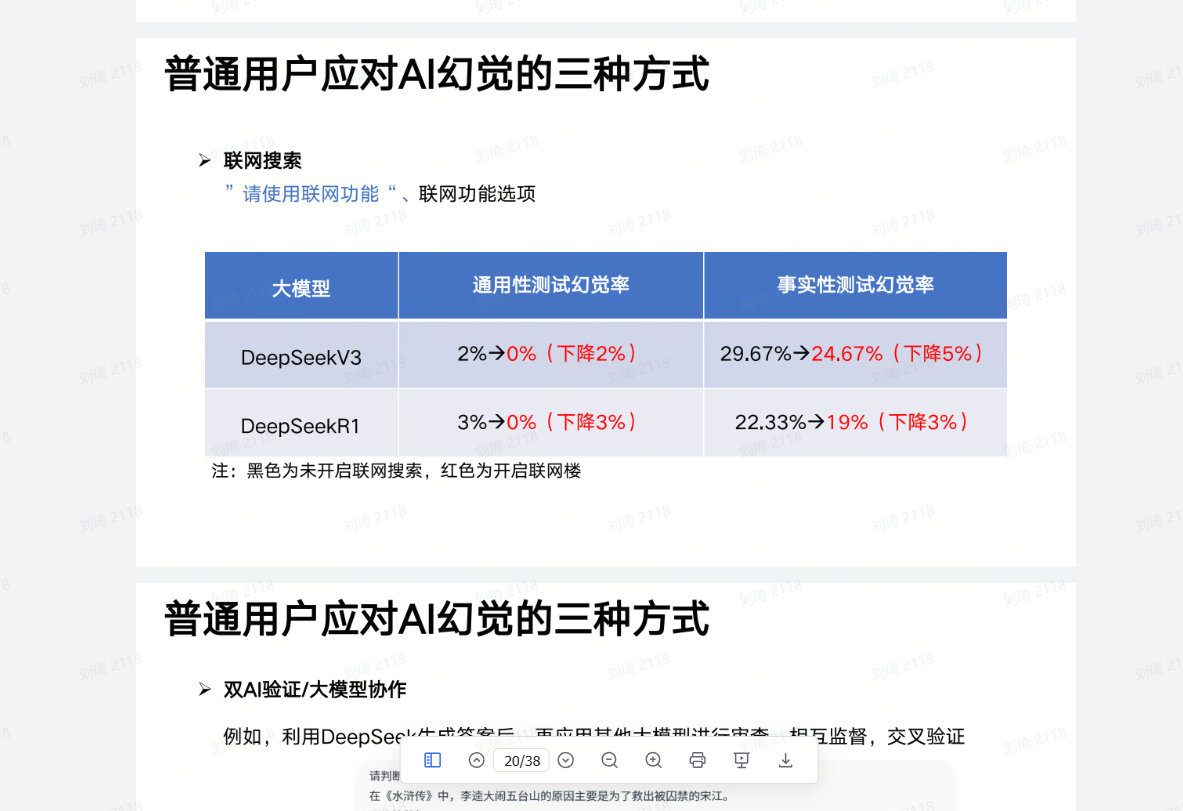
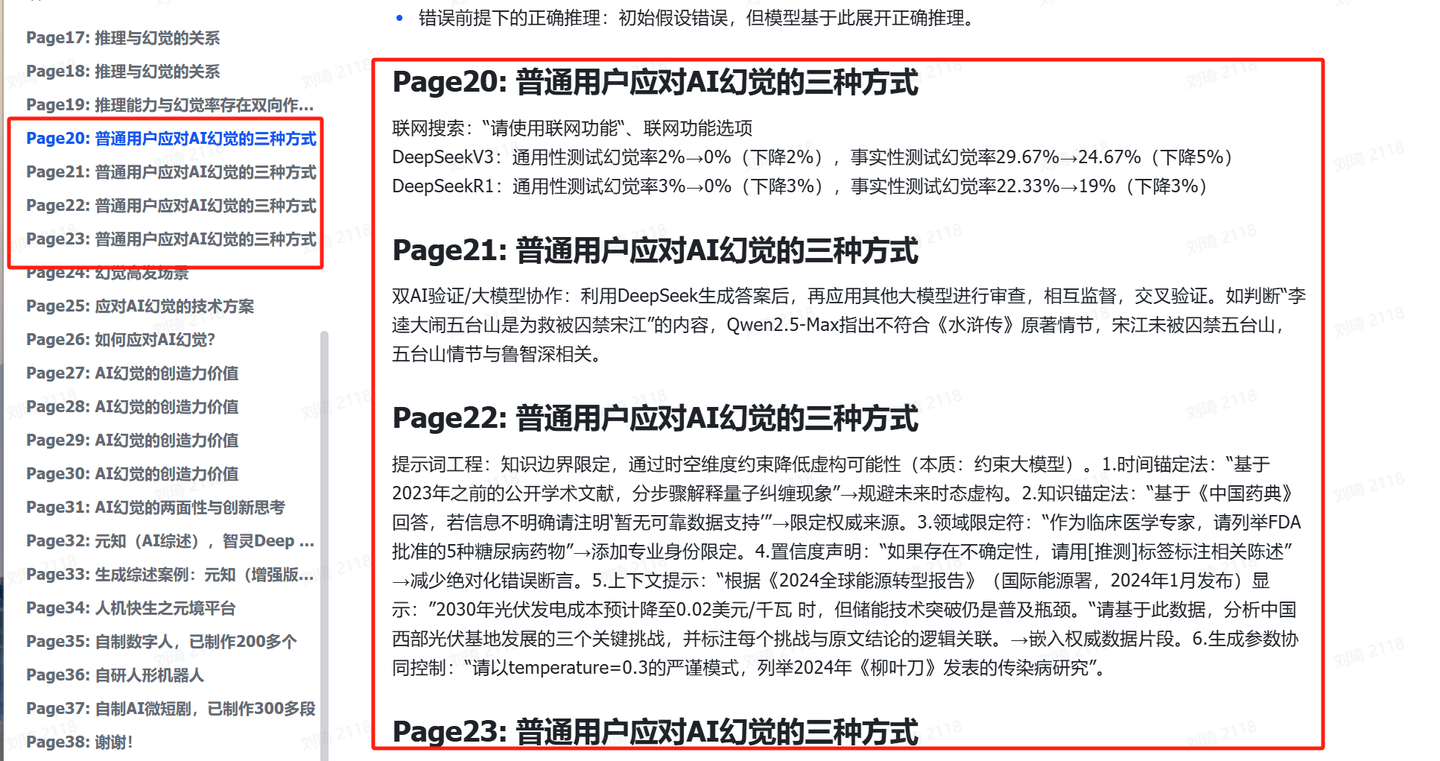
This is the text document converted using the multi-dimensional table (the 3×3 table row-column relationships are accurately recognized):
This is my question in Feishu Knowledge Q&A:
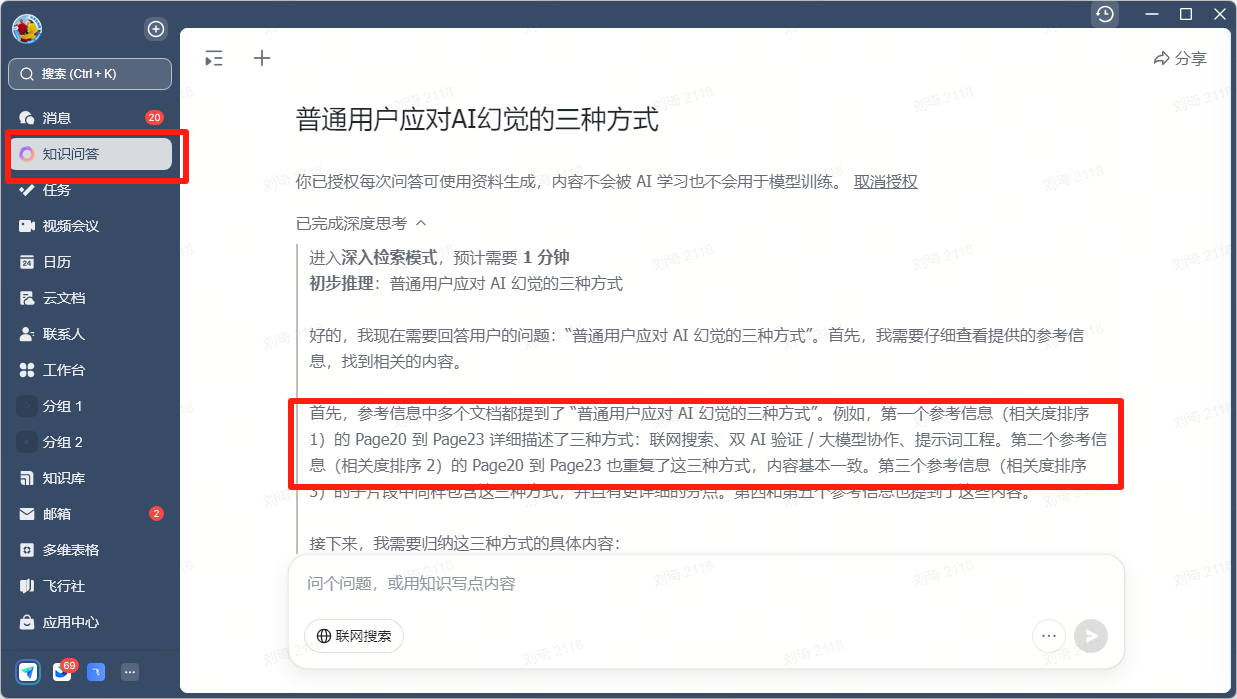
This PPT file, after conversion by the table, seamlessly becomes a knowledge source for Feishu Knowledge Q&A.
If you’re not a Feishu user and don’t have Feishu Knowledge Q&A, it doesn’t matter. I’ve also added a Q&A feature based on the knowledge base content (inserted into context) in the table:

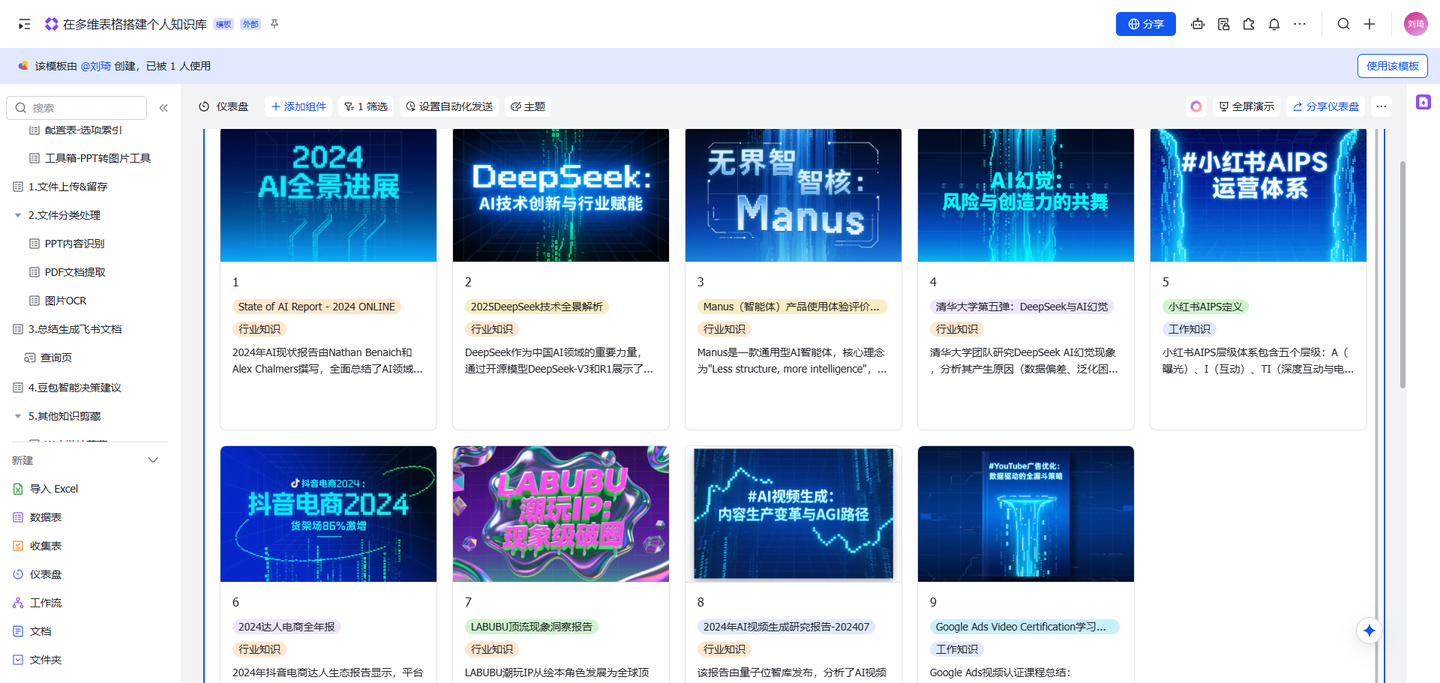
If you just want to organize and quickly review documents, it’s also a good choice. It can automatically summarize documents and generate a cover image:
Now, let’s introduce the features and usage of this template in detail:
Open the template link:
https://gcnax5pj3z0y.feishu.cn/base/AM26bPSpnamXYesHukscryQJnhg?table=ldxLEVCkyDeBPNQe
Then click the ‘Use This Template’ button to create your own knowledge base using this template.
After creating the table from the template:
1. File Upload&Retention
In the table of the same name, upload all files to be archived (PDF, images, PPTs, etc.) through the attachment field. The table will automatically extract filenames and convert them into options.
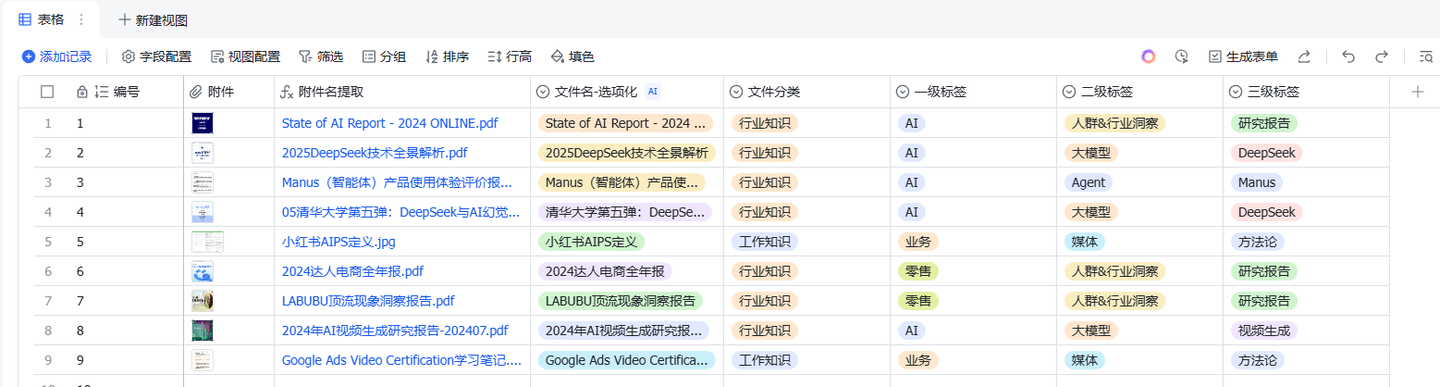
You can categorize and manage uploaded resources.
The template unifies the management of options in the ‘File Category’, ‘Primary Tag’, and ‘Secondary Tag’ menus. If adjustments are needed, go to the ‘Configuration Table – Option Index’ table under ‘Configuration and Tools’.
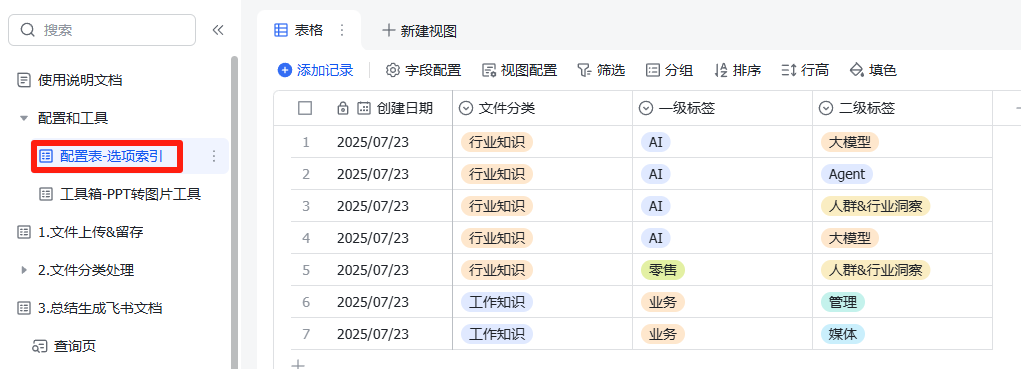
The ‘Tertiary Tag’ is handled flexibly, allowing you to manually create options when filling in.
2. File Classification Processing
For PPTs (including PPTs in PDF format), proceed as follows:
① Convert each page of the PPT into images and extract them.
You can use tools like WPS for conversion:
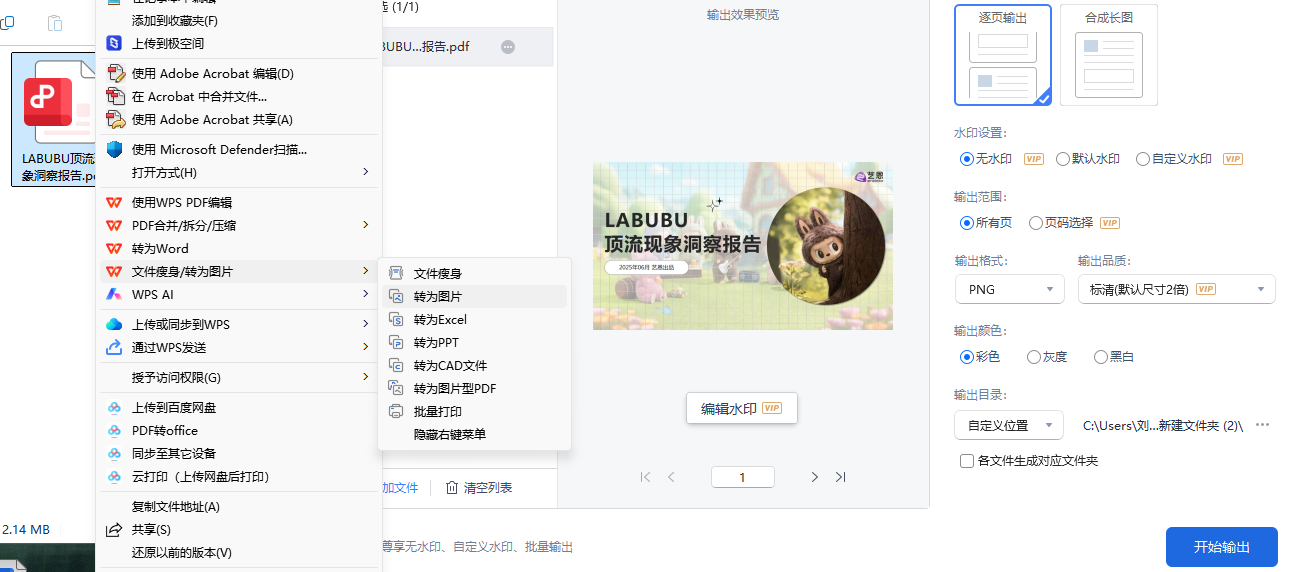
If you don’t have a ready-made tool, no problem. Go to the ‘Toolbox – PPT to Image Tool’ table under ‘Configuration and Tools’ and click the link in the image below to use the web tool for conversion.

This tool is directly generated. This is what I’ve always said: in the AI era, many paradigms for doing things can be boldly changed:
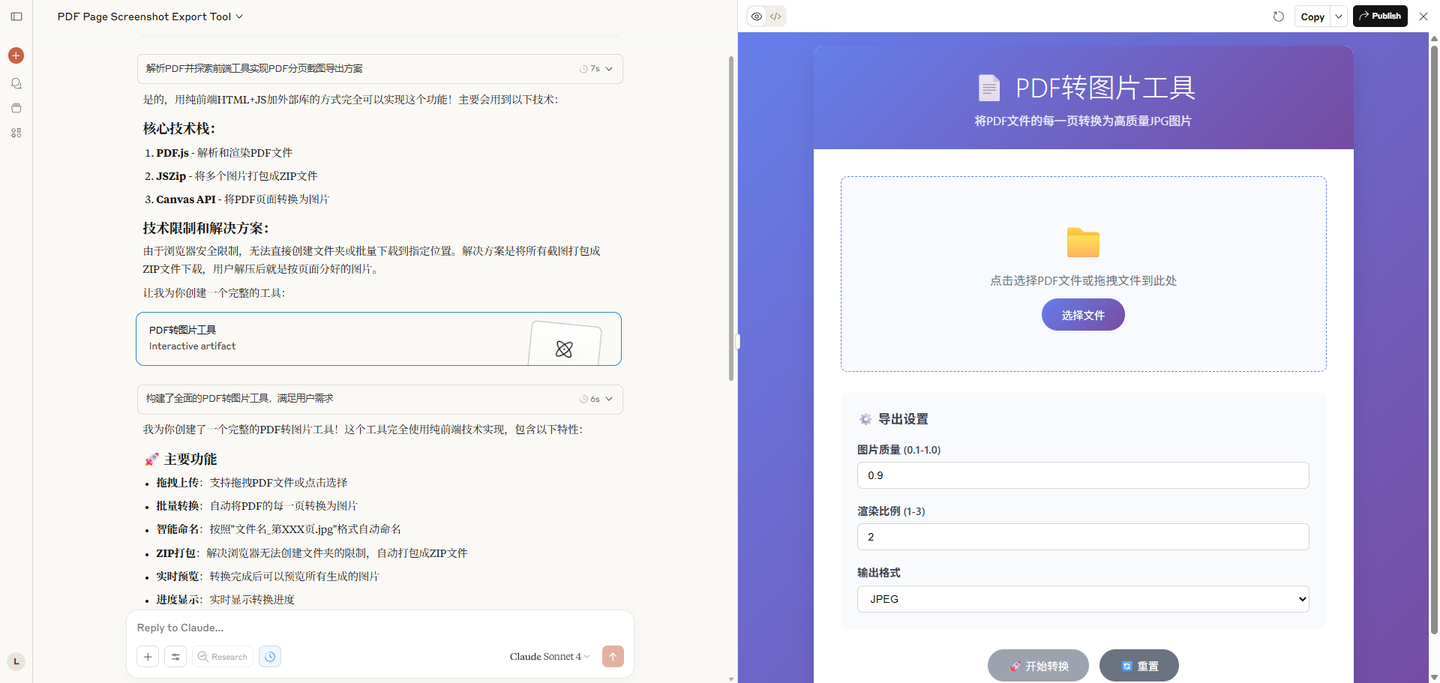
It’s implemented using pure front-end HTML+JS with external libraries, making it green and lightweight. The source code and web files are also in the toolbox table.
It’s simple with only a few buttons; I probably don’t need to explain how to use it:
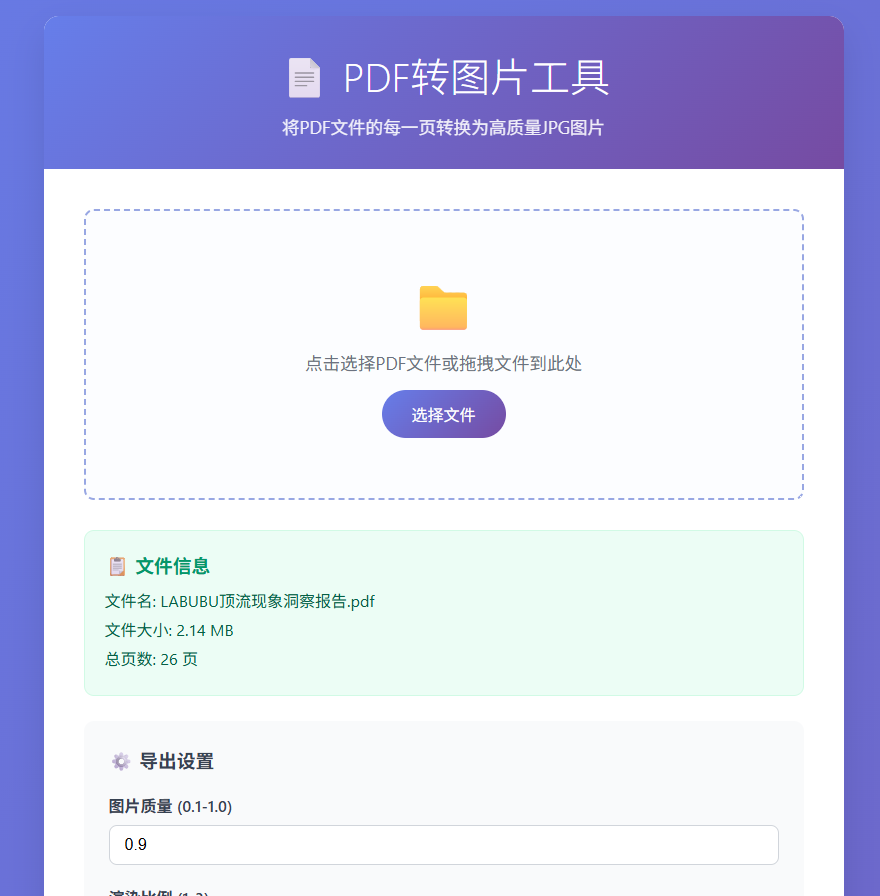
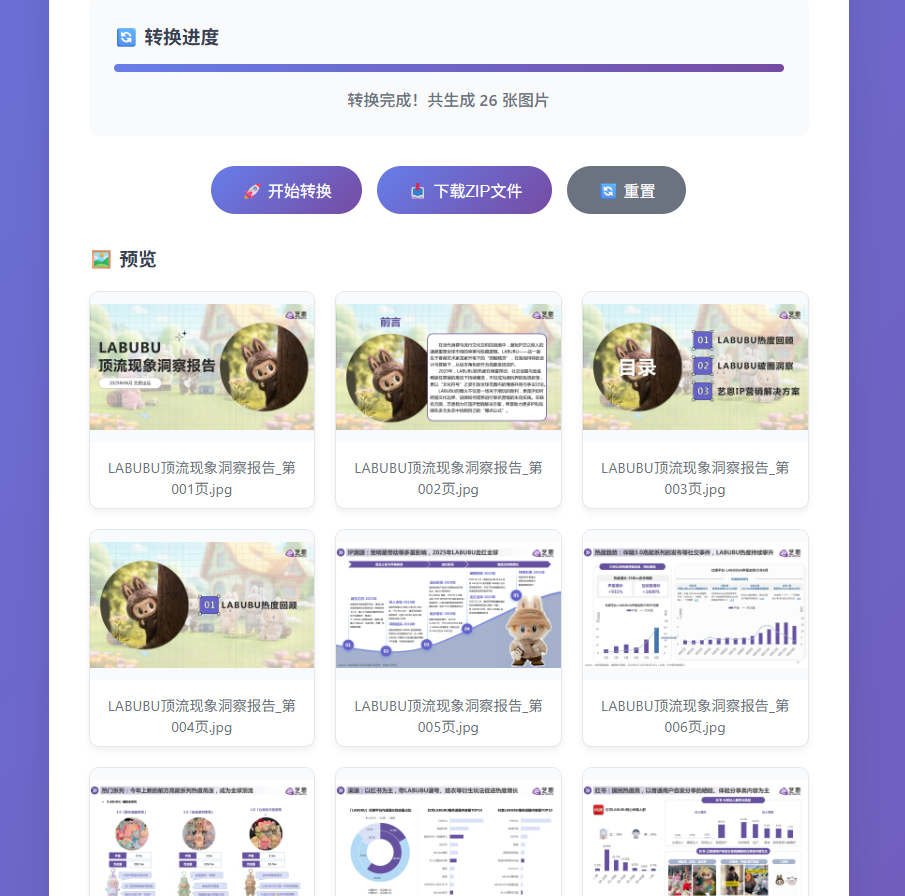
② Go to the ‘PPT Content Recognition’ table and use the ‘Batch Upload Attachments’ plugin fixed in the top-right sidebar to batch upload screenshots of each page.
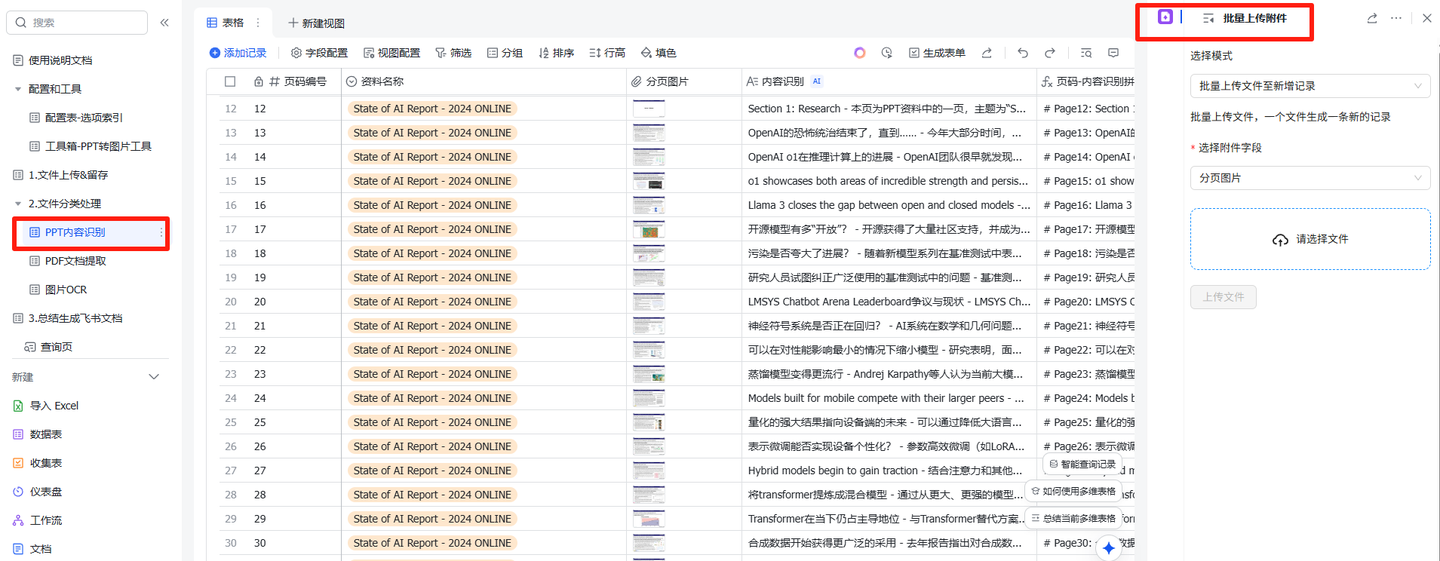
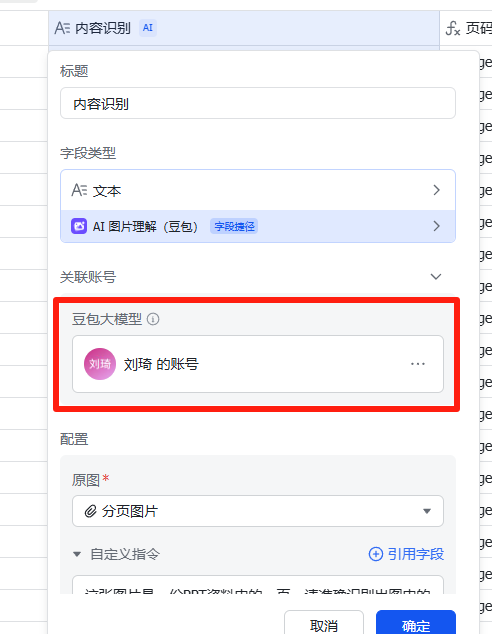
③ Double-click ‘Content Recognition’ to configure a Doubao large model account for the AI image understanding field shortcut.
It’s recommended to use the Doubao-1.5-vision-pro model. If you want the AI to be more faithful to the original text and reduce extrapolation, you can also use Doubao-Seed-1.6.
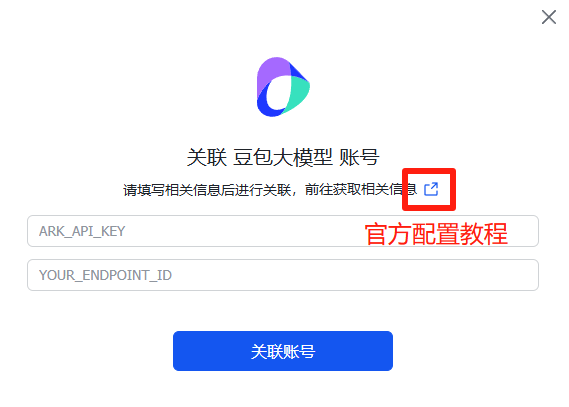
(You can join the Volcano Ark collaboration reward program to receive 500,000 tokens daily.)
After configuration, the Doubao large model begins to understand each PPT page and summarize it.
Even the non-contiguous content divided into sections after PPT layout and beautification can be understood and summarized by the Doubao large model.
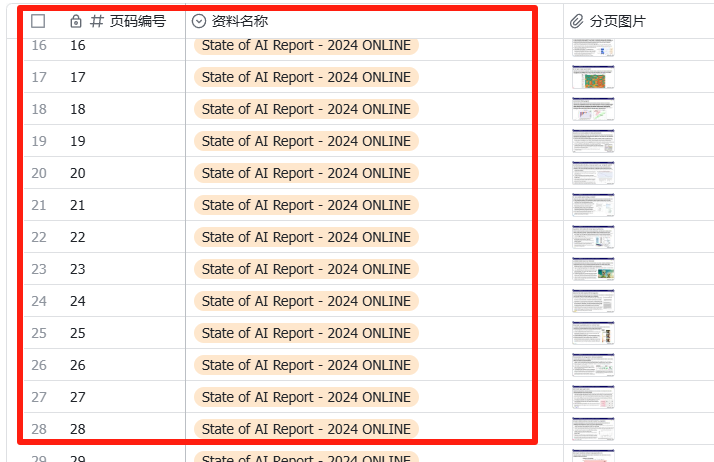
④ Manually enter the ‘Page Number’ field and ‘Resource Name’ field to the left of the image field. It supports filling by dragging the fill handle like in Excel.
Entering page numbers will be associated with the formula field on the right. The formula includes Markdown heading markers to automatically recognize page number titles when creating Feishu documents later.
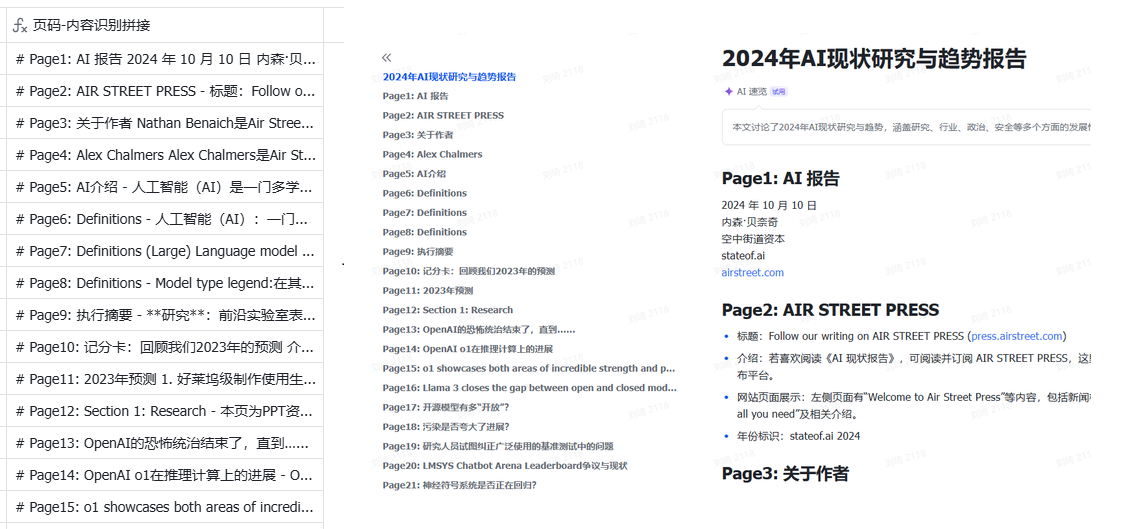
For text-based PDFs (non-scanned), proceed as follows:
① Go to the ‘PDF Document Extraction’ table and select the corresponding resource name from the dropdown list.
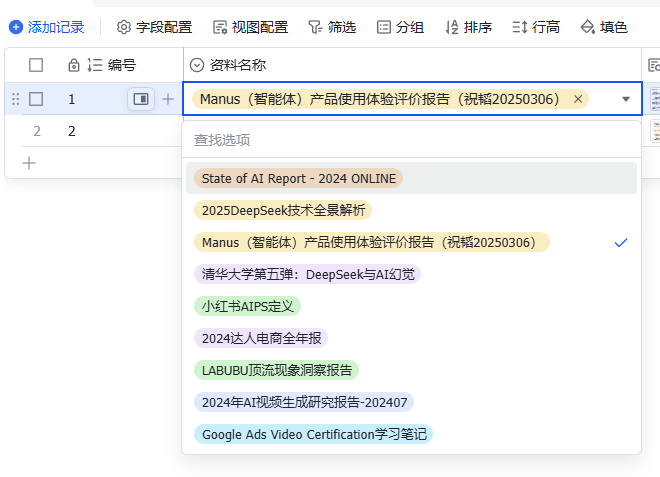
② Manually copy the automatically matched attachment to the PDF document attachment field on the right.

The text content of the PDF document will be automatically extracted into the ‘Content Extraction’ field.
For screenshots, proceed as follows:
The actions are basically the same as for text-based PDFs.
① Go to the ‘Image OCR’ table and select the corresponding resource name from the dropdown list.
② Manually copy the automatically matched attachment to the PDF document attachment field on the right.

3. Generate Document Summary and Feishu Document
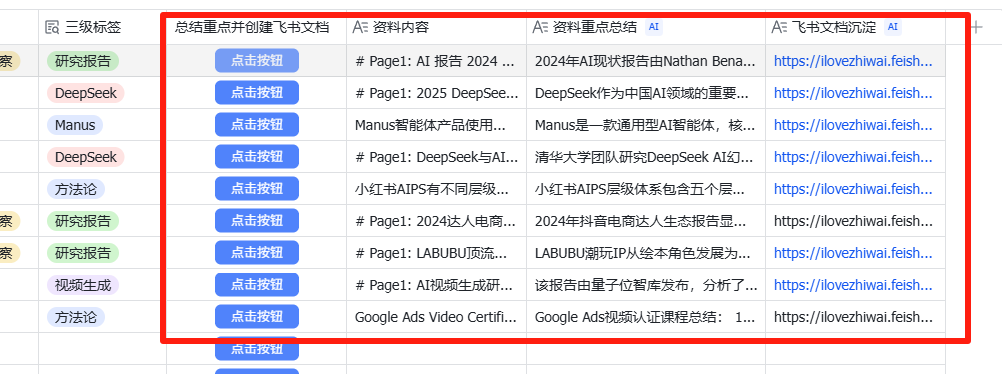
The table matches resources by default based on auto-incrementing numbers. As long as files are uploaded in ‘1. File Upload&Retention’, the information in the red box in the image below will appear automatically without manual operation. If the number of uploaded files exceeds the rows in this table, causing new documents not to display, simply insert new rows below.
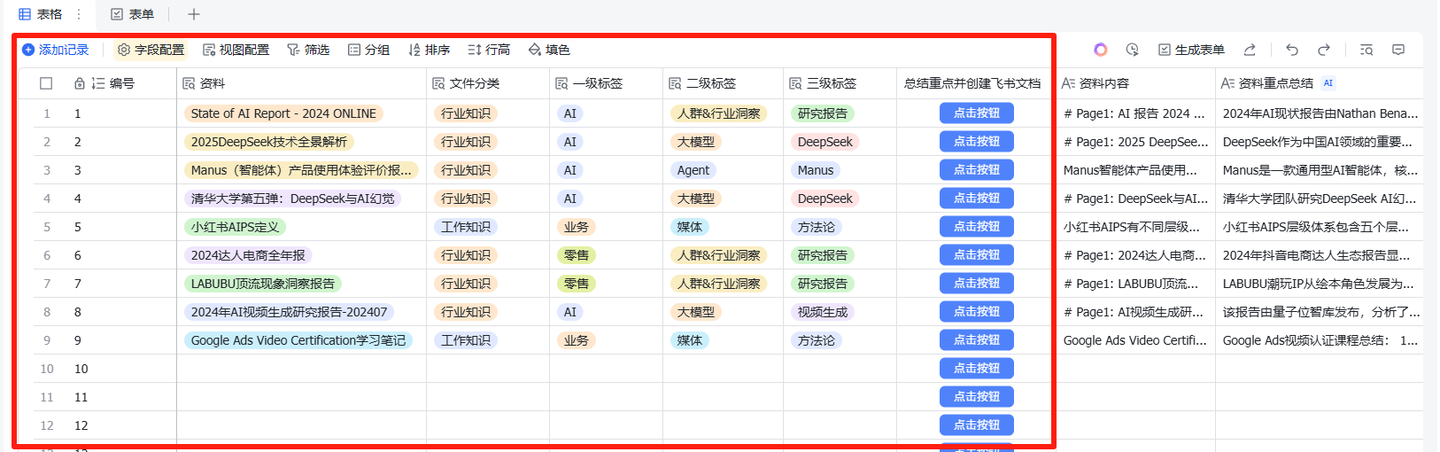
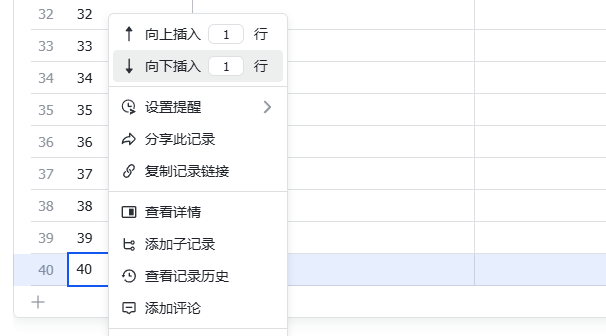
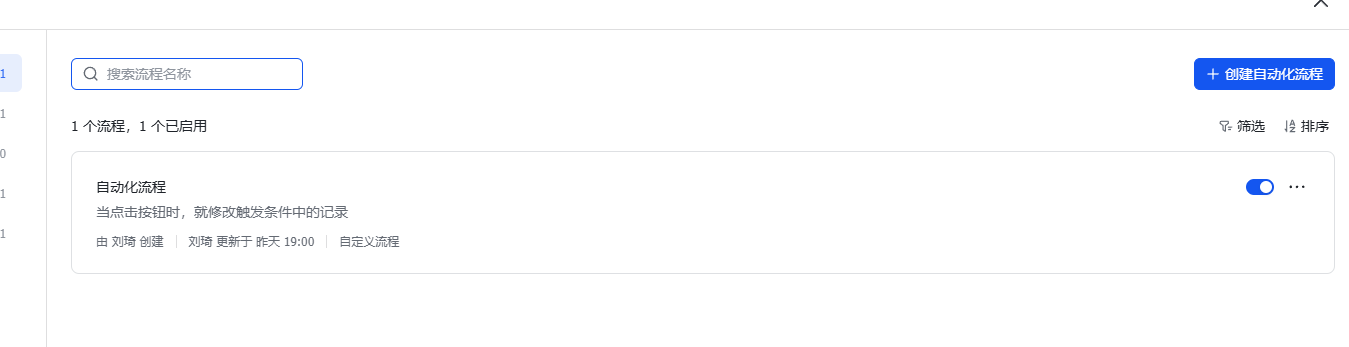
If the button is gray, you need to go to the Automation Center to manually enable the automation process.
After the button is enabled, clicking the button for documents that need summarization will automatically generate three fields to the right of the button: ‘Resource Content’, ‘Key Summary’, and ‘Feishu Document’.
Generating a Feishu document requires following the prompts to authorize Coze. After authorization, re-run the field shortcut.
Once the Feishu document is generated, it can be used as reference information by AI in Feishu Knowledge Q&A.
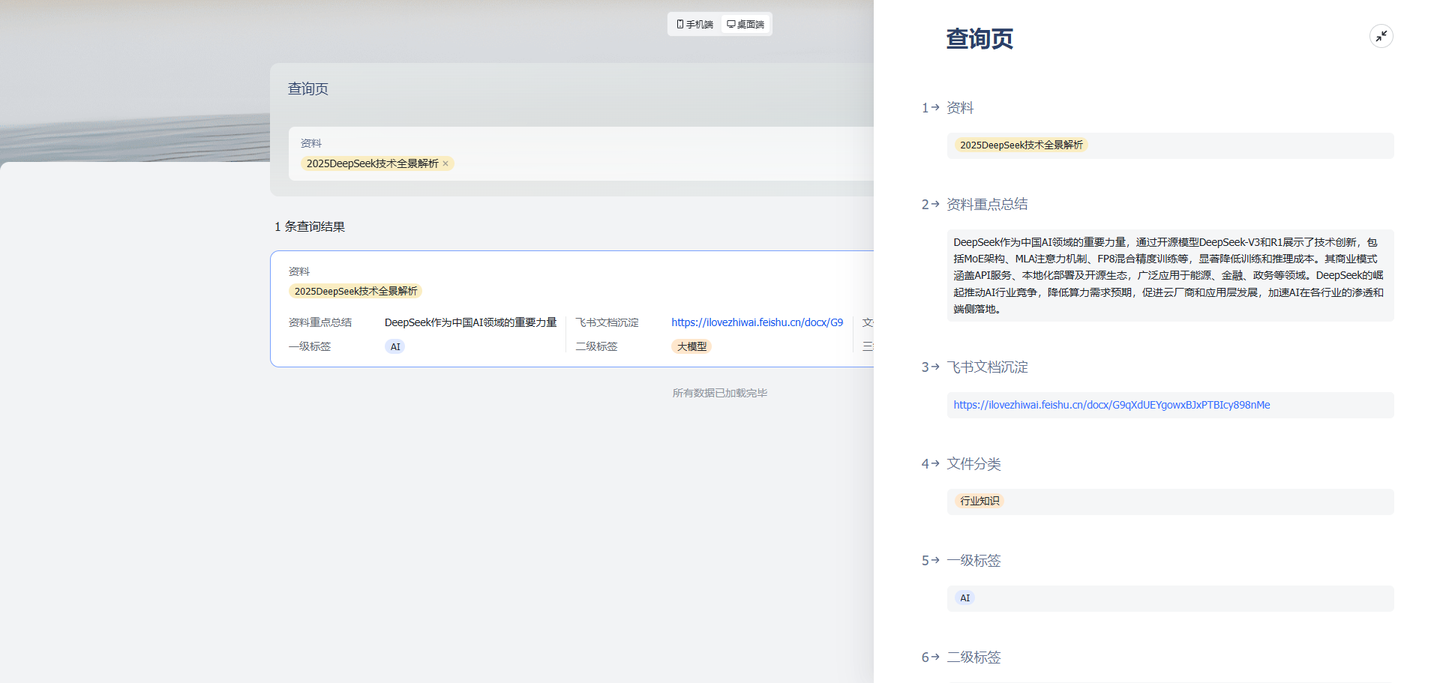
Use the ‘Query Page’ to query key information for corresponding resources.
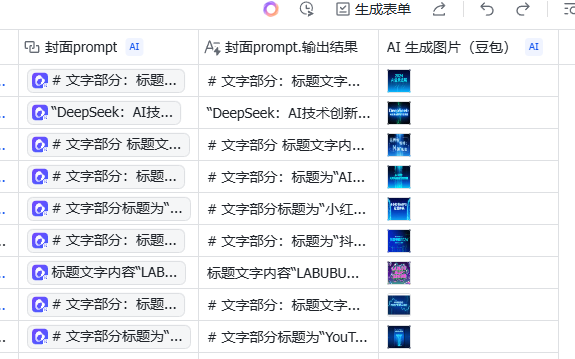
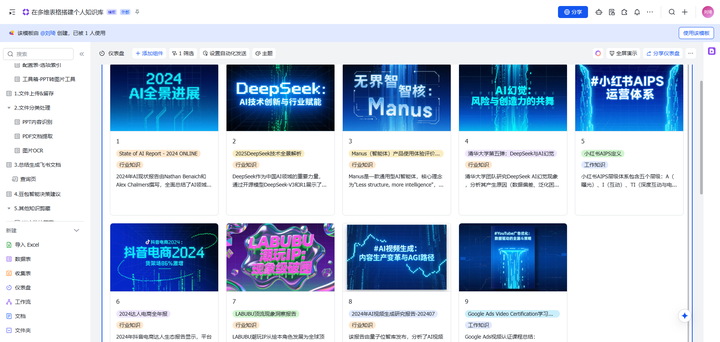
The last few fields on the right side of the table generate cover images based on summaries of key resource content. Image generation consumes a certain amount of API costs and is disabled by default for automatic generation. You can choose whether to enable it.
After enabling, the gallery component in the ‘Knowledge Album’ dashboard will have AI-generated title covers:
The gallery display effect looks like this:
4. Doubao Intelligent Decision Suggestions
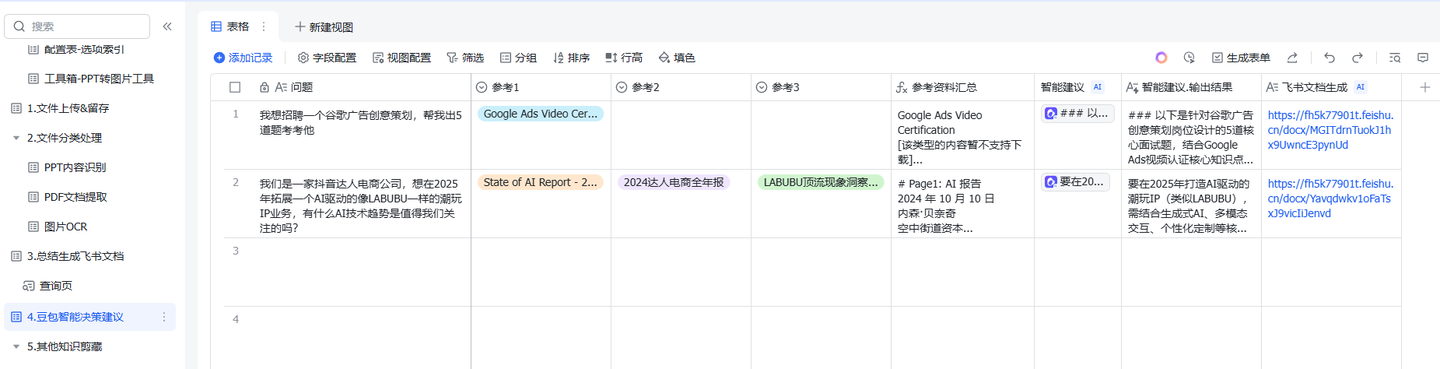
This feature enables small-scale solution Q&A by referencing materials within this table’s knowledge base.
You can select up to 3 resources for reference via ‘Reference 1’, ‘Reference 2’, ‘Reference 3’, and then enter the question in the ‘Question Field’.
The Doubao large model will return the answer/suggestion to the question in the ‘Intelligent Suggestions’ field.
Q&A Examples:
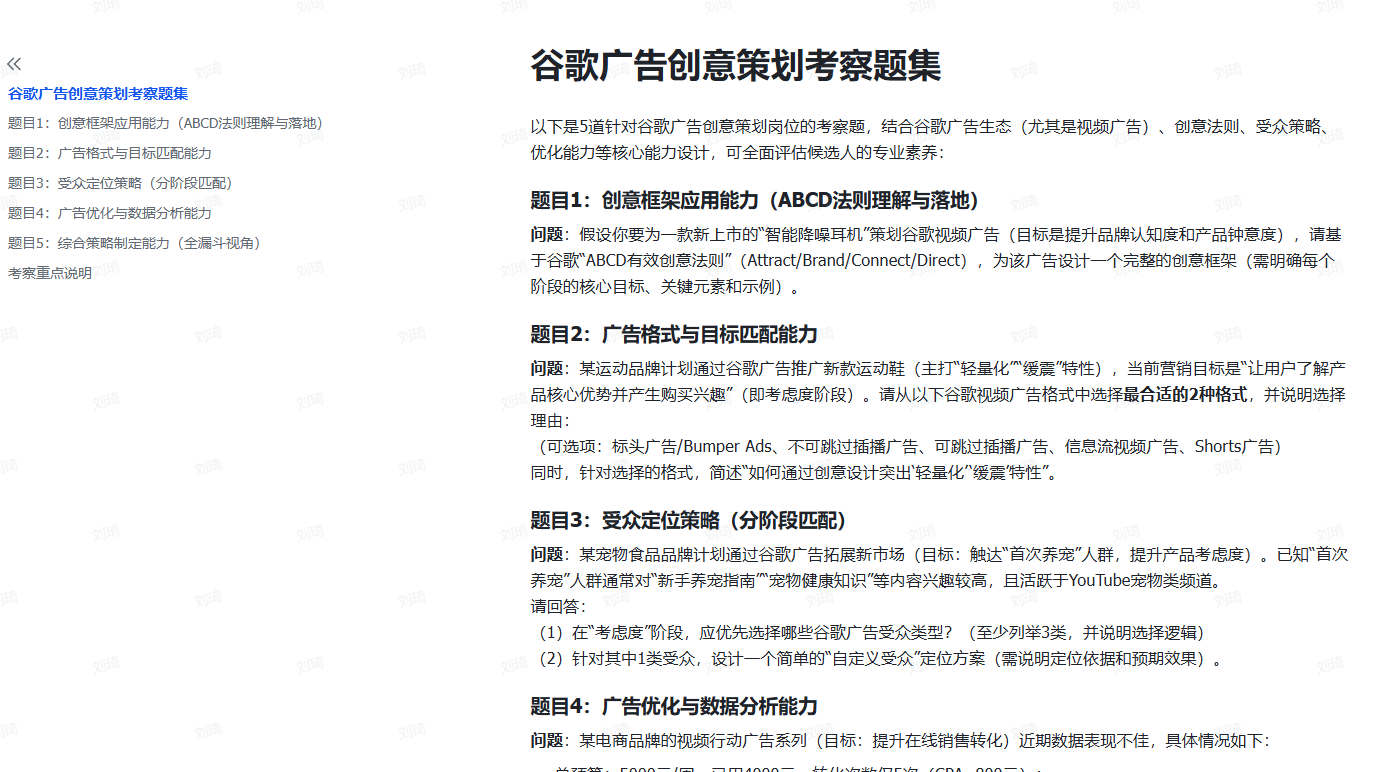
Question 1: I want to hire a Google Ads creative planner. Help me come up with 5 questions to test them.
Reference: ‘Google Ads Video Certification Study Notes’
Doubao Answer:
Question 2: We are a Douyin influencer e-commerce company looking to expand into an AI-driven trendy toy IP business like LABUBU in 2025. What AI technology trends should we pay attention to?
References: ‘State of AI Report – 2024 ONLINE’, ‘2024 Influencer E-commerce Annual Report’, ‘LABUBU Top Traffic Phenomenon Insight Report’
Doubao Answer:
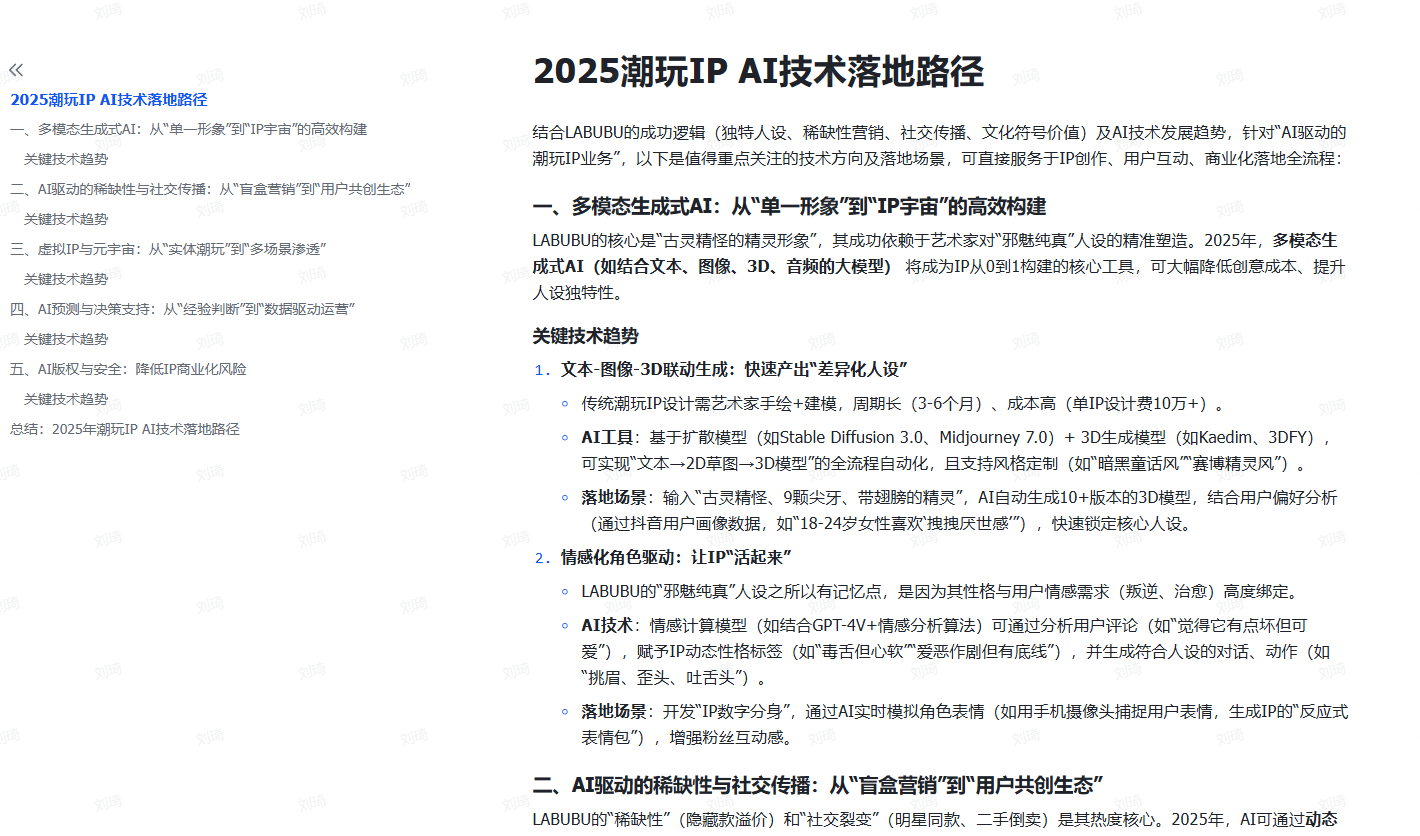
Here, the Doubao large model uses the Doubao-Seed-1.6 model, directly calling the lower-cost Doubao-Seed-1.6-flash through a custom API shortcut, which also performs well.
5. Other Knowledge Clipping
These two tables are for quickly clipping fragmented knowledge. The content does not enter the above document knowledge base.
It’s recommended to use with the Feishu mobile app.
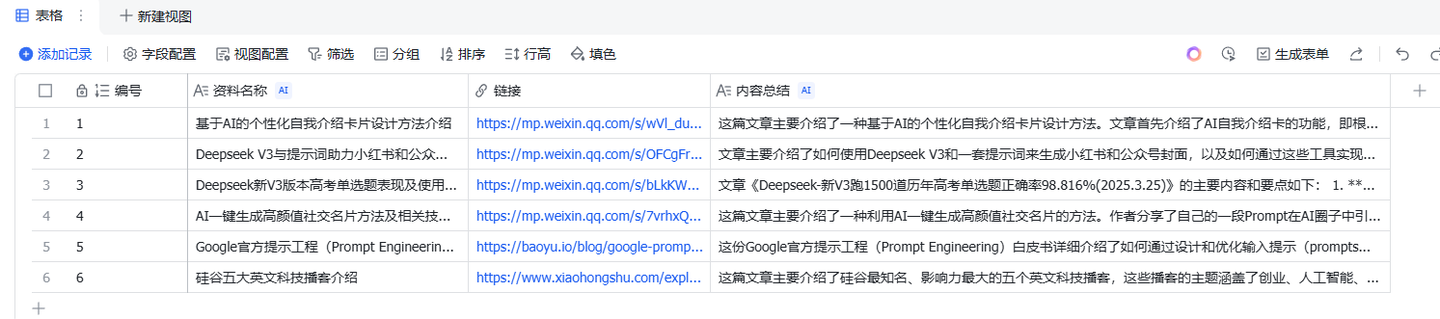
Web Link Clipping
Suitable for quickly saving content from social media like WeChat Official Accounts, Xiaohongshu, as well as blogs and websites.
After pasting the link, it can automatically summarize the content and generate a more concise resource name based on the content (filtering out clickbait headlines).
Fragment Screenshot Clipping
Suitable for quickly storing and organizing valuable information from phone screenshots, group chat images, and Moments images.
That’s all the features of this table. I hope you like it~