Let me add a disclaimer first: I don’t work in programming-related jobs and haven’t studied it much. My relationship with code is like it knows me but I don’t know it—all my code comes from AI generation. I can only guarantee it runs in my environment, but cannot guarantee its security or performance, let alone standards and elegance. Please use and follow with caution.
When developing AI Brainstorm, I actually just used the Cursor software to SSH into a server with BaoTa Panel installed and completed the code there (I didn’t want to set up a development environment on my local computer). I deployed it right there after writing. So it’s not that I don’t want to explain other deployment methods; it’s mainly that I only know this one. However, I think if you want to deploy locally or use other less complex methods, it shouldn’t be difficult with AI assistance.
Now, let’s start with deployment on BaoTa Panel:
First, download the project files directly from GitHub or a cloud storage service.
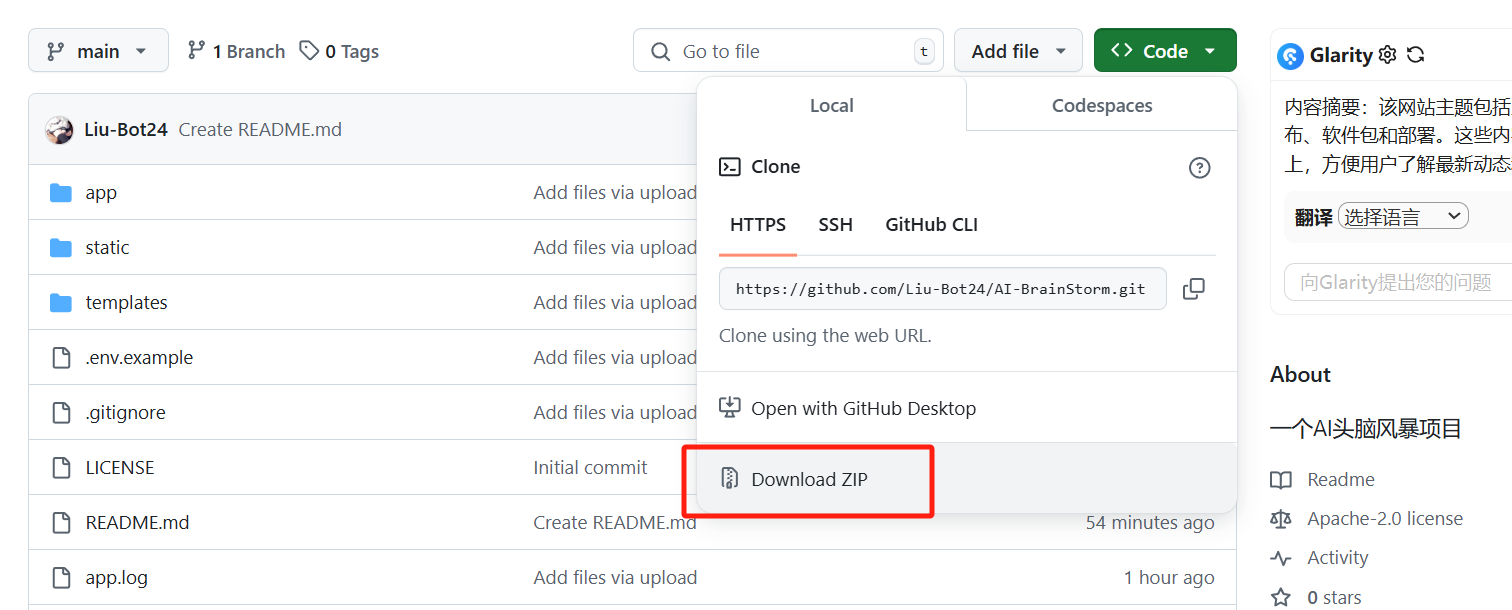
Then, click ‘Files’ in the left menu of the BaoTa Panel to open the file manager. Upload the downloaded archive to the /www/wwwroot/ path and extract it.
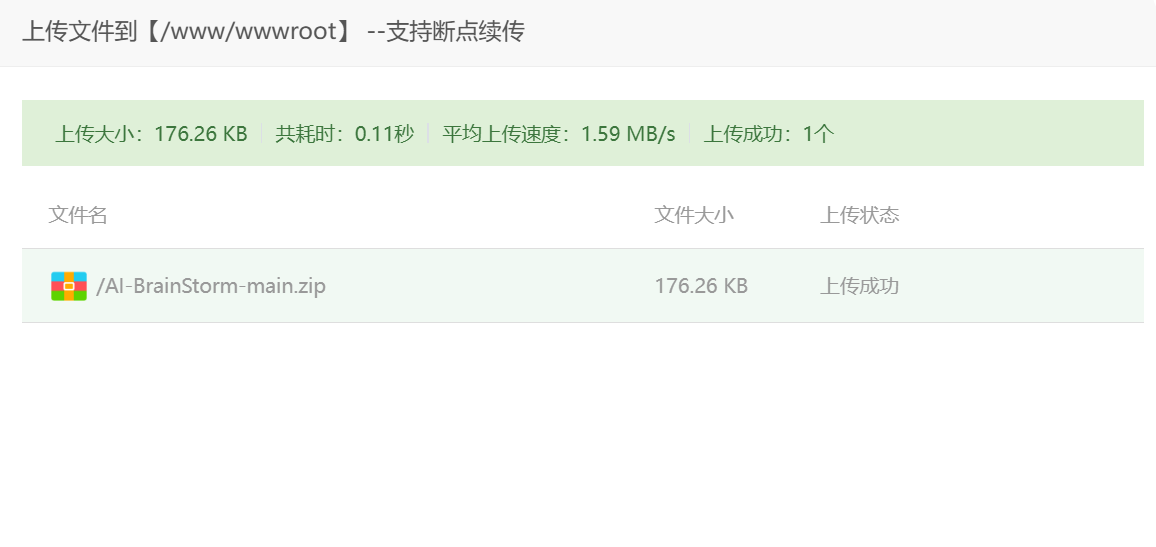
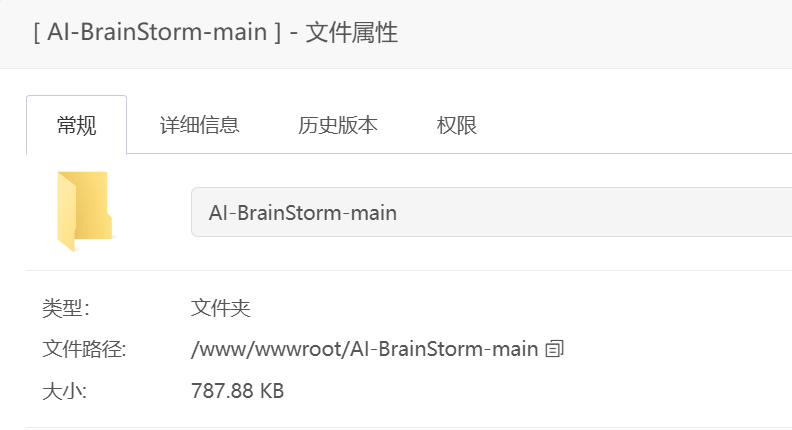
If downloaded from GitHub, the folder should look like this:
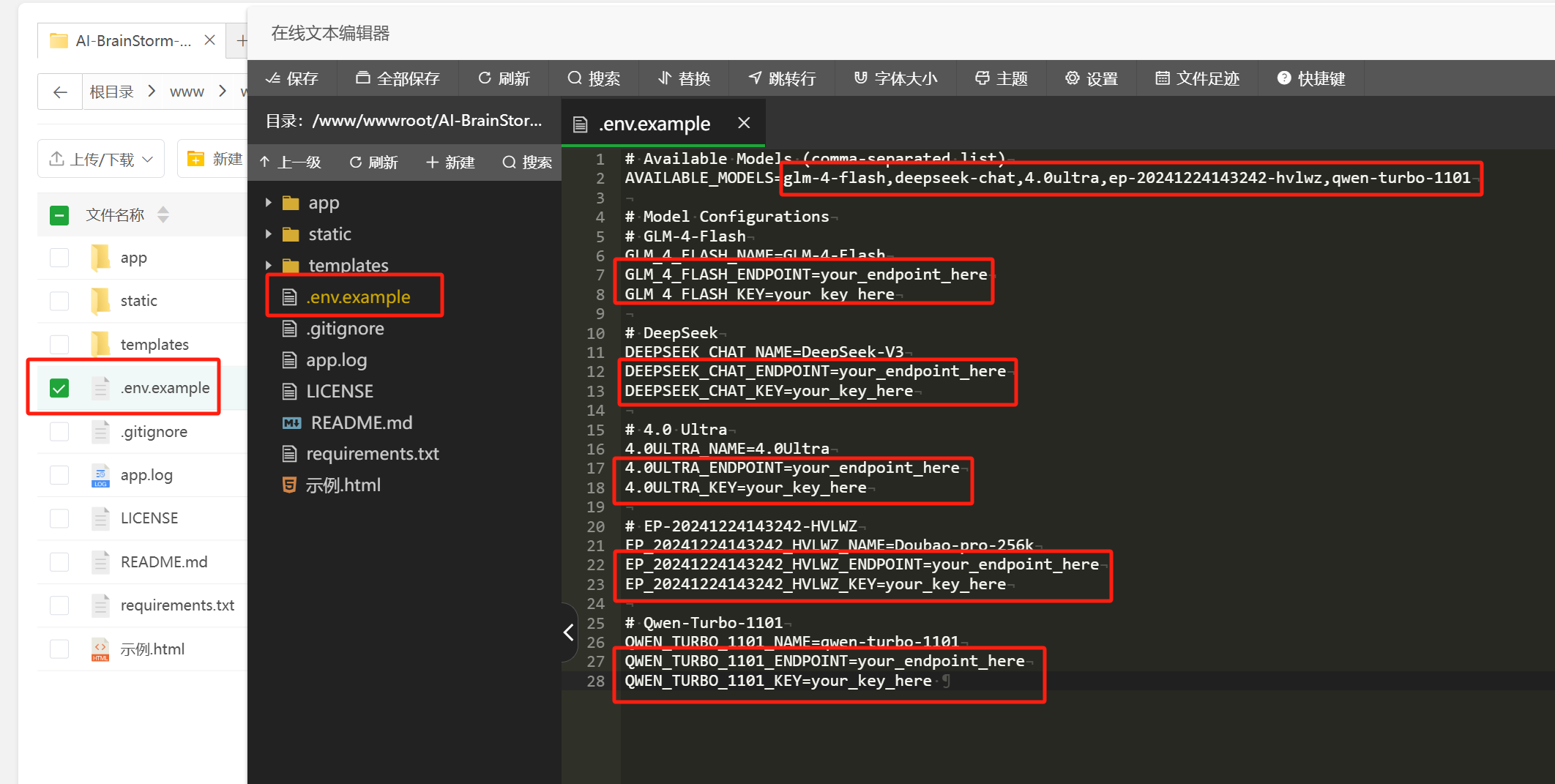
Open this folder in the file manager and modify the AI model ID, API KEY, and endpoint in the .env.example file to your own. (Platforms like Doubao, Zhipu, Tongyi, iFlytek Spark, DeepSeek, etc., all offer free credits.)
Then, rename the .env.example file to .env.
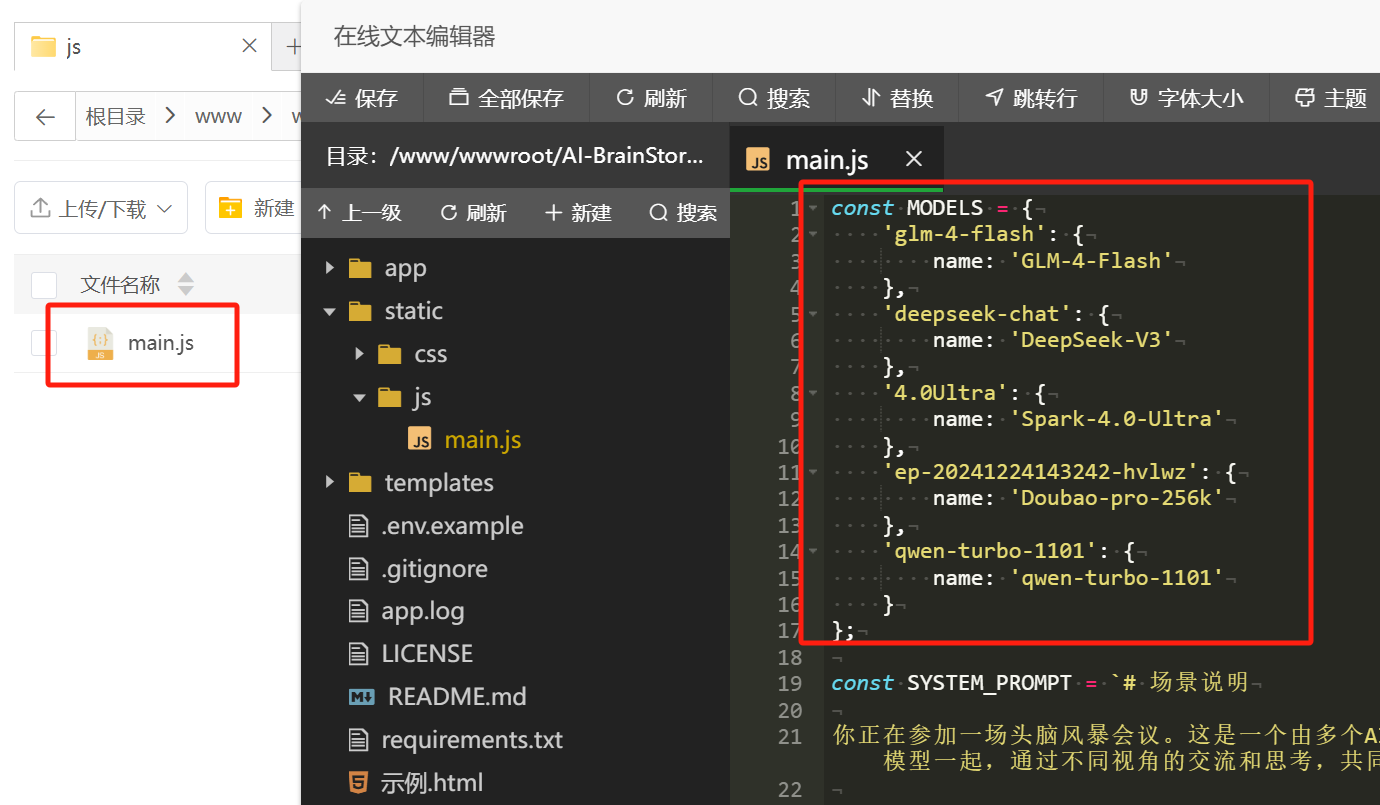
If you change the model, remember to also update the main.js file in the /static/js/ folder at the beginning:
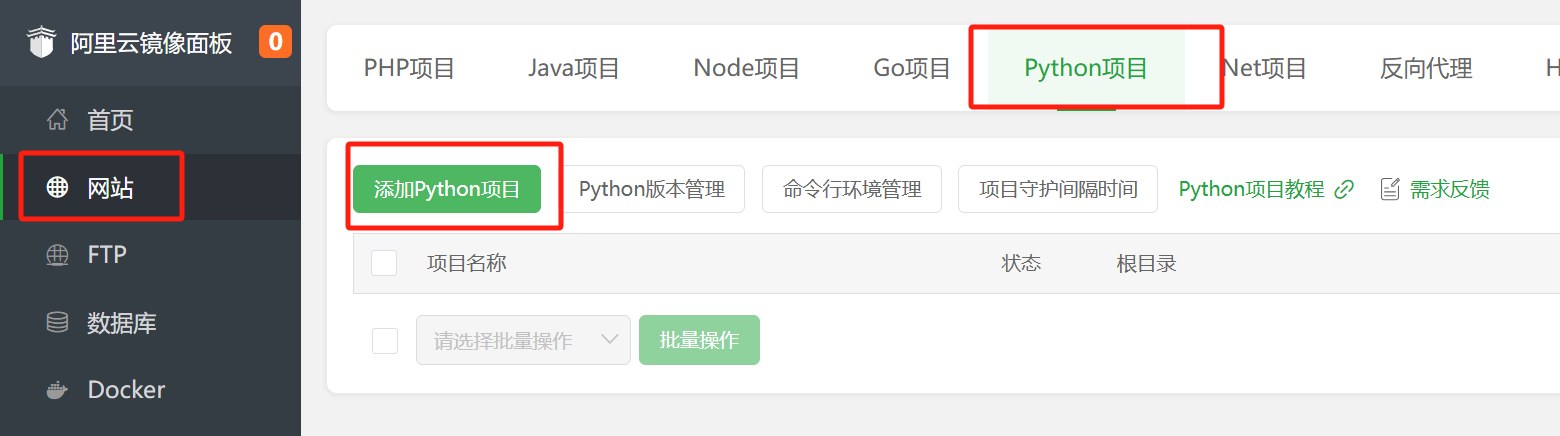
Next, find the left menu: Website—Python Project—Add Python Project.
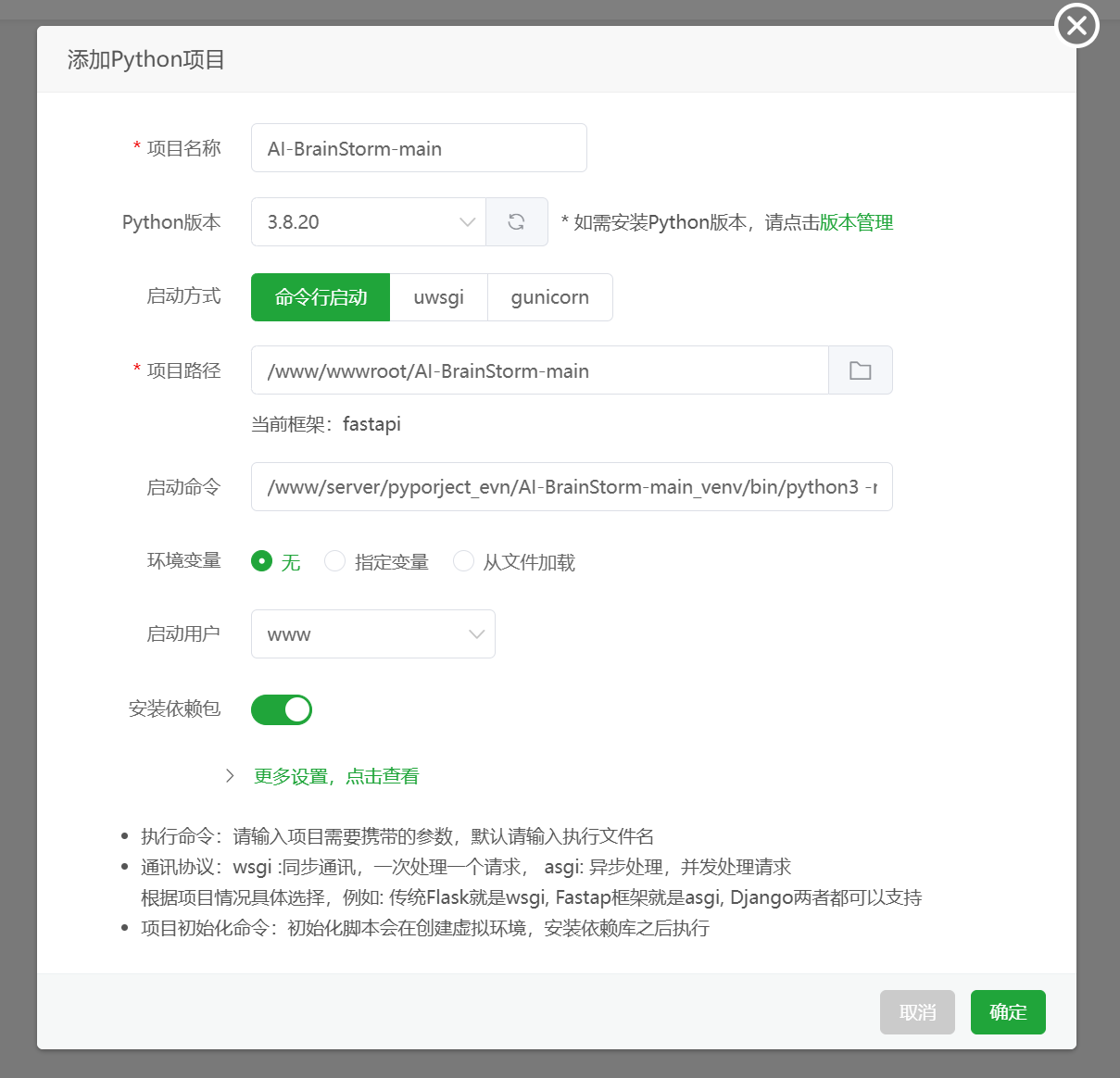
Select the folder where you uploaded the files as the project path. The project name will be filled in automatically. Choose Python version 3.8, select ‘Command Line’ as the startup method, and enter the startup command:
/www/server/pyporject_evn/AI-BrainStorm-main_venv/bin/python3 -m uvicorn app.main:app –host 0.0.0.0 –port 8000
(Remember to open port 8000 in the firewall.)
No environment variables are needed. Set the startup user to www and install dependencies.
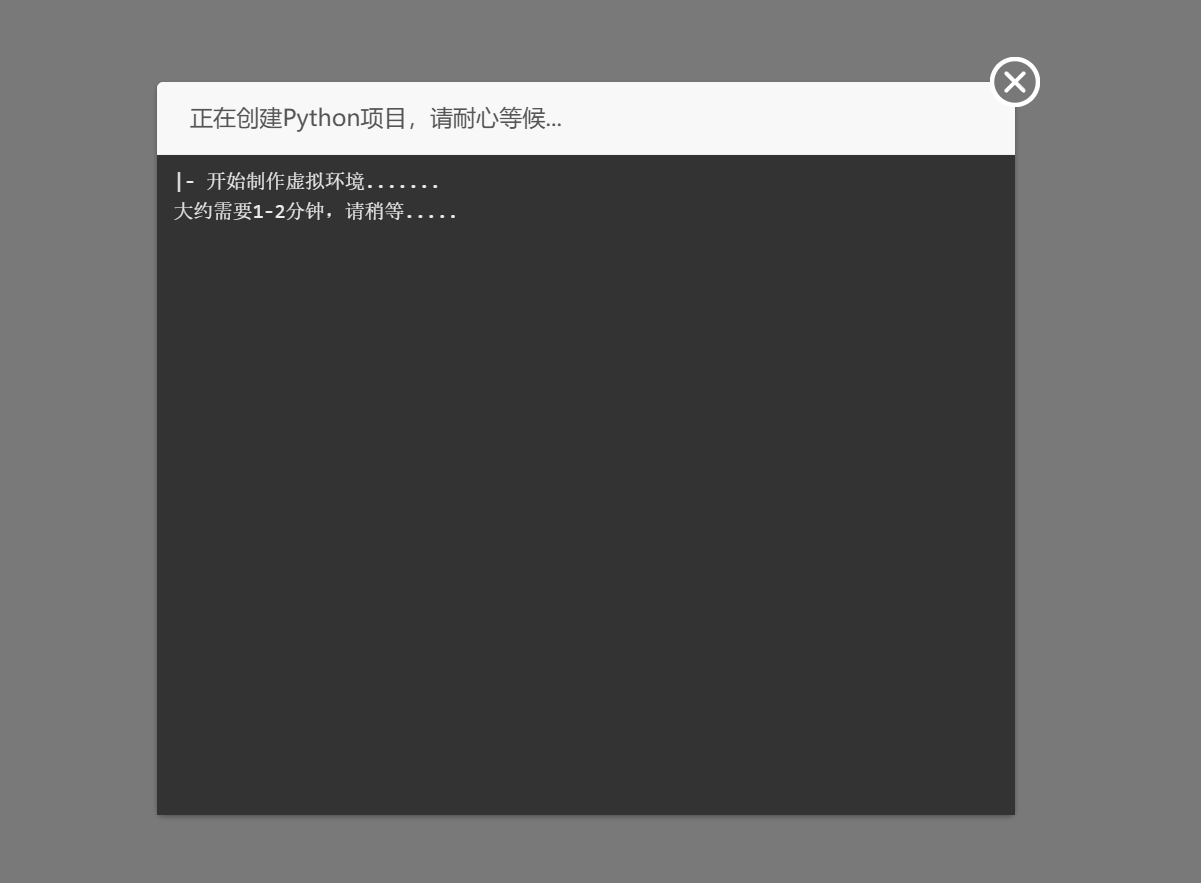
Then, wait for a while. BaoTa will automatically create a virtual environment and install dependencies.
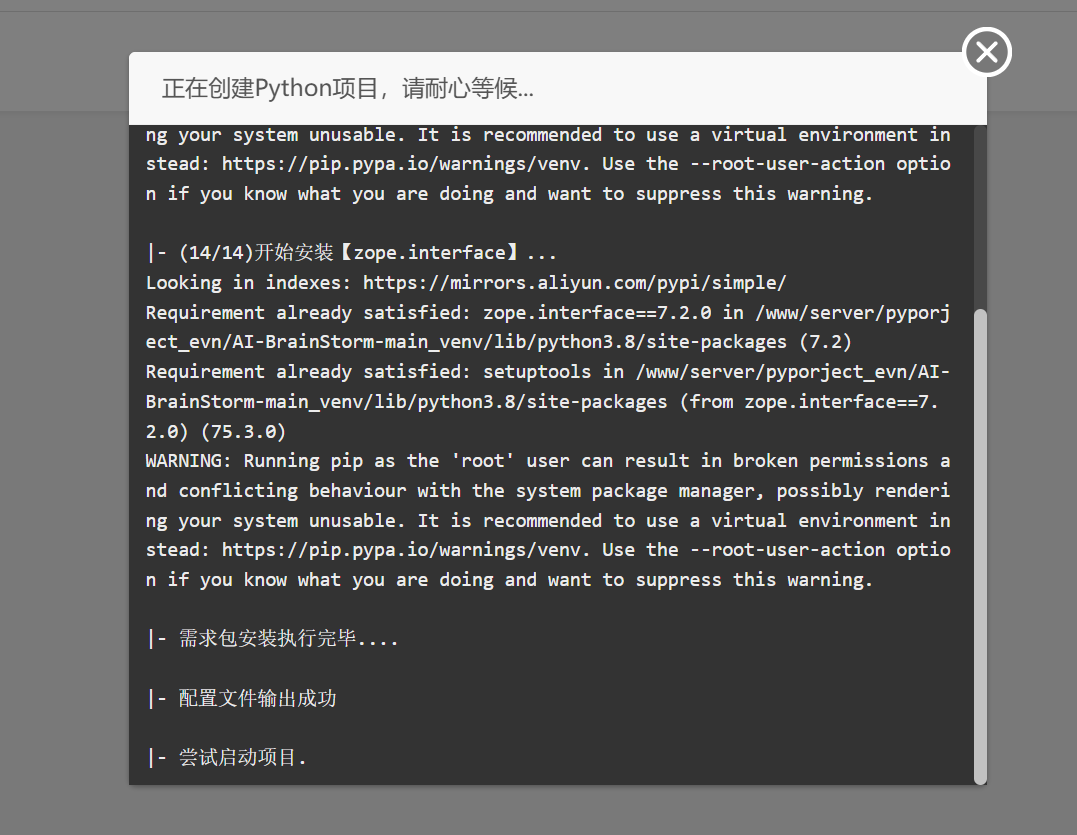
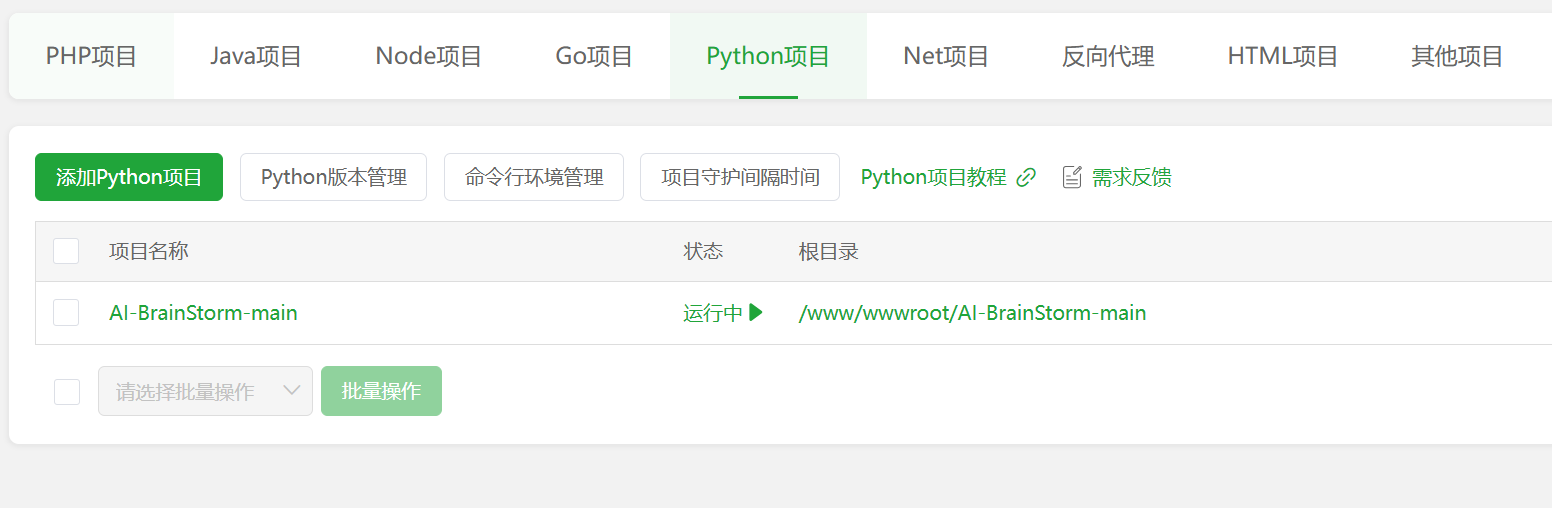
After completion, the project status will automatically change to ‘Running’ (if not, start it manually).
Finally, enter http://your_server_ip:8000/ in the browser address bar to open the AI Brainstorm page. (If it doesn’t open, it’s likely because the firewall hasn’t allowed port 8000.)
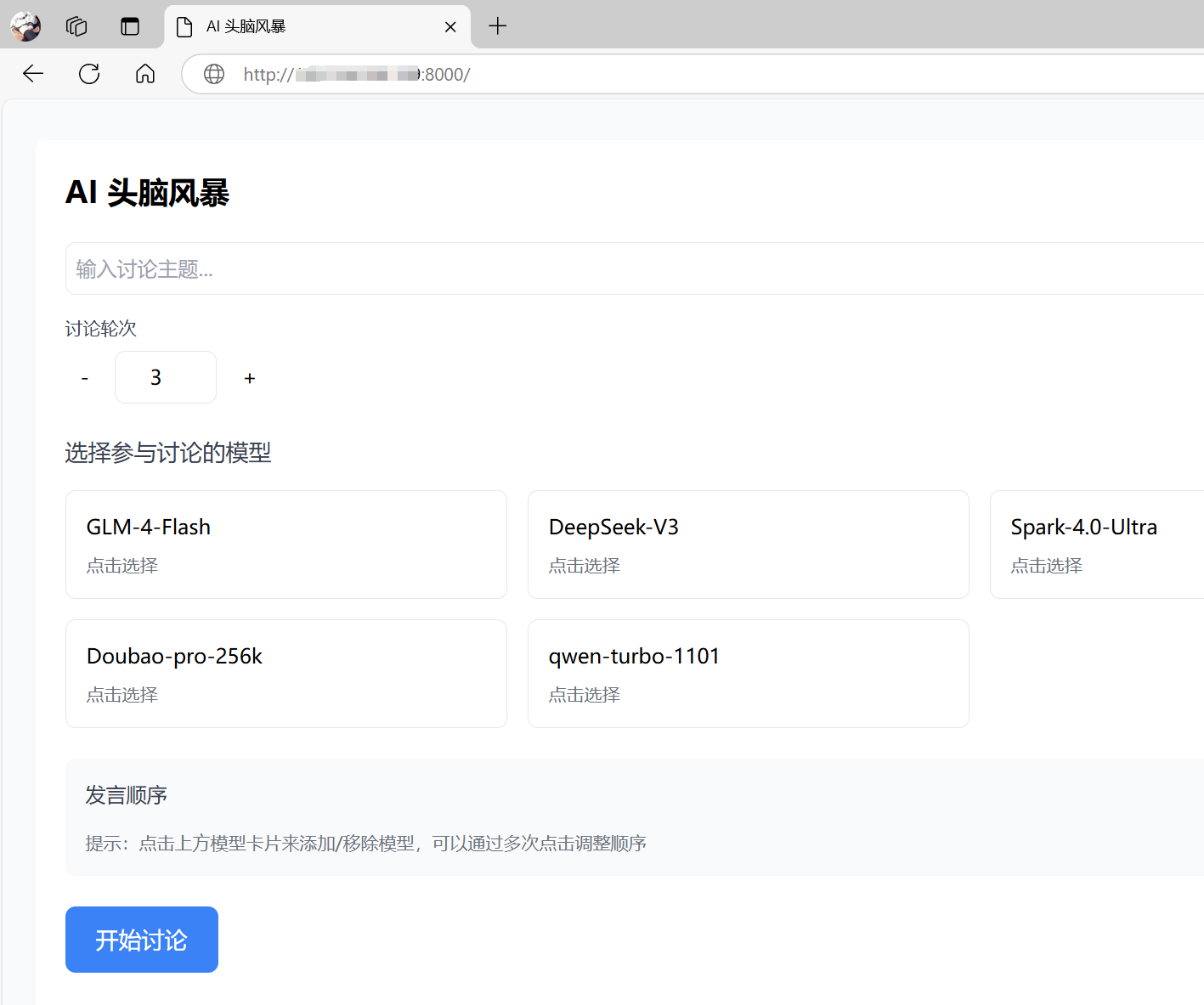
Now it’s ready to use normally.