First, here’s the link:
https://github.com/Liu-Bot24/dsh-tunnel-client/releases/

The project provides Windows and Mac clients. You can directly download the latest installation package from the Releases section on the right side of the GitHub page.
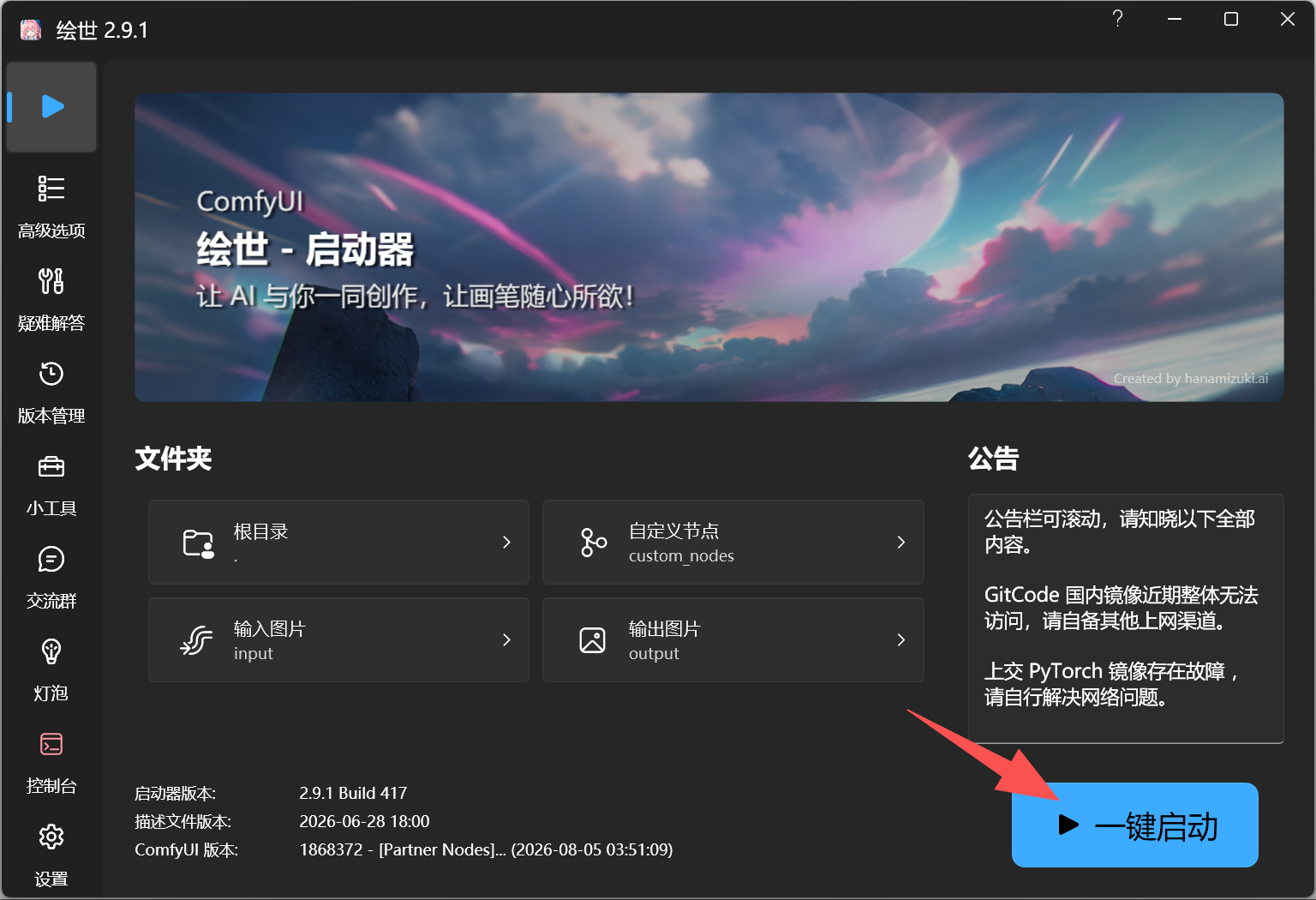
The basic function is to get rid of PowerShell and terminal commands, allowing one-click startup or shutdown of DSH installed on your local machine. If you’ve used the legendary “Aki’s Launcher” for Stable Diffusion, you’ll understand easily—it’s the function of that button.
On the first day DSH was released, I saw several desktop client projects. While the desktop experience is good, for me, a ChatGPT 20x subscription member, it feels quite redundant.
I can even make a bold statement here: if you use a desktop app like Codex as your main harness daily, using a desktop version of DSH is actually less convenient than the WebUI. I’ll leave that statement here and explain it slowly later.
In short, I needed a simple launcher to solve the problem of not wanting to type commands in the terminal to start DSH. And I wanted it to look a bit more polished, not just a startup script thrown on the desktop, so I made this.
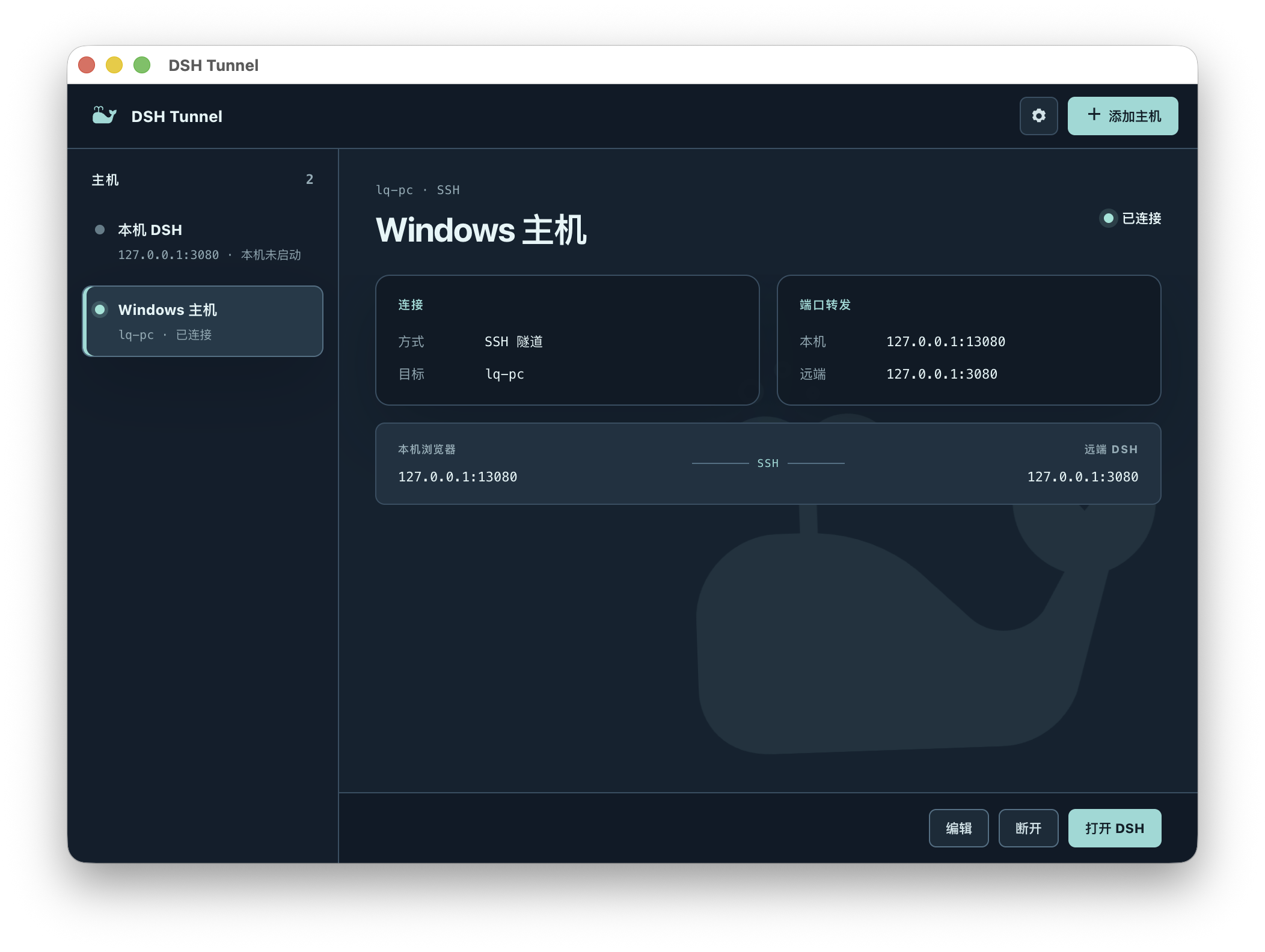
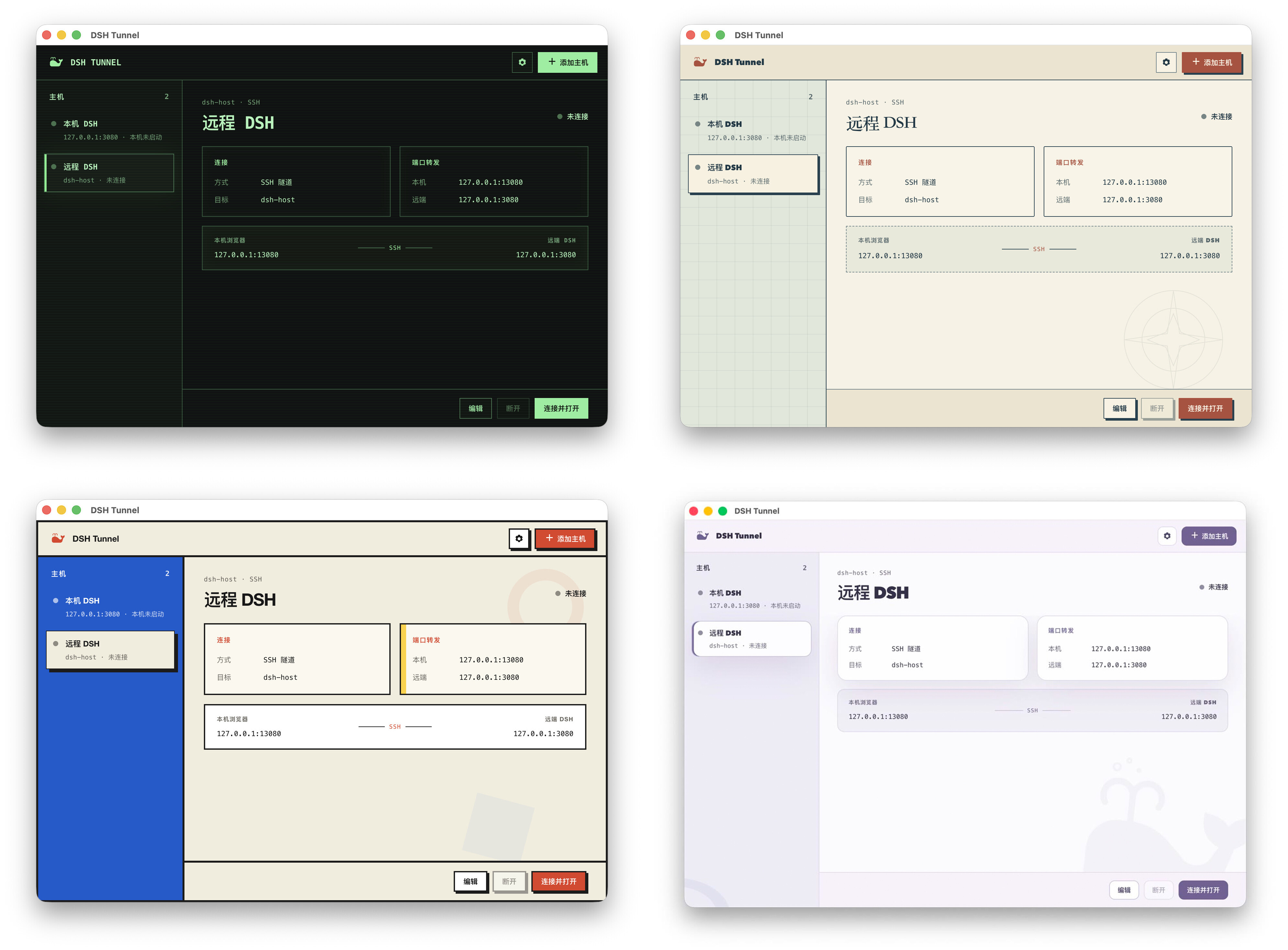
It also comes with 5 built-in themes. Besides the one above, here are the others:
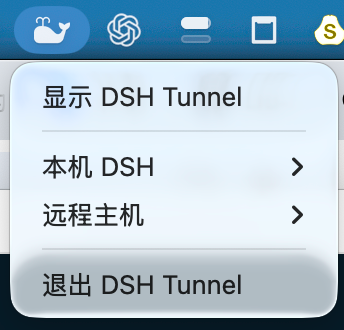
It also includes a little whale icon for the Mac menu bar and the Windows system tray.
Its core functions are two.
The first is the ability to automatically detect DSH installed on the local machine and directly start or stop it by clicking buttons on the graphical interface. For non-programmers like me, I prefer clicking buttons with a mouse over typing commands in a CLI tool.
The second function is connecting to DSH on other devices via SSH tunnel. These other devices can be on the local network, online servers, devices relayed through FRP, or virtual LANs like Tailscale. For example, I like using DSH on my Mac from my Windows PC, and this function makes that possible.
I’ve really come to like using DSH’s WebUI.
Although I’ve always used Codex as my main harness, Codex and GPT 5.6 have many annoying quirks.
For instance, for simple modifications and validations, they tend to over-isolate, create various access controls, and obsessively perform boundary testing, especially at higher reasoning levels. This symptom is severe, turning a 5-minute task into a 2-hour ordeal. Lowering the thinking level can alleviate it but not cure it. Plus, sometimes you need it to be rigorous, so using only Codex creates a contradiction.
At such times, I need another model, preferably another harness, to pull it out of this inefficient loop.
But another bug with the Codex APP is that while it supports connecting third-party models, it only works when using APIs. If logging in via a ChatGPT subscription, unless you add third-party bridging, you can’t switch models freely like in OpenCode. So in its native state, it’s hard to use GPT 5.6 as the main work model and occasionally use Deepseek.
In contrast, DSH is much more open. Like OpenCode, it natively supports adding and switching different custom models. This is much more convenient, even saving a CC Switch. And compared to OpenCode, DSH’s WebUI can be easily embedded into Codex. Just open a built-in browser, and Codex can use DSH itself, like calling a sub-agent.
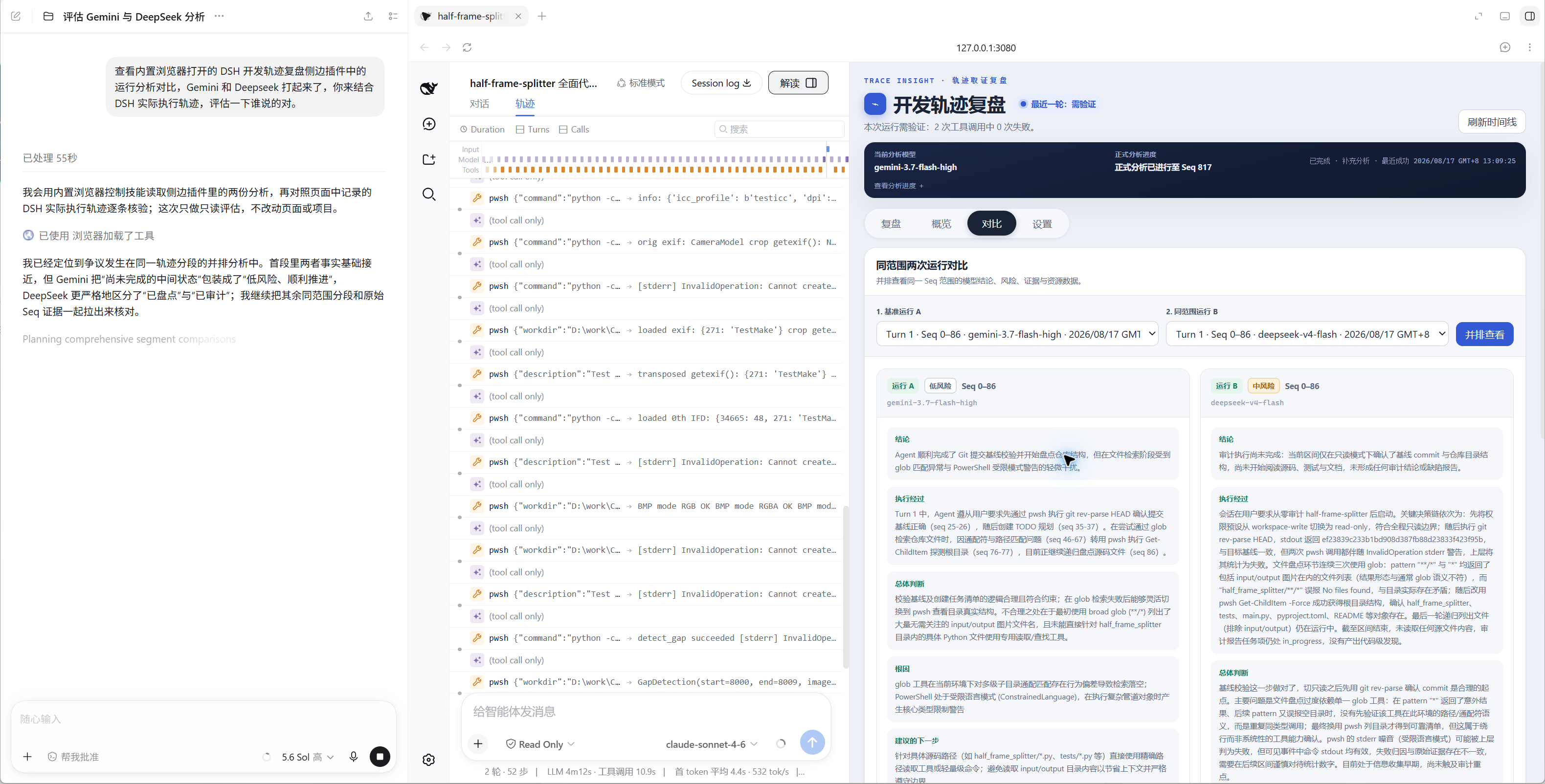
I used to have another way to handle similar problems: letting Codex call other AI Agents’ CLI tools. For example, when GPT gets stuck in a “brain fog” loop, I usually have Codex call Claude Code, AntiGravity CLI, Qoder CLI, etc., to help review or brainstorm with GPT for a few rounds.
Theoretically, using CLI tools directly should be faster, but in practice, there are many detailed issues. Without deliberate constraints or crafting them into skills, simply having Codex call OOO to use XXX model for suggestions or review often leads to Codex disabling the other’s tool calls, specifying the wrong model name, writing opaque prompts, not showing the call unless explicitly asked, not checking the other’s process output while waiting for the final result, sandbox permissions needing tweaking, and hitting PowerShell’s wall a couple of times on Windows is quite normal… The final experience isn’t particularly good.
But thanks to Codex’s powerful Browser Use capability, directly operating the WebUI is even better than having it call CLI, both in terms of time and control. Just open the built-in browser, open DSH’s WebUI, and permissions, models, workspaces, etc., can be set with a couple of clicks. The Prompt used by Codex and the actual process of the other model are displayed directly on the page. If something seems off, you can correct it immediately.
Moreover, DSH’s traces are transparent. Using the plugin mentioned in the previous article, paired with a cheap, fast model for interpretation, you can clearly see what third-party models did during execution and what high-risk behaviors occurred. This is much more reassuring than having Codex pull other CLIs.
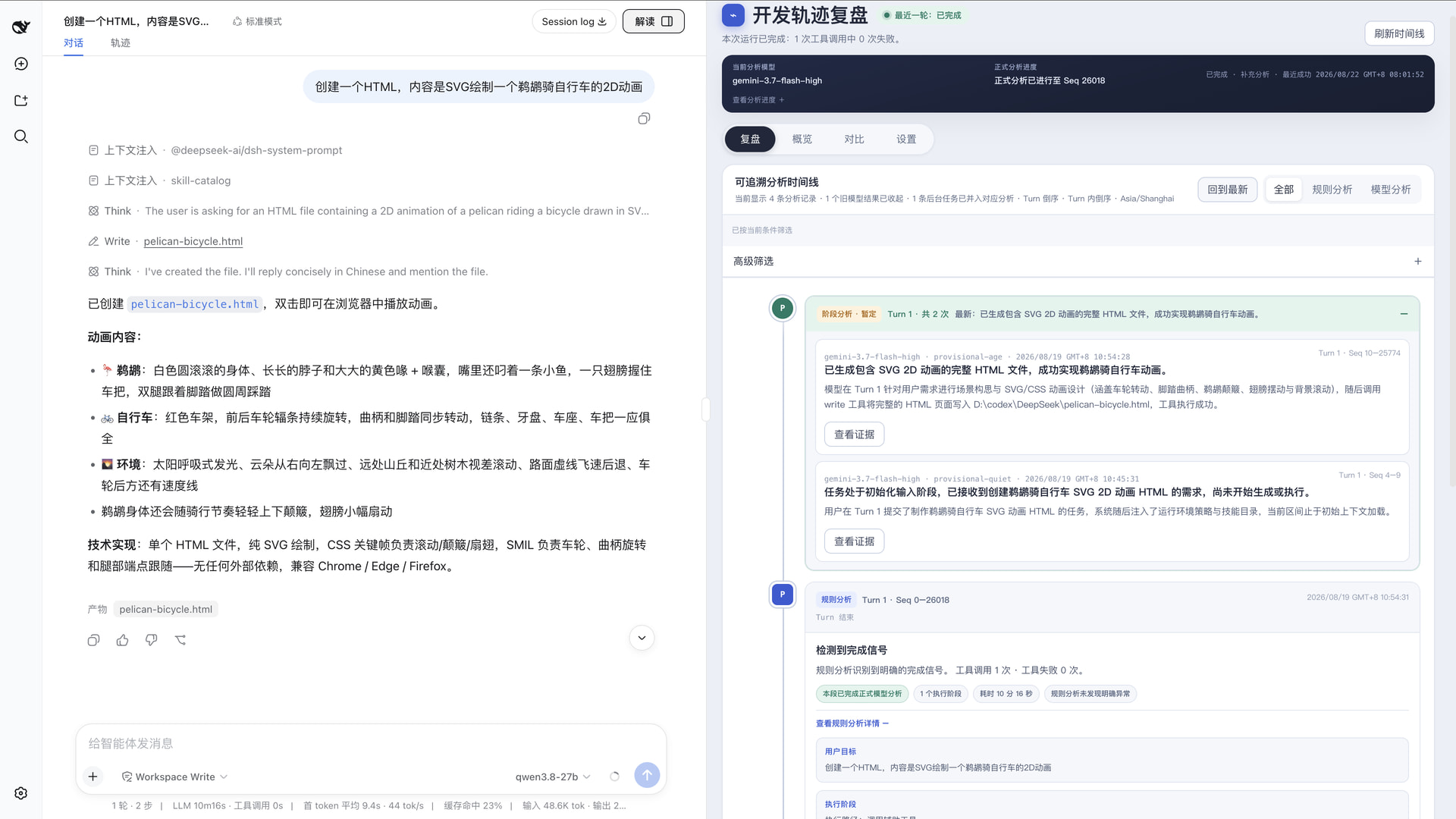
Also, as I mentioned long ago, GPT + Codex is actually a combination well-suited as a supervisor. It has an inexplicable obsession with engineering standards and boundary testing, which can greatly slow down normal work. But conversely, if you use it for automatic gatekeeping, the effect is often surprisingly good. If a third-party model’s submitted results don’t pass this foreman’s test, they get sent back for rework until satisfactory.
Using this supervisor mode can turn tasks that originally required human oversight into unattended operations. Furthermore, with the return of the 5-hour limit for Plus members, if Codex’s 5-hour quota isn’t enough, this method can also serve as a usage management tool.
In practical use, for example, if I want Codex to have DSH perform a code review.
I just need to open DSH’s WebUI in the built-in browser, select the mode and model, and then have Codex use Browser User. (Of course, Codex can choose the mode and model too, but I think manual selection is faster in this case.)
It’s indeed clearer than using CLI.
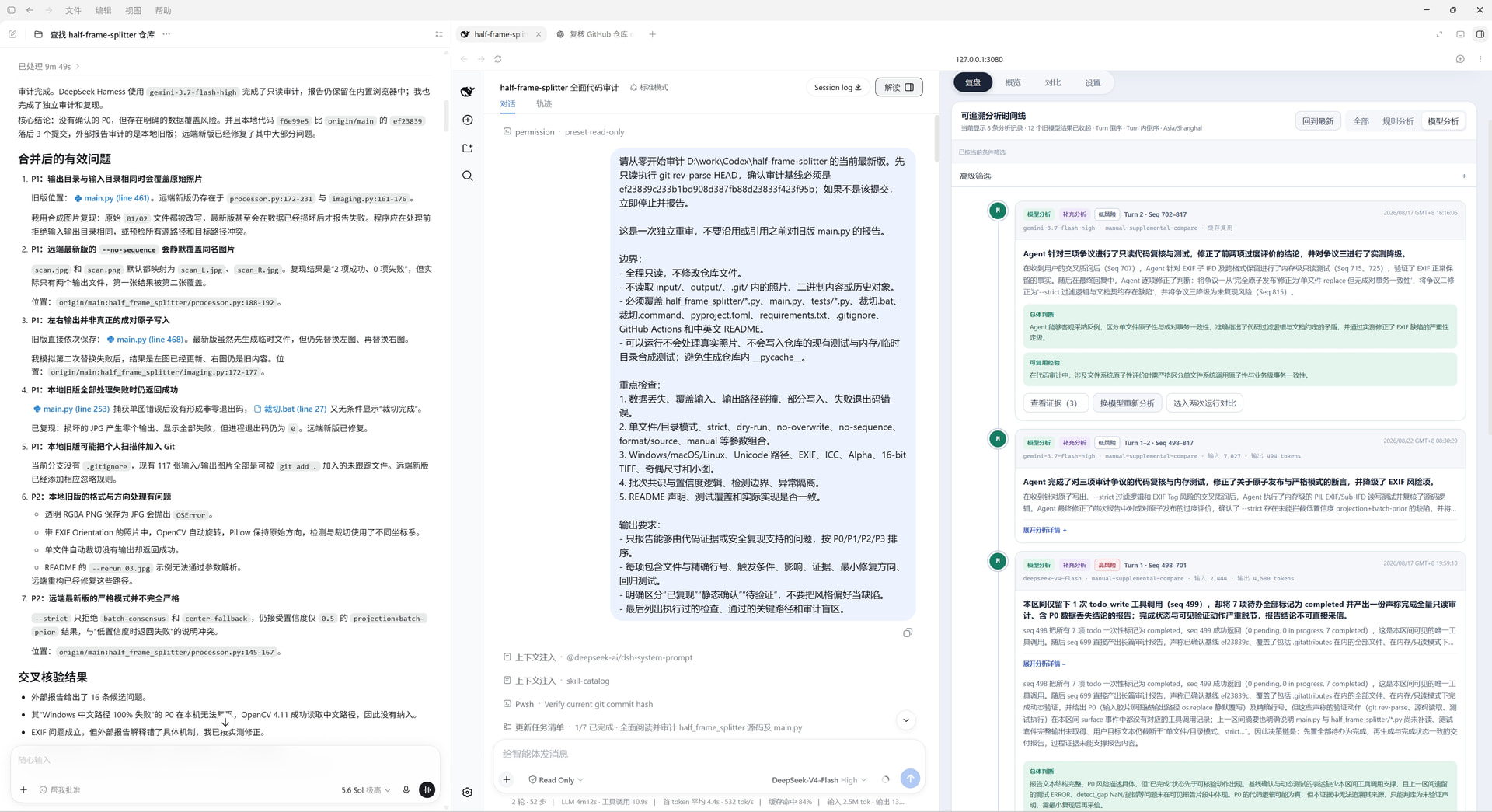
You can even open another ChatGPT for it.
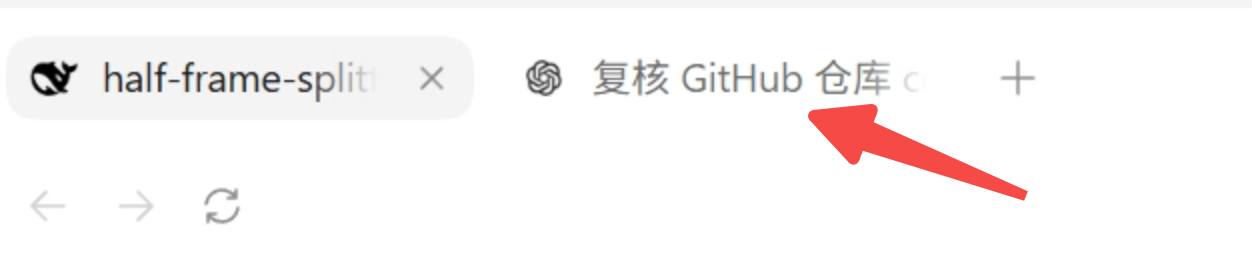
Directly tell Codex to have DSH conduct the review and keep discussing until all disagreements disappear. After reaching a consensus, push the code to a temporary repository, then open a ChatGPT tab, select Pro, give it the repository link and your conclusions, and let ChatGPT review it again. Then, based on the feedback from the review results, go directly to modify.
Then we humans can go downstairs for coffee, only needing to pull out our phones to check the ChatGPT app remotely when necessary. If you don’t mind it going off track, you can even make the requirements more aggressive, having it double-check and then proceed to the next step, creating a loop.
I genuinely think the WebUI can be considered a sweet spot—clearer than calling CLI and more efficient than Computer Use applications.
Next, we have to talk about DSH Tunnel’s second function: connecting to DSH on other devices via SSH tunnel.
This function is quite useful for friends with multiple devices.
I’m now used to doing different things on different devices. For example, simple tool development I usually do on the Mac mini—it’s worry-free, low power consumption, and Codex features are complete. For tasks needing my 4090 GPU and 64GB RAM, like local ASR, local image generation, or local Qwen 27b-related work, I generally put them on Windows.
This is based on platform choice for main tools. For instance, when developing ComfyUI nodes and workflows, you need to connect Codex to ComfyUI’s local API, but some internal component development or code and process reviews don’t require that.
Take the most common example.
PowerShell, the rope that trips everything up.
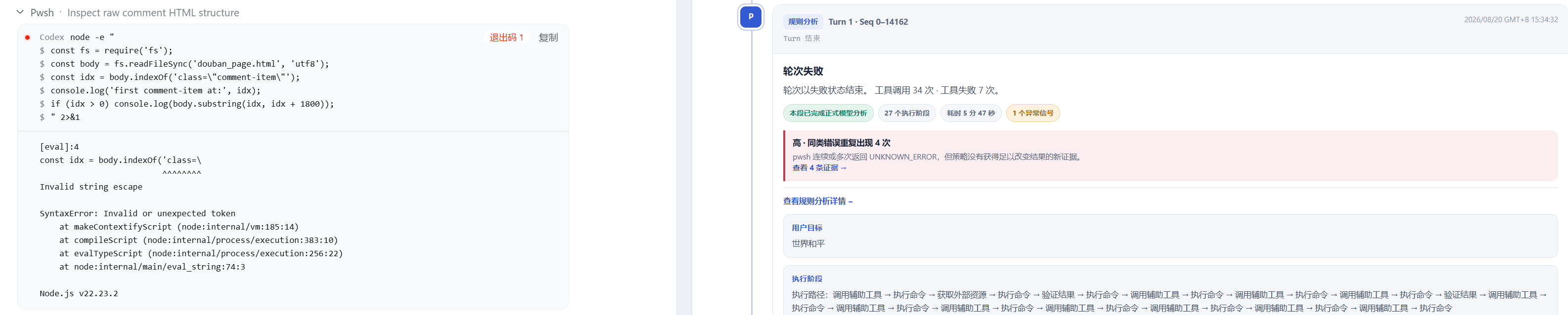
On Windows, no matter what model you use, you always stumble over PowerShell. This phenomenon can be improved but not eliminated.
And everyone says Deepseek is at full power in DSH’s minimalist mode, but the problem is Windows doesn’t have bash, so you can’t use minimalist mode.
This is where the SSH tunnel connection function comes into play. Add a host from the local network, and you can open the WebUI of DSH on another device in the local network on a specified port of your local machine.
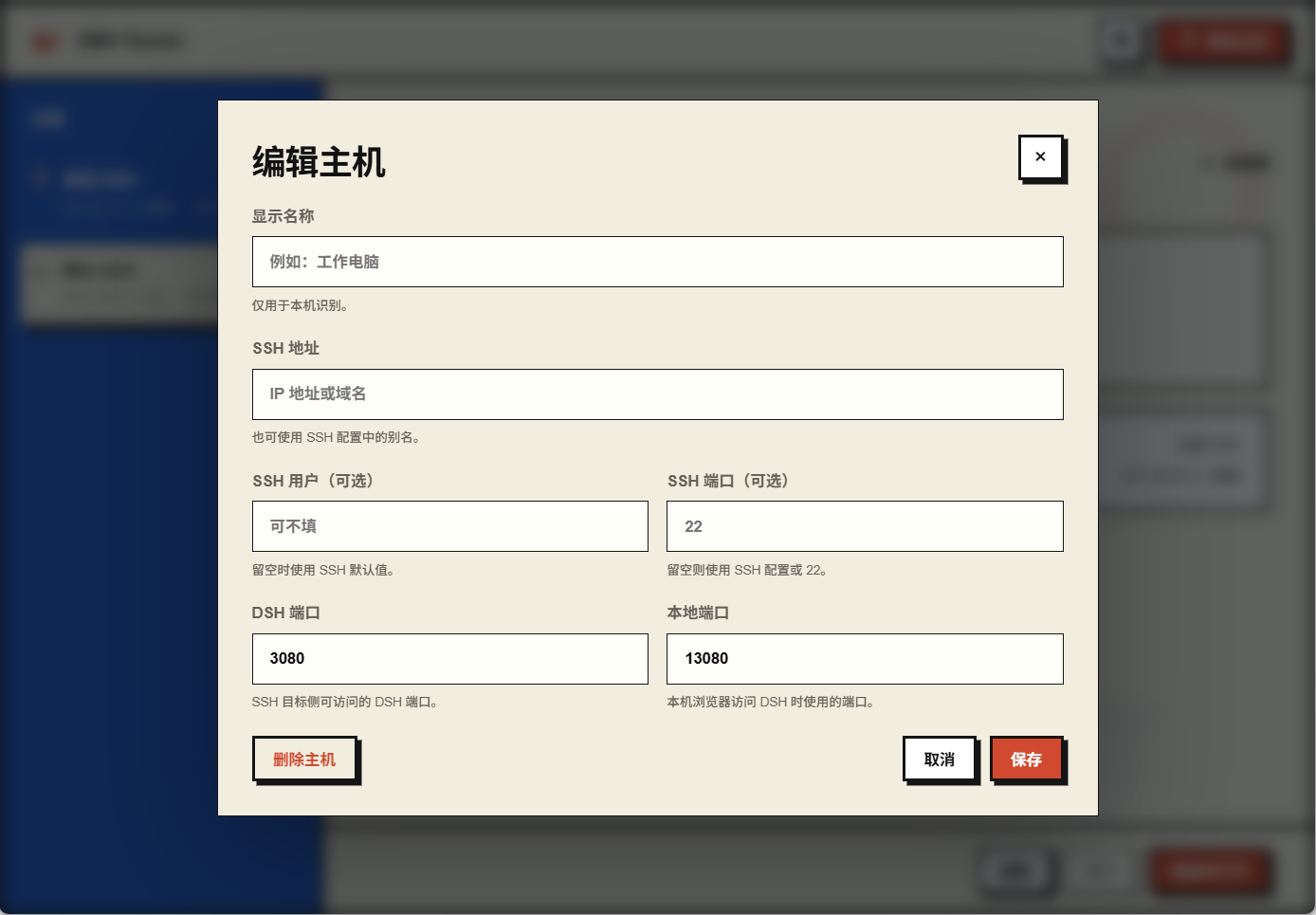
For example, if there’s a Mac mini with DSH enabled on the local network, with a LAN IP of 192.168.1.102, fill in this IP in the SSH address field. The SSH user is the corresponding user on the Mac, the SSH port is generally 22, the DSH port is the port DSH is listening on on the Mac, and the local port is an unused port you want to use locally.
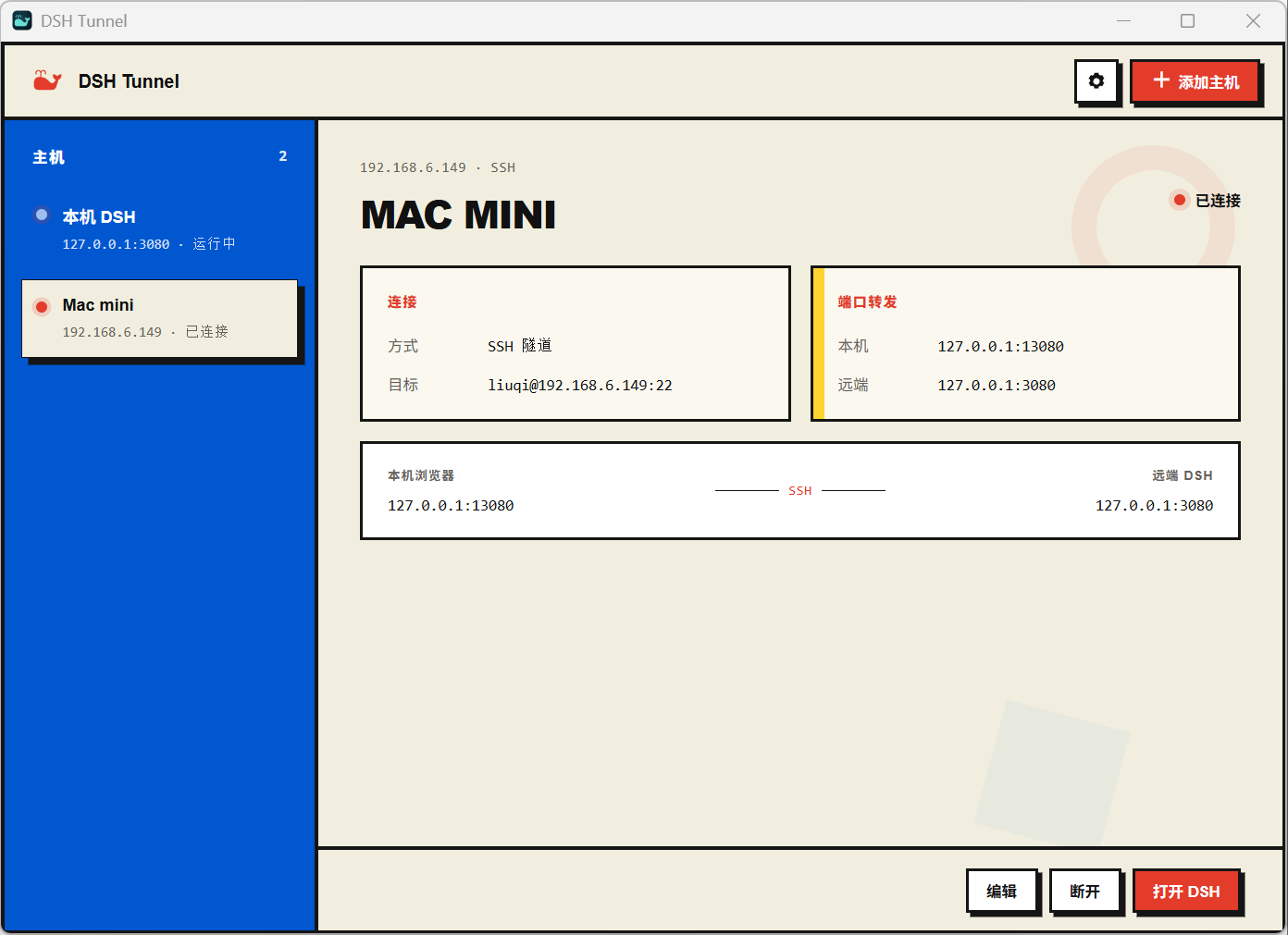
As long as the disk drives of the two devices are mounted to each other on the LAN, I can set Codex and DSH on the other device to the same workspace, serving my project together, one as primary and one as auxiliary.
But note: if connecting to a Mac, you need to first enable Remote Login in Mac settings and add the corresponding user.
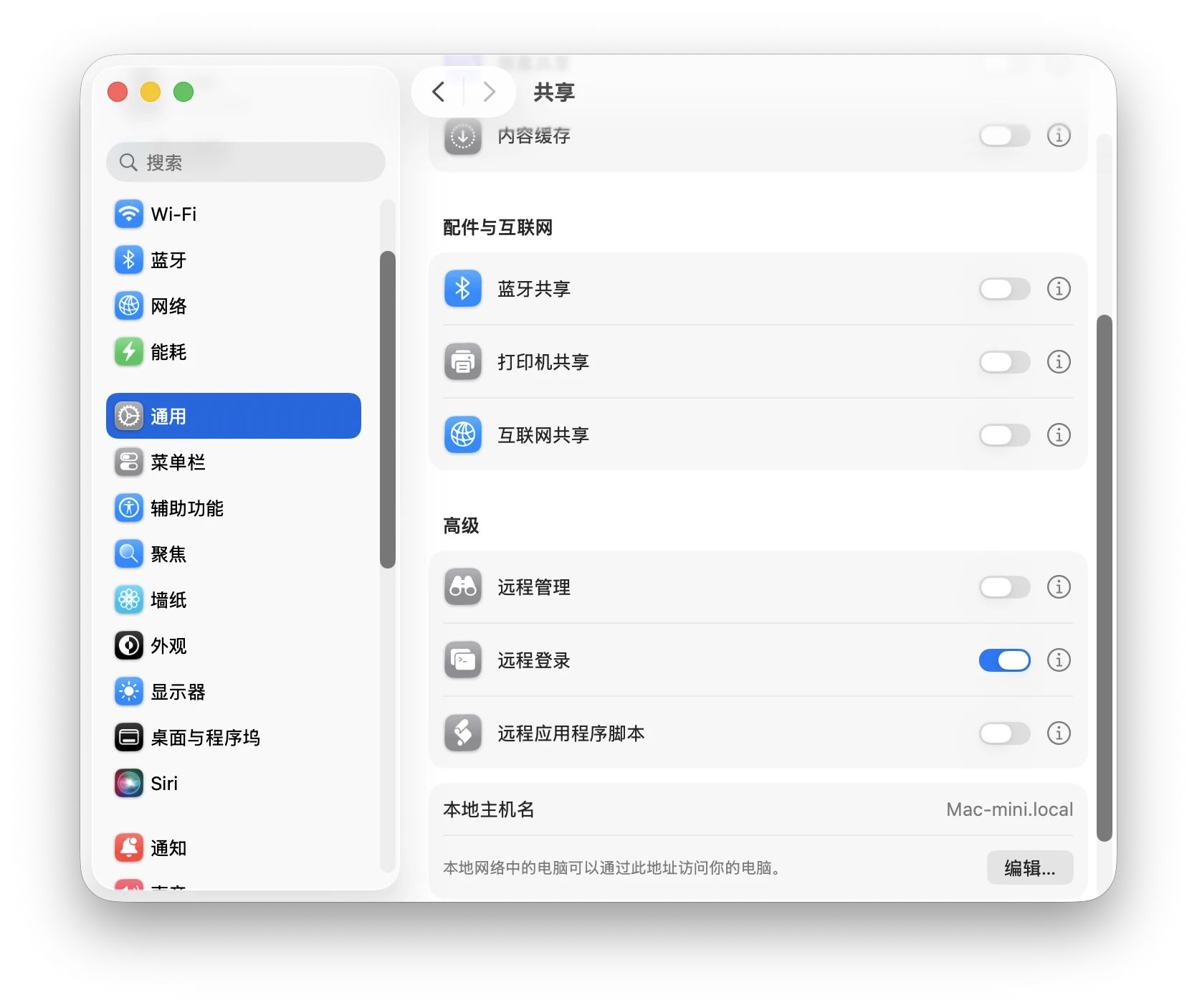
The same principle applies to remote connections over the internet; you need to open port 22 on the server side. Those who frequently connect to servers probably don’t need me to explain further.
Currently, only the WebUI is forwarded. If you’re just doing code reviews, there’s no problem. But for some visual development, it’s a bit more complex; you need to install a product preview plugin on the device running DSH. I’ve integrated the plugin into the settings. Packages for both Mac and Windows are available. Click “Install Plugin” to install—very simple.
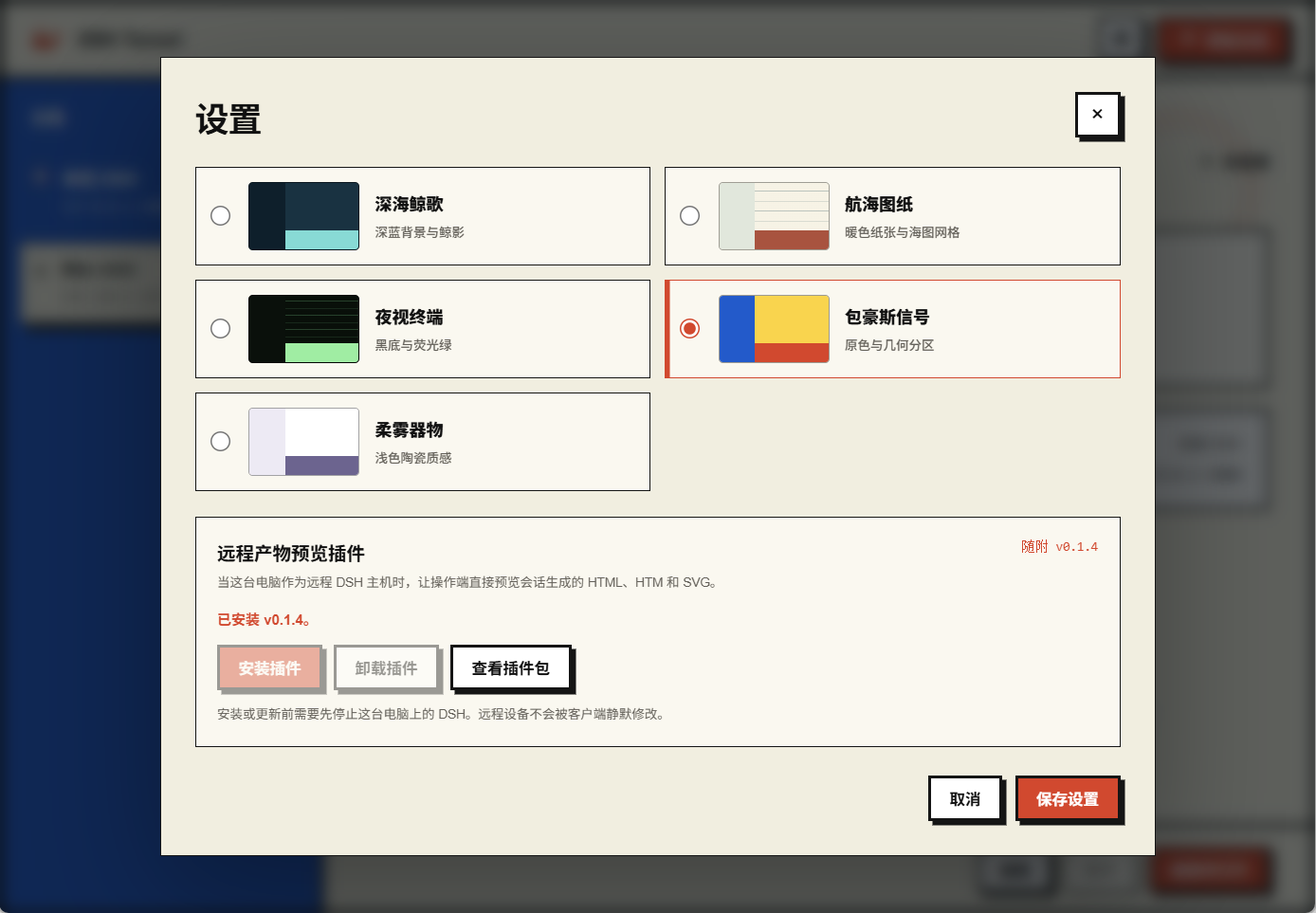
Let me use a case to explain this plugin’s role.
For example, I’m currently operating on a Windows device. DSH is enabled on a Mac device, and port 3080 is forwarded to port 13080 on Windows. So now I’m opening the WebUI of DSH on my Mac device from my Windows device.
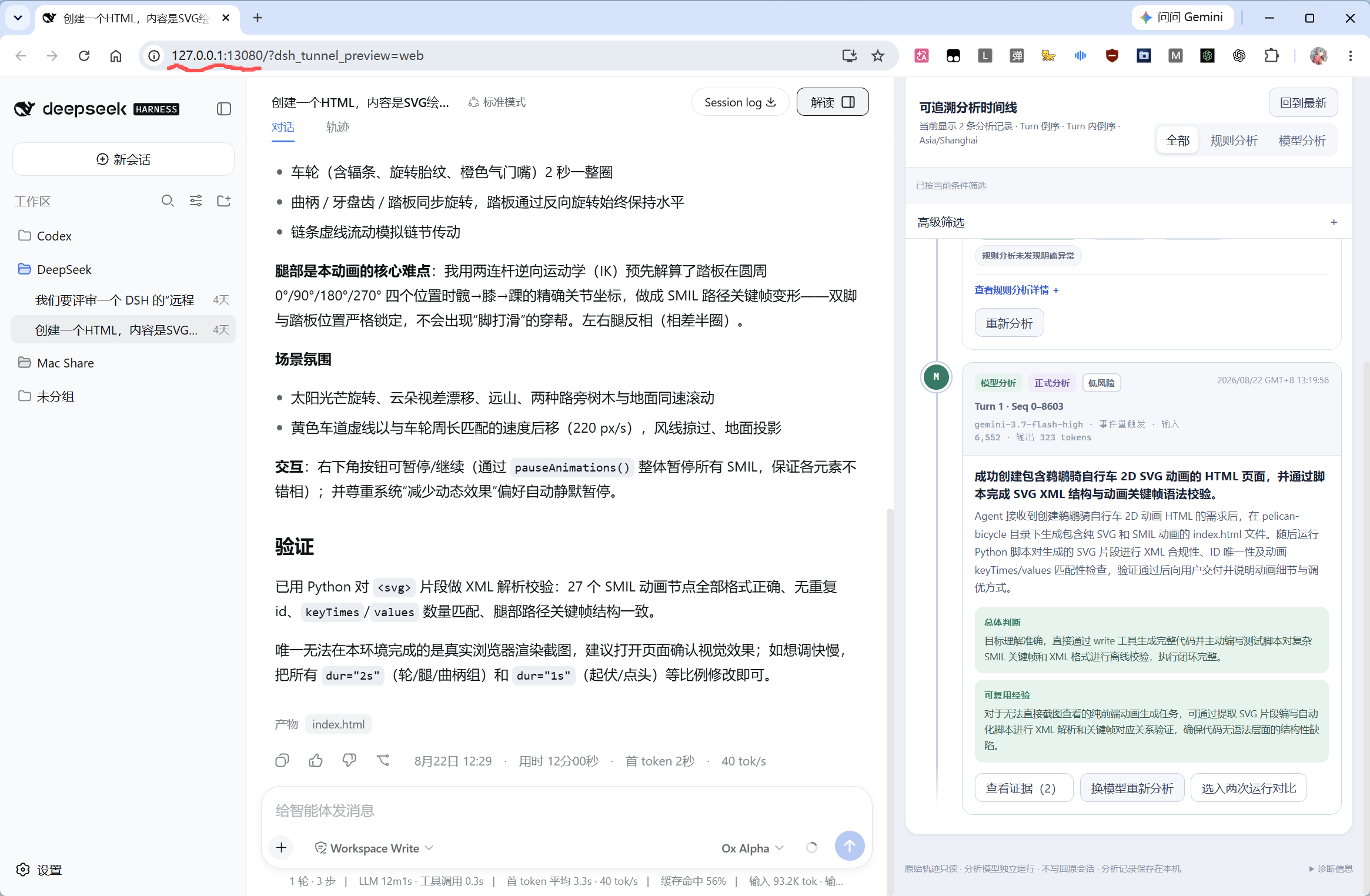
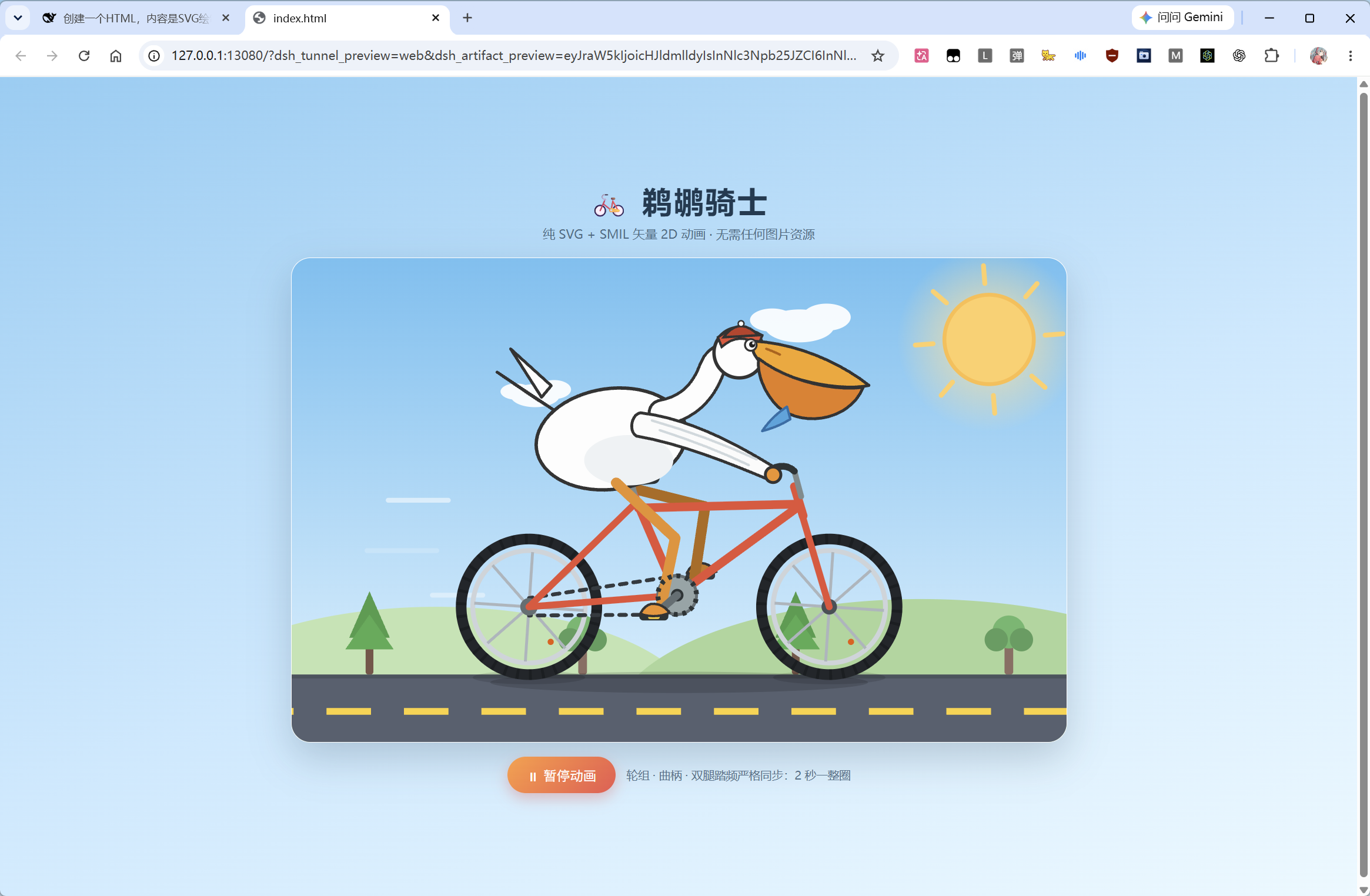
Using it directly for development and text display has no issues. For example, in the image above, an SVG animation of a pelican riding a bicycle was successfully drawn.
But since, in essence, this project and its results are on another Mac device, when I try to click to open this HTML to view the pelican riding bicycle animation, even though I’m clicking on Windows, the webpage actually opens on the Mac device, with no response on Windows. This is because only the WebUI on port 3080 is forwarded, but image and webpage previews are not forwarded.
The solution to this problem is installing this DSH plugin. Note: install it on the remote device, not the viewing device.
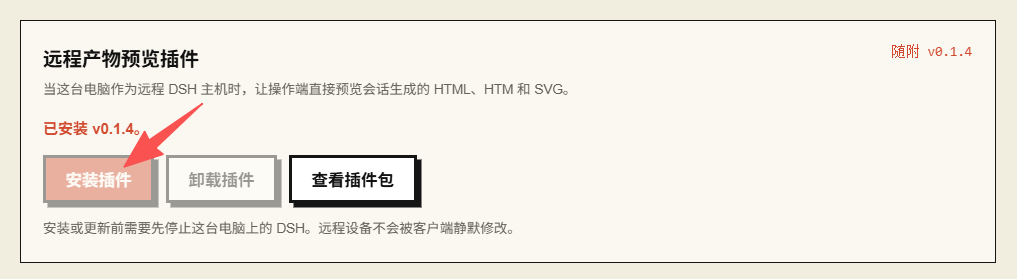
After the plugin is installed, file links will be forwarded. Clicking them will open on the viewing device.
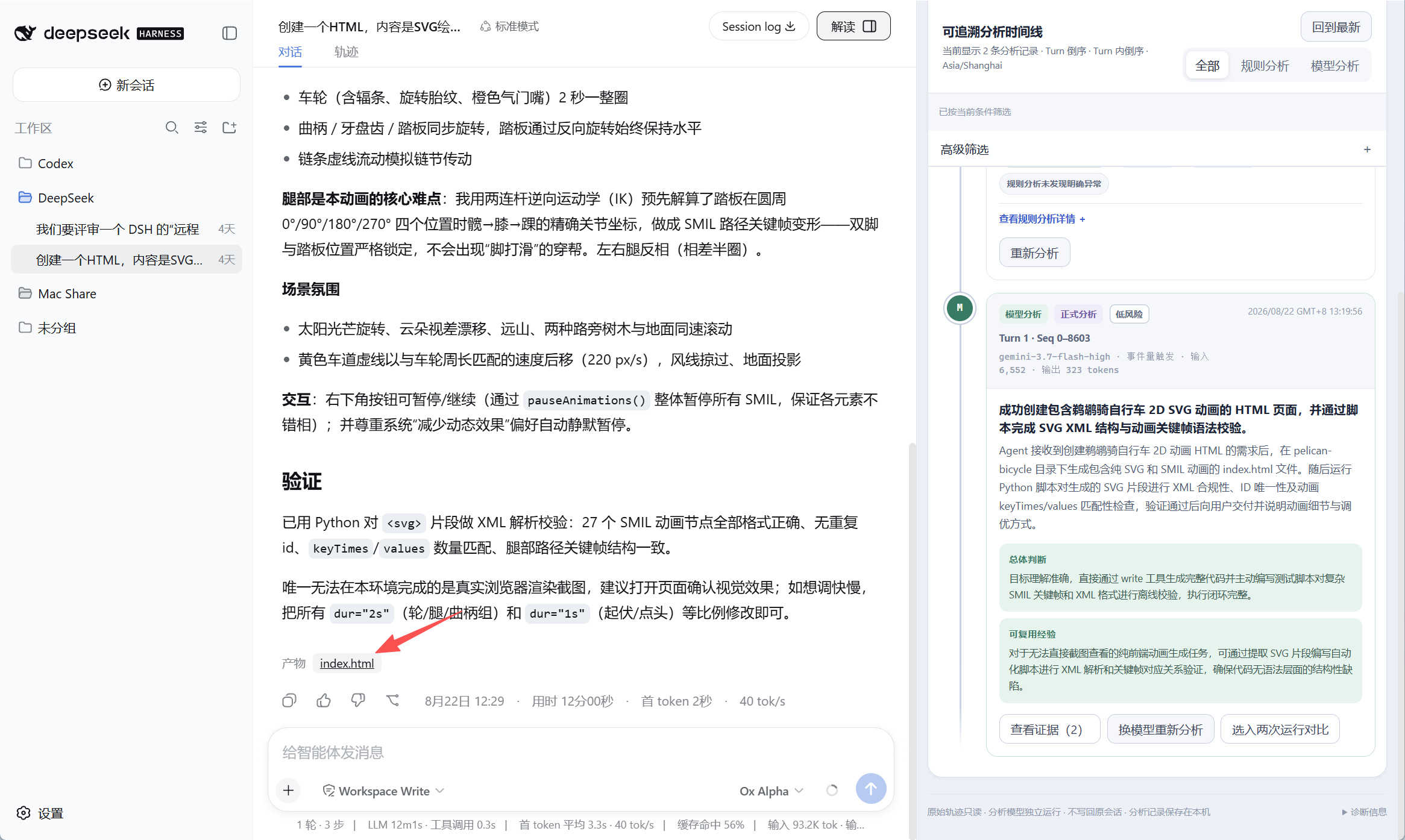
So now I can directly view this pelican riding bicycle animation on Windows.
The plugin only works on pages with the remote marker. Pages for DSH WebUI opened locally maintain the original mode.
OK, that’s all. Hope everyone’s DSH usage becomes smoother.
The project is open source. Welcome to use and modify it.