Have you ever encountered the same problem as this Tieba user?
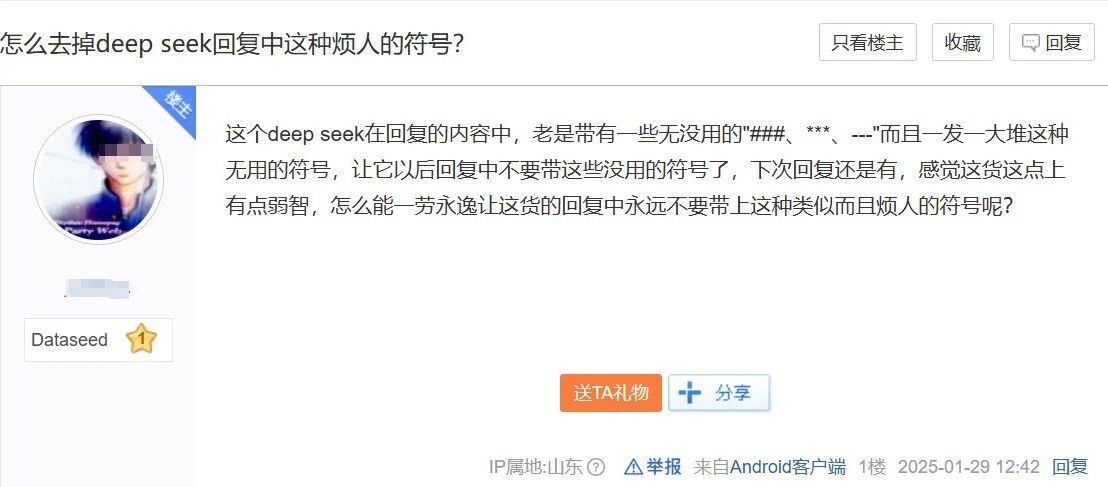
Trying to be lazy and letting AI answer questions for you, only to be laughed at for being “obviously AI”.
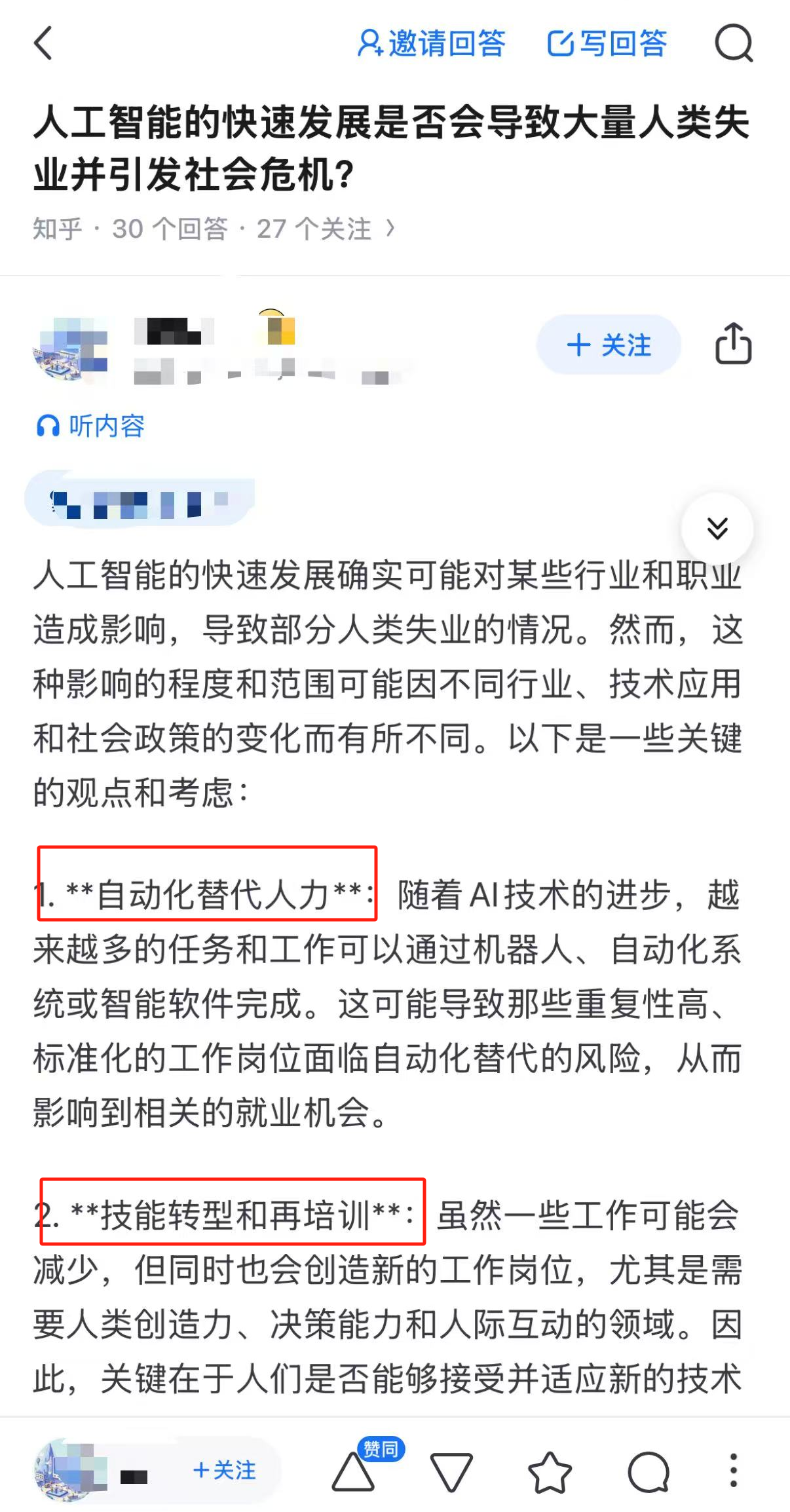
Using AI to write weekly reports and PPTs, manually deleting these symbols paragraph by paragraph, afraid of revealing flaws in front of teachers/bosses.
So, what are these things? Why does AI insert these symbols in responses? Why don’t these symbols display in the chat window but appear when copied?
Actually, these symbols are Markdown markup.
Markdown is a lightweight markup language that can be written in plain text. It can be quickly rendered by browsers, and even without rendering, it can represent the structure and format of text, with extremely simple syntax.
For example, wrapping text with two consecutive asterisks “**” represents bold. Like this:
**bold**Another example: typing a hash “#” followed by a space and then text represents a first-level heading; using two hashes “##” is a second-level heading. Like this:
# First-level heading
## Second-level heading
Another example: typing a hyphen “-” followed by a space and then text represents an unordered list. Like this:
- First item
- Second item
If using Word, you often need to frequently click toolbar buttons, which is not conducive to focusing on content creation.
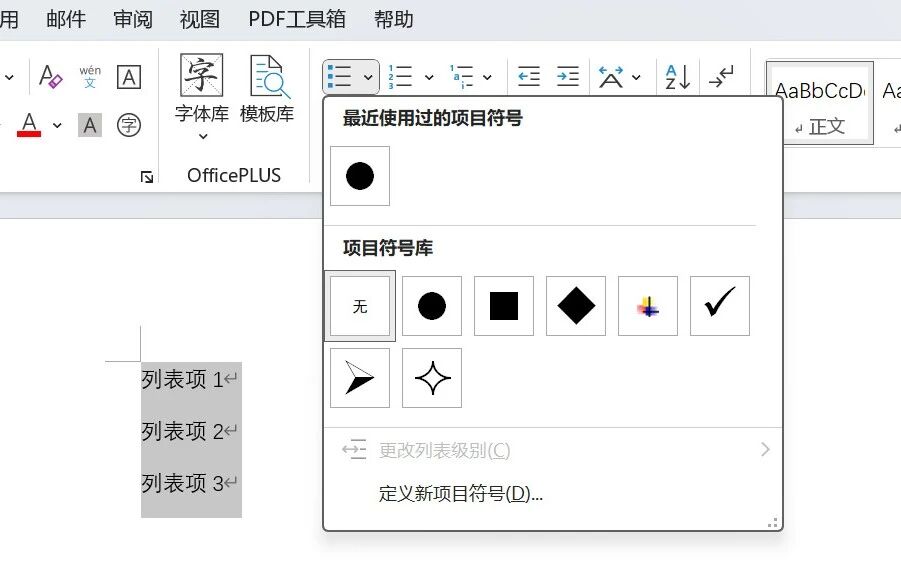
In fact, after mastering these simple syntaxes, plain text creation becomes very efficient. Many people like to use Markdown to write blogs or take notes. Projects on GitHub usually have a README.md file, which is a Markdown file. Software we commonly use like Notion, Feishu, and Obsidian also support using Markdown.
For AI, if AI wants to output a structured, highlighted, and logical response, using Markdown is also an excellent choice. It can directly add markup to its text output, which is then rendered directly by browsers, and it saves far more tokens than using HTML markup.
So, we all understand the reason.
How do we actually remove them when copying and pasting?
AI matters can be entirely solved by AI.
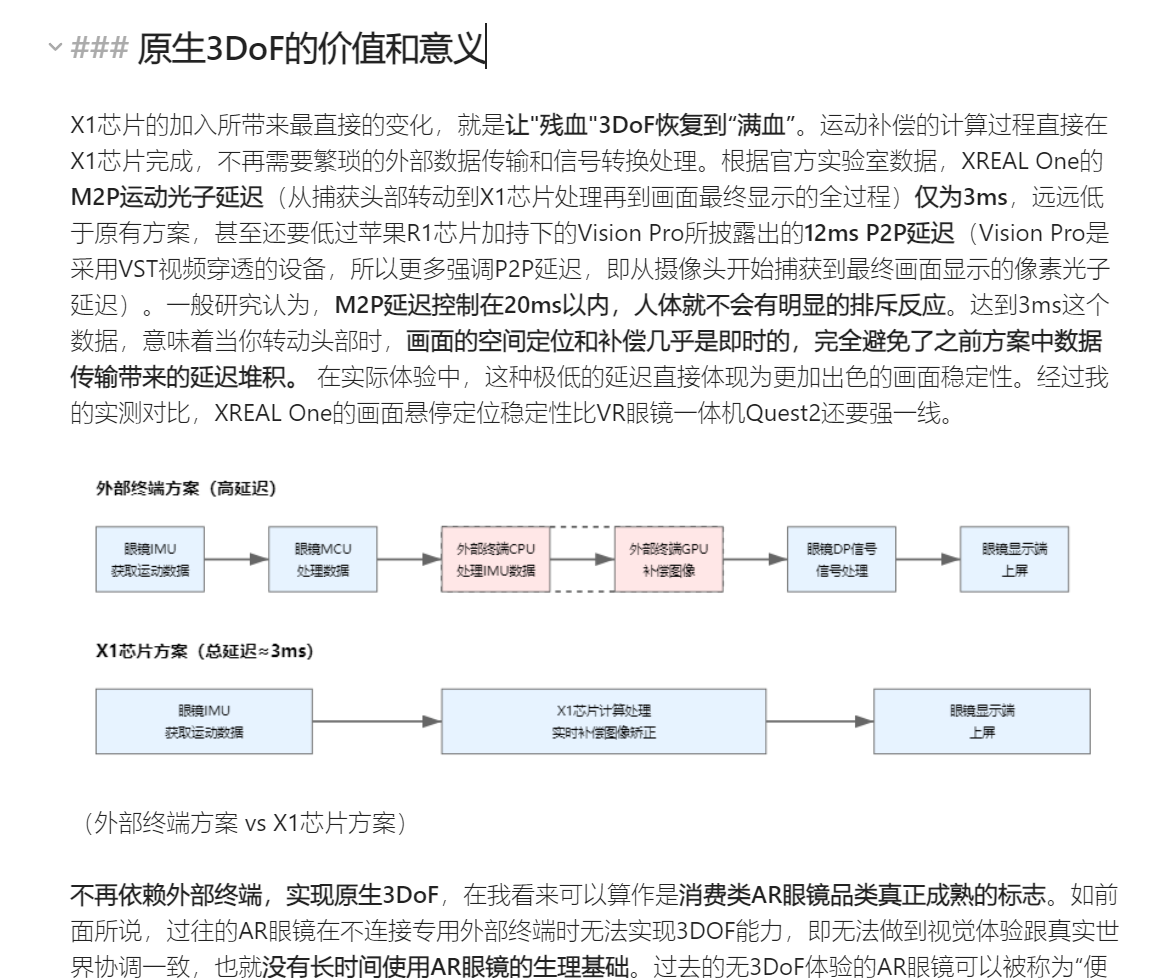
Taking a paragraph from my previous review article for an AR glasses as an example, this article was completed using Markdown in Obsidian:
Method 1:
Send it directly to AI and tell it to remove the Markdown markup.
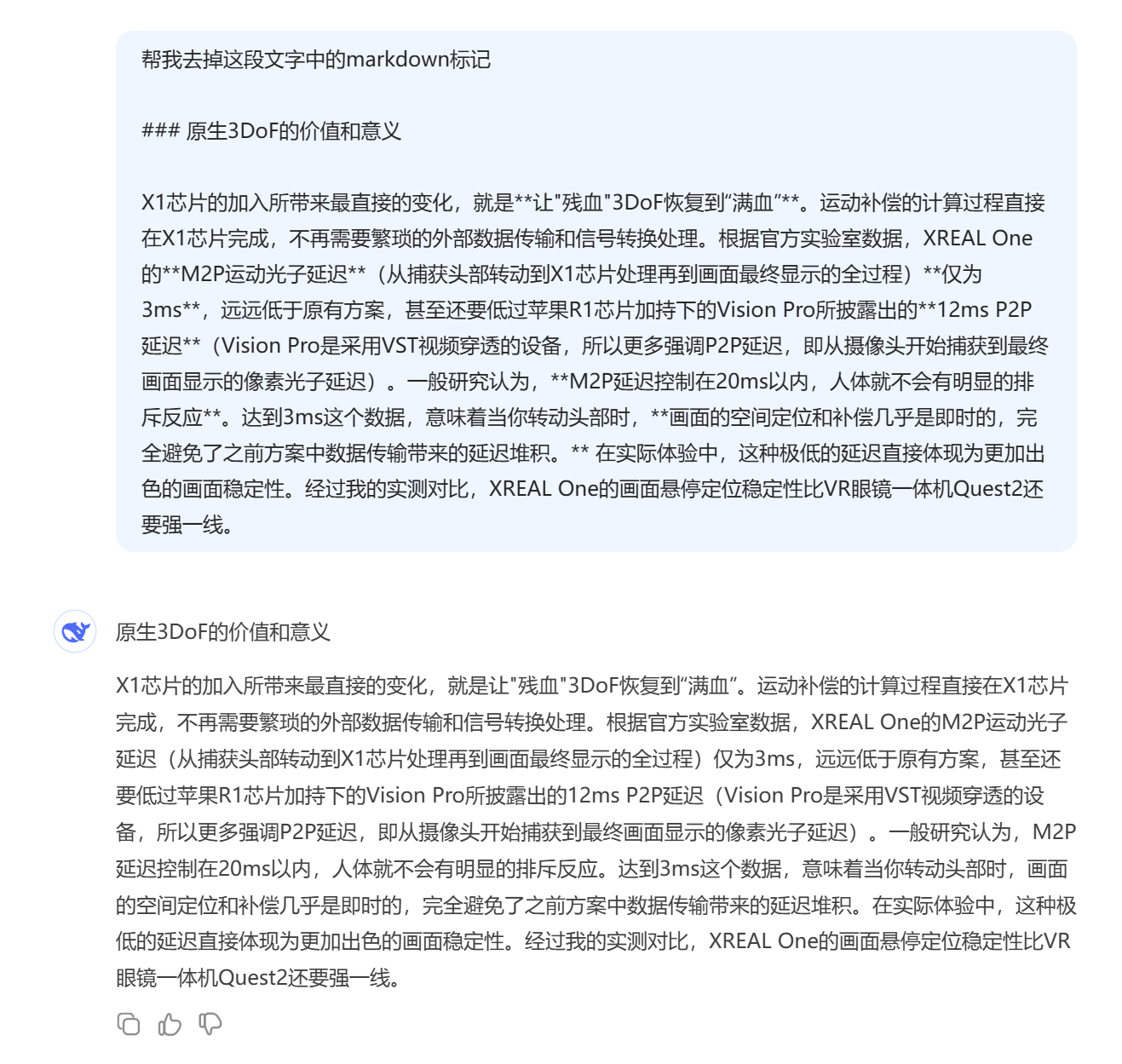
This method is arguably the fastest, and can even be completed in the same chat window.
But it also has drawbacks: removing Markdown markup also removes the formatting.
Method 2:
Choose an AI with sufficient programming capability, like Claude, which I commonly use.
Tell it to generate a Markdown format converter that converts Markdown syntax to rich text format, and must be copyable.
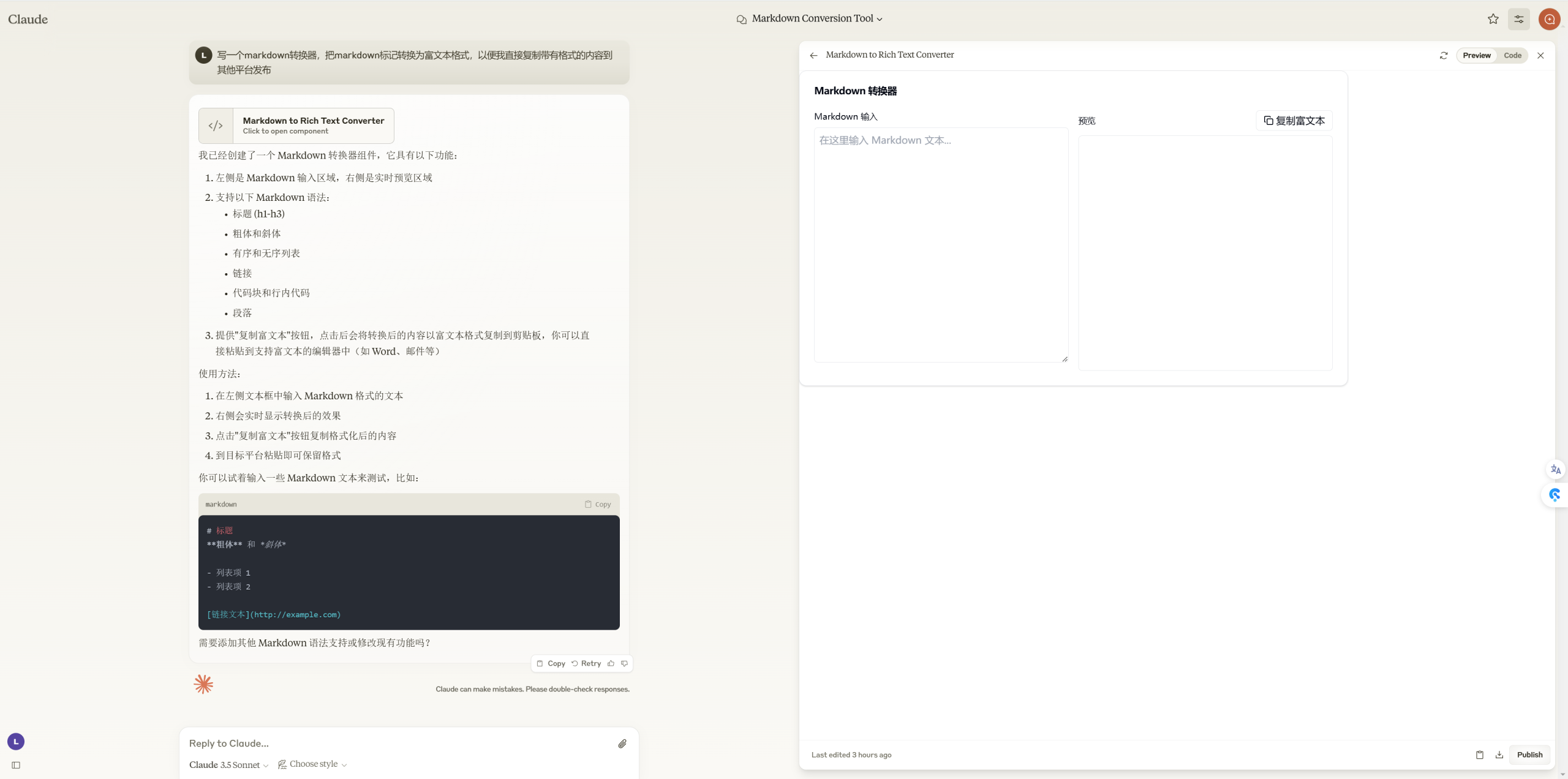
Claude’s Artifact can directly run the code. Paste this content to try it out.
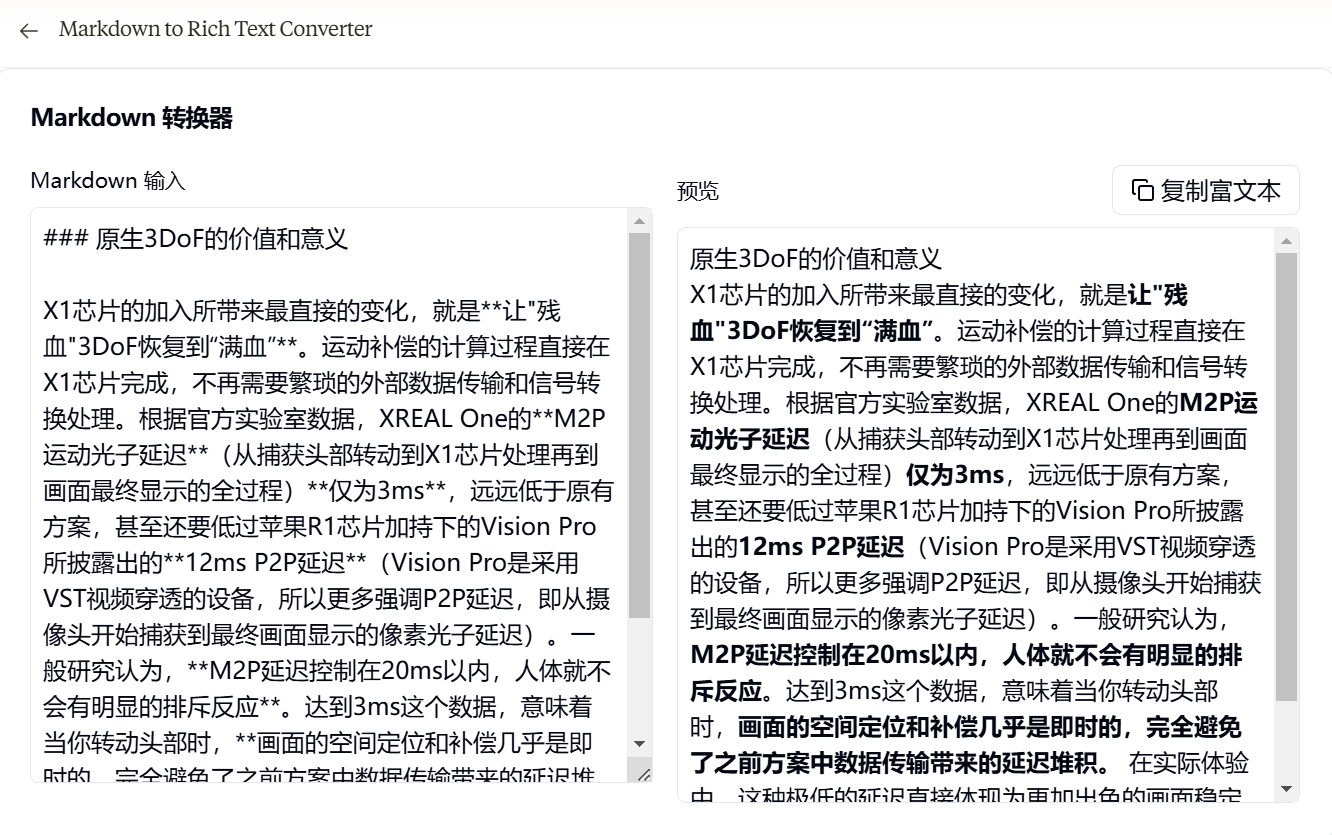
Bold is preserved, but the headings seem to have some issues.
However, it might be an Artifact display error. Let me copy this rich text content to Zhihu’s editor to test.
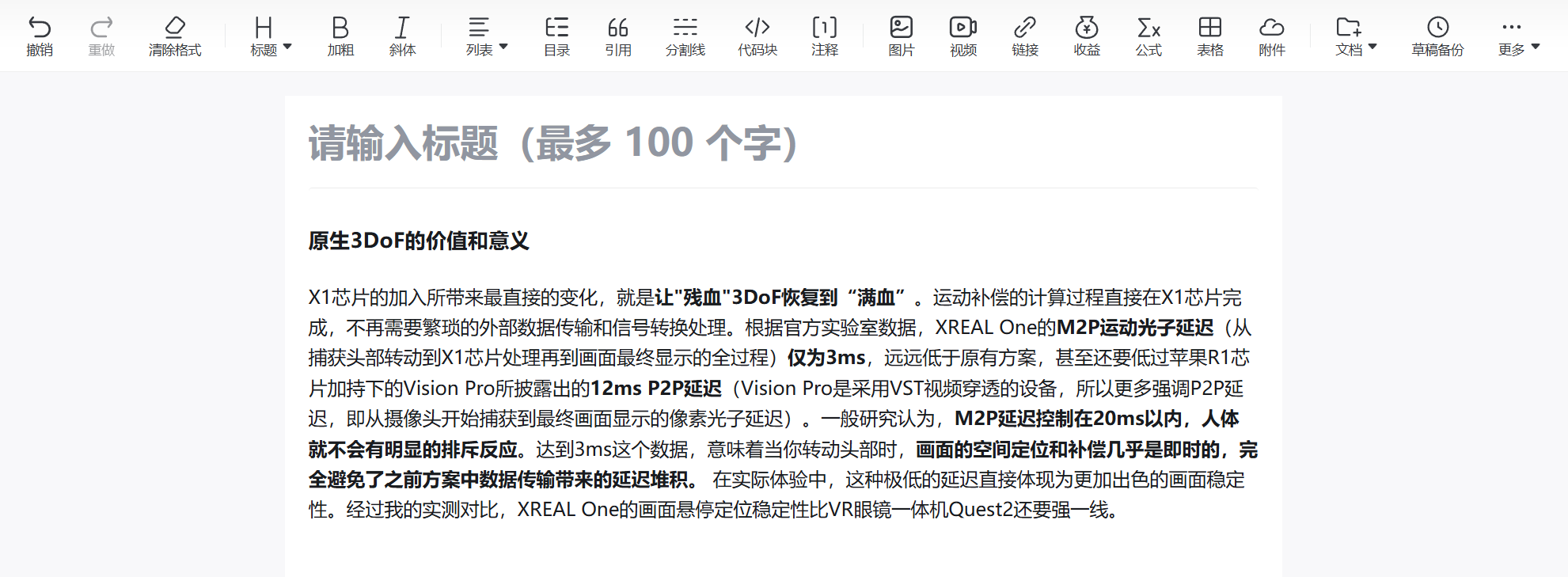
The headings display normally in the text, so there’s no problem.
Method 2.5:
What if the AI you commonly use doesn’t support features like Artifacts?
Don’t worry. You can ask the AI to generate a local version that can be opened as a single HTML file.
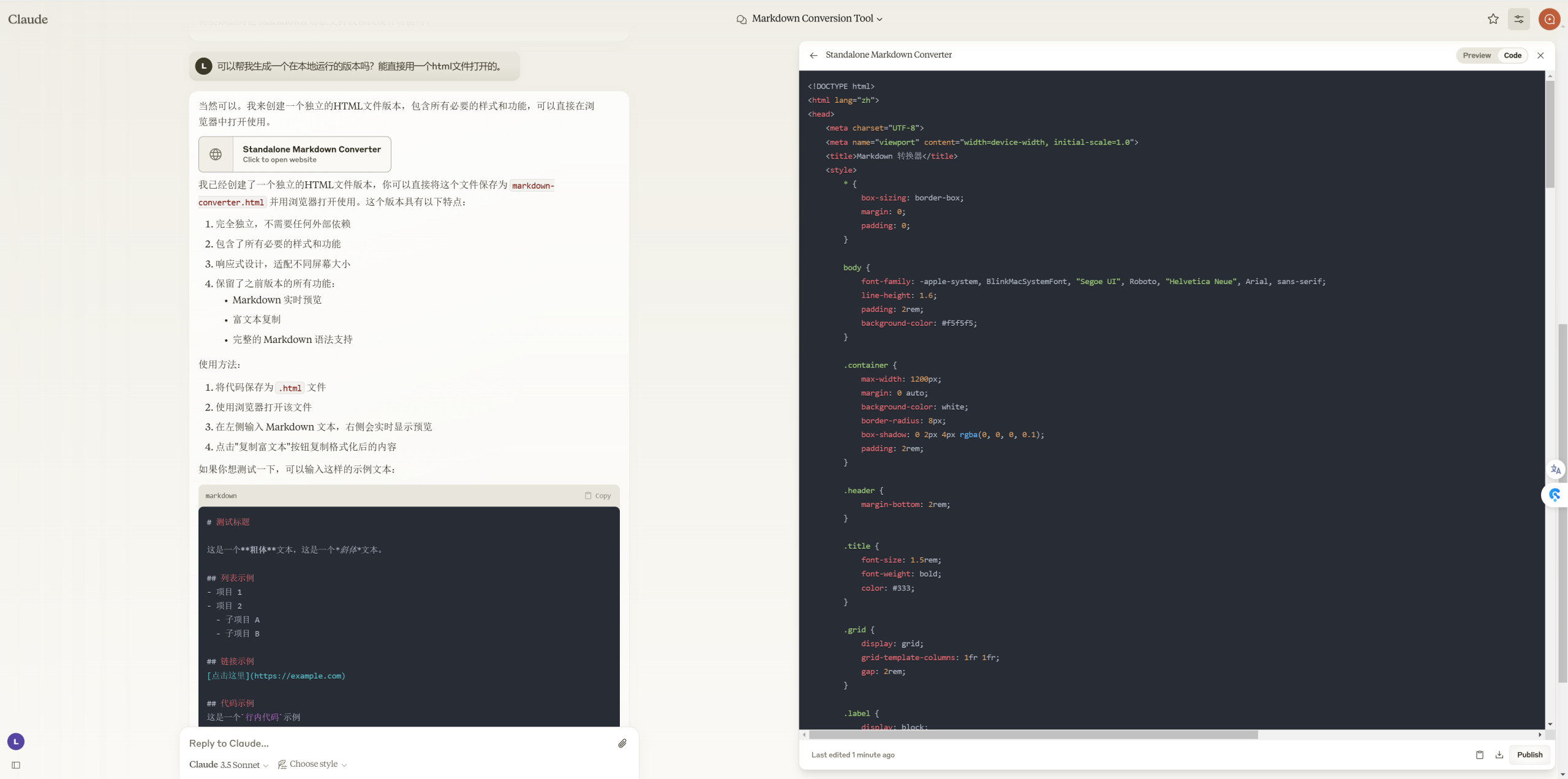
As shown, Claude also tells us the usage method while generating.
1. Save the code as a `.html` file 2. Open the file with a browser 3. Enter Markdown text on the left, and the right will show real-time preview 4. Click the “Copy Rich Text” button to copy the formatted content
We create a new text document, paste the code in, and rename the file to “markdown_converter.html”.
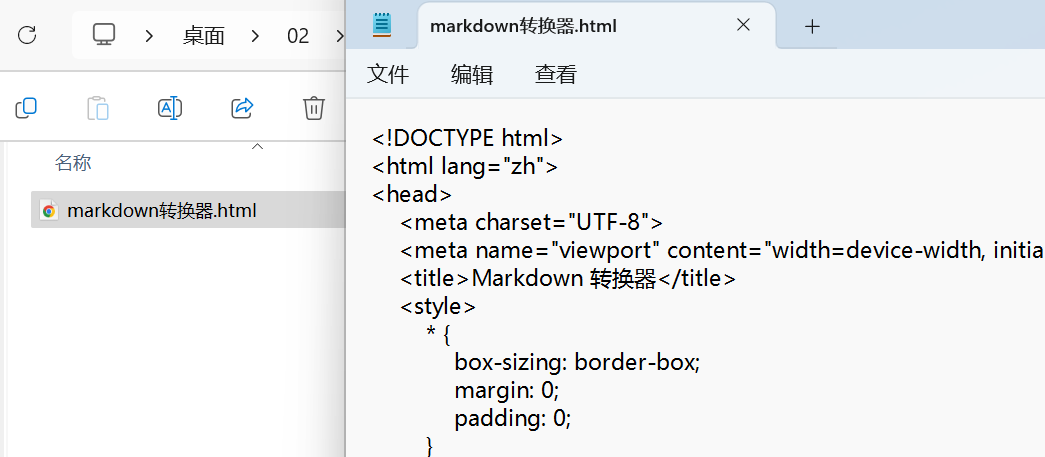
Then double-click to open it with a browser.
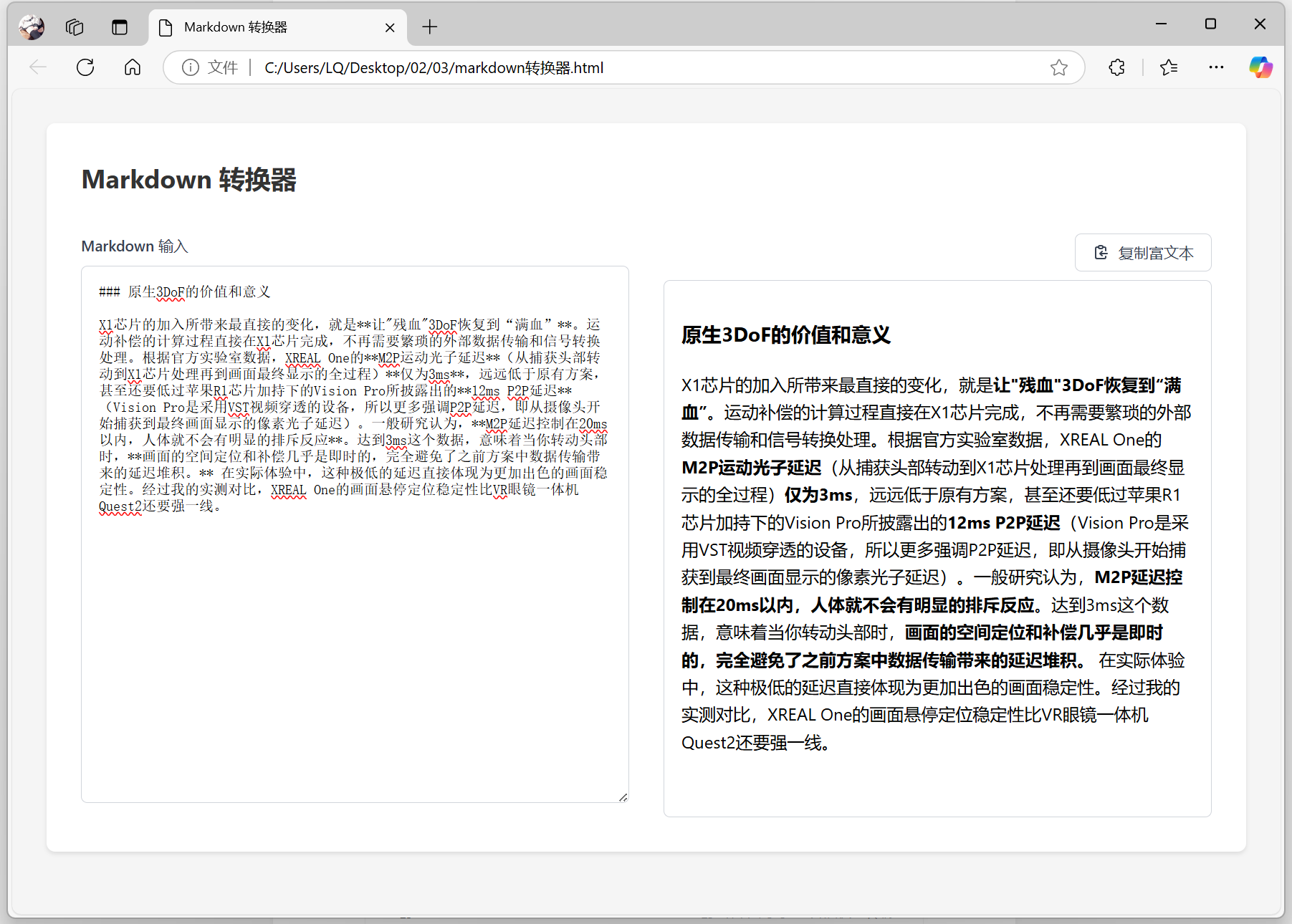
Now you can use it locally, and you can save this file to open on any computer, or send it to others to use.
If you want to use it directly, I’ll also paste the code here, and you can follow the steps above.
<!DOCTYPE html>Method 2.7:
Using it locally is ultimately inconvenient. You can further put it on a NAS or cloud server, or even reverse proxy to your own domain, so you can open and use it anytime, anywhere through the network.
Moreover, it’s not limited to small tools with a single HTML file; even with a backend, it’s okay.
For example, I made a small collection page toolbox, aggregating my commonly used tools into my navigation page for easy access anytime.

That’s all.