I’m officially launching this project — you can use it to learn from almost any video:
https://github.com/Liu-Bot24/course-navigator
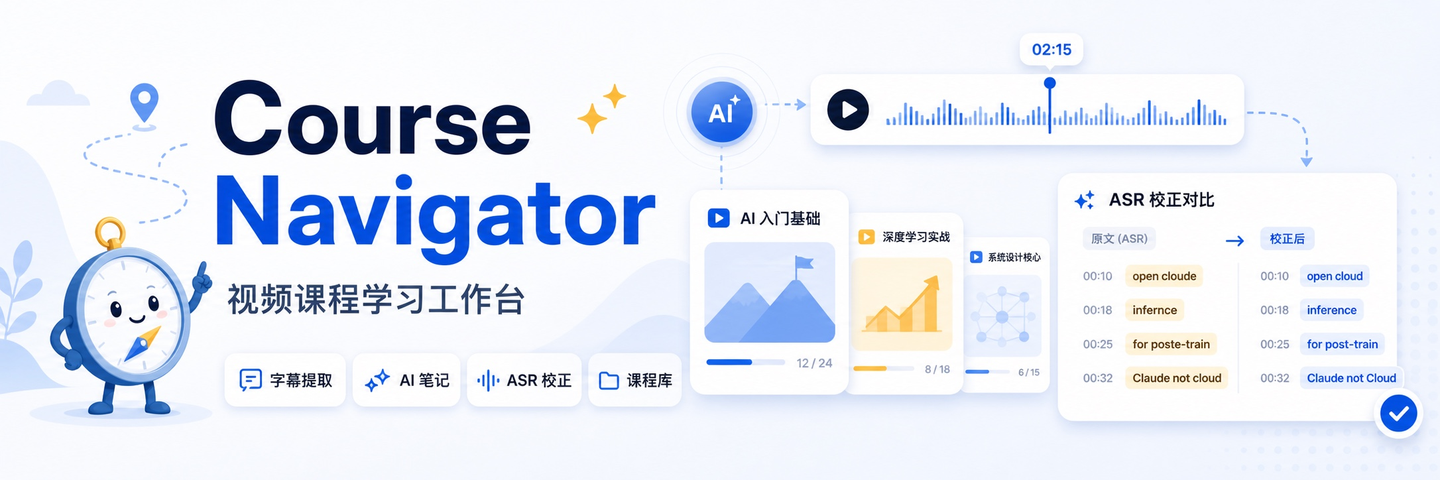
It has four core features:
- Turn course videos into text you can actively browse.
Course videos can have subtitles extracted/generated, turning them into a transcript with timestamps — click a sentence to jump back to that point in the video. - Calibrate video subtitles with AI assistance.
If auto-generated subtitles have errors, you can use AI to correct them based on terminology, names, and context, then save them as usable subtitles. - Leverage AI models to help you understand the course.
AI can organize the course into outlines, key takeaways, detailed notes, study suggestions, and even translate subtitles. - Manage courses you’re learning as a database.
You can organize courses into albums, save videos, subtitles, translations, notes, and AI-generated learning materials, and even import/export entire courses.
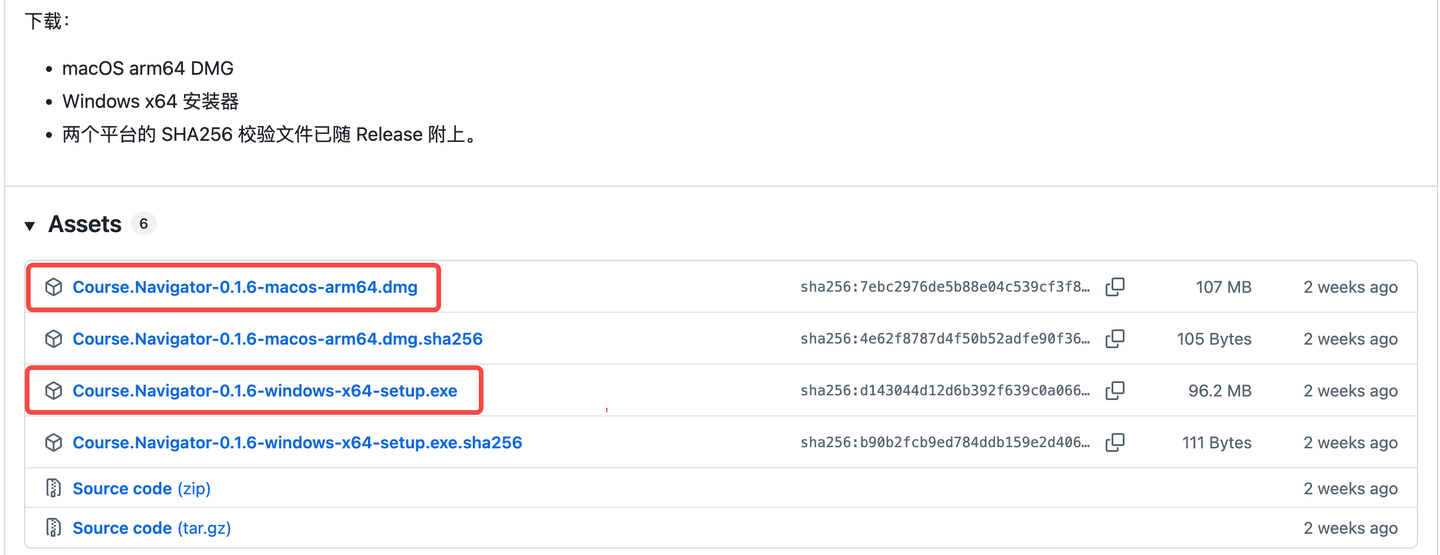
I’ve packaged Mac and Windows launcher clients — no need to run from source. Just download from Releases and install to use.
https://github.com/Liu-Bot24/course-navigator/releases/tag/v0.1.6
Let me, with a plate of dumplings, introduce what this project can do.
Yes, this project started as dumplings made for a plate of vinegar.
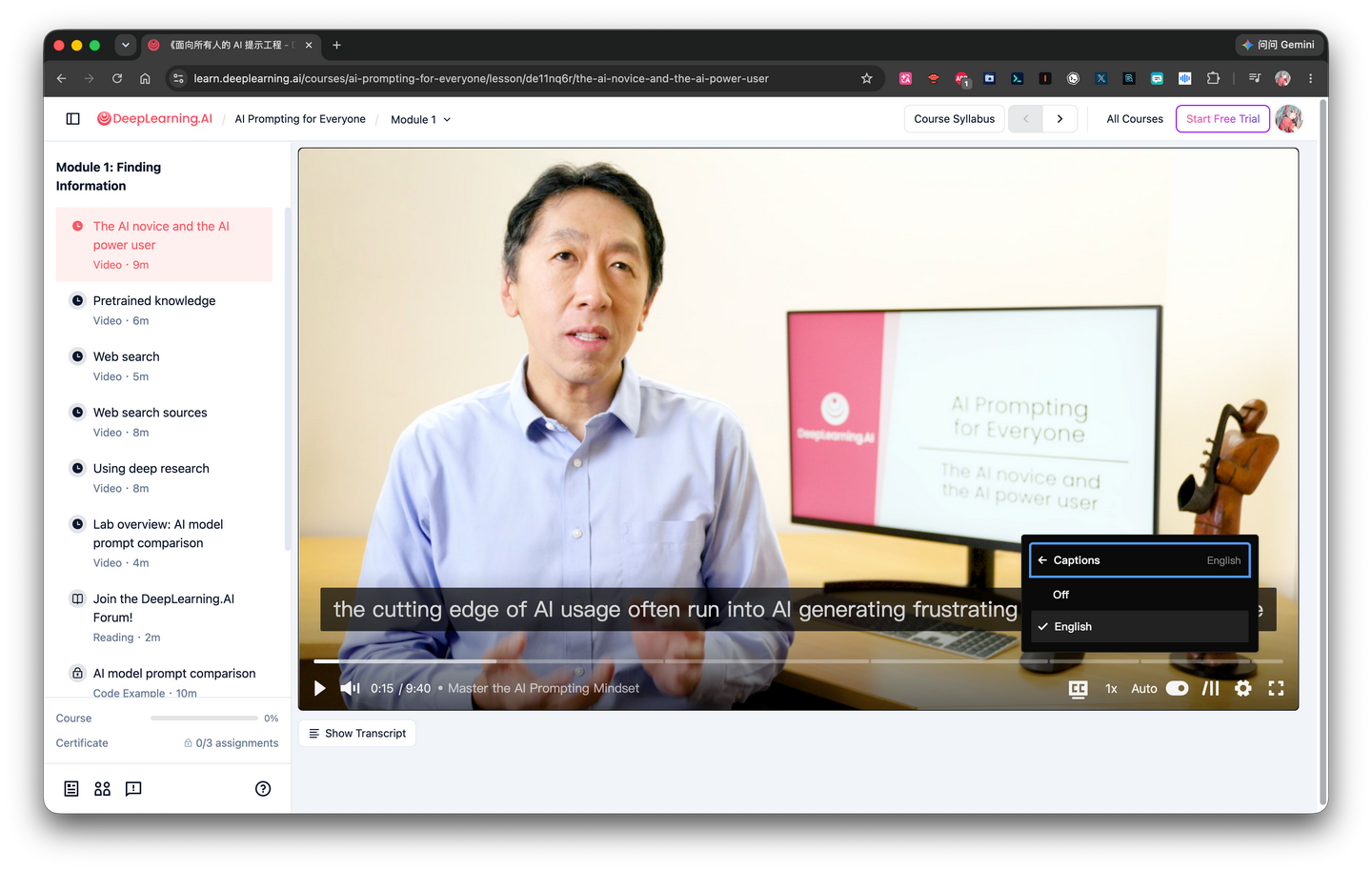
One day I came across Andrew Ng’s new free course “AI Prompting for Everyone” online and wanted to check it out.
It’s a free course — really cool. You don’t even need to spend a cent to hear such a big name explain valuable knowledge in simple terms.
But the original version of this free course is in English, and only has English subtitles.
Of course, being stumped by language in the era of large language models would be too embarrassing.
I could use immersive translation to turn the subtitles into Chinese. Or even without an AI solution, based on my experience, I could guess that such a free course must already have a translated version available on the Chinese internet.
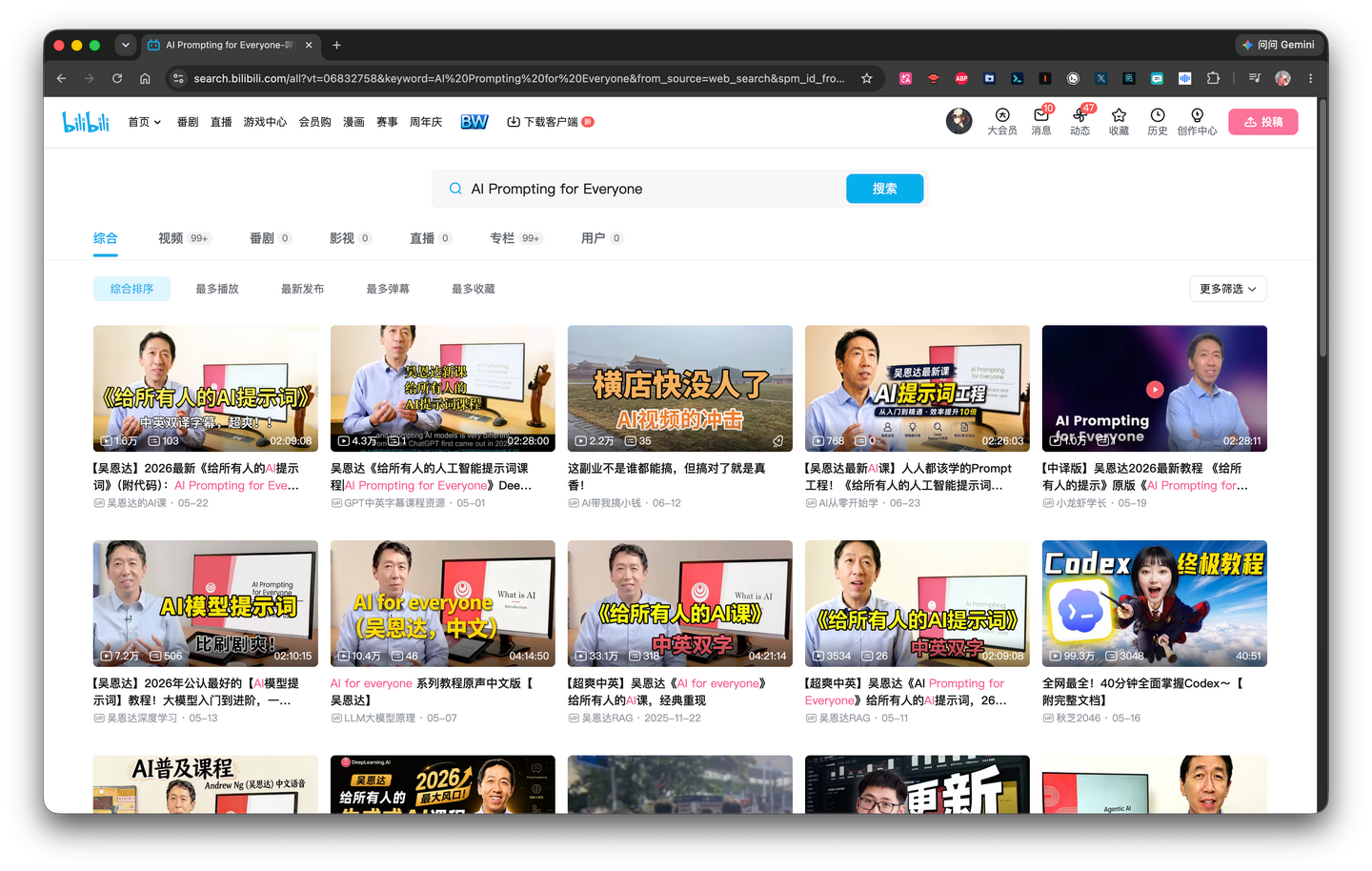
But in the era of large language models, is that all there is?
I used immersive translation to have AI translate the subtitles, compared to just going on Bilibili to watch someone else’s translated version,
there doesn’t seem to be any real difference, which is pretty awkward.
We’re already in the age of AI, yet it only solves text translation, without bringing structured learning efficiency improvements. That’s not right.
So, with that little bit of vinegar, I made a batch of dumplings.
When I watch short dramas on Yangshizi, I often see ads for a certain audio platform’s curated content.
That platform’s curated content is positioned as a medium-to-long video platform, offering longer videos with higher information density, including knowledge-based content. The ads I see highlight a very interesting selling point — “sleep aid.”
Learning has always been a boring thing.
Language has never been the biggest challenge in learning video courses; falling asleep is.
The advantage of video as a medium is visual clarity and low comprehension cost; but the problems with overly long videos and high information noise are also obvious — hard to search, hard to filter, and you have to passively accept the noise you’re not interested in.
You’ll find that when learning from videos, it’s hard to truly take control of your own learning.
If you don’t want to miss anything, you can’t skip around; you’re forced to watch from start to finish, absorbing everything in the video. So efficiency naturally suffers, and you get sleepy easily. When you doze off and lose focus, you’re bound to miss something. When you snap back to attention and ask the video, “What did I just miss?” the video says, “I don’t know, it’s not searchable — go drag the progress bar yourself.” And then, because you don’t want to miss anything, you can’t skip around to review; you’re forced to drag from start to finish again…
Online courses have always been learned this way, but I feel like it shouldn’t have to stay this way forever.
I wish that before I start learning this video course, it could proactively tell me:
- Is my current knowledge suitable for directly learning this lesson, or what do I need to know at least to understand it?
- If I’m a complete beginner, which parts must I listen to carefully and thoroughly understand?
- If I have experience, which parts can I quickly skip? Which parts should I revisit for fresh insights?
- Before the first study, what questions can I bring to this lesson to make it memorable?
- If I’m reviewing, which sections should I focus on?
Moreover, these “which parts” should come with ready-made anchor points. The video should ideally be divided into chapters, allowing me to jump to the corresponding chapter with one click.
Ideally, these chapters can freely adjust granularity: When I want to quickly browse, it should be an outline that lets me see the structure of the lesson at a glance; when I want to study in detail, it should be fine enough to write out every example the teacher gives, exactly as it is.
And coincidentally, all of this seems achievable with AI.
Moreover, these requirements for AI capabilities are not cutting-edge—not the code generation, tool calling, or agent abilities that advanced AI is competing on now, but the already stable summarization ability and world knowledge. This means even if I pull out an outdated Deepseek V3, it should probably do a decent job.
So, I ended up making this plate of dumplings.
Let’s start with the process of handling a typical course video.
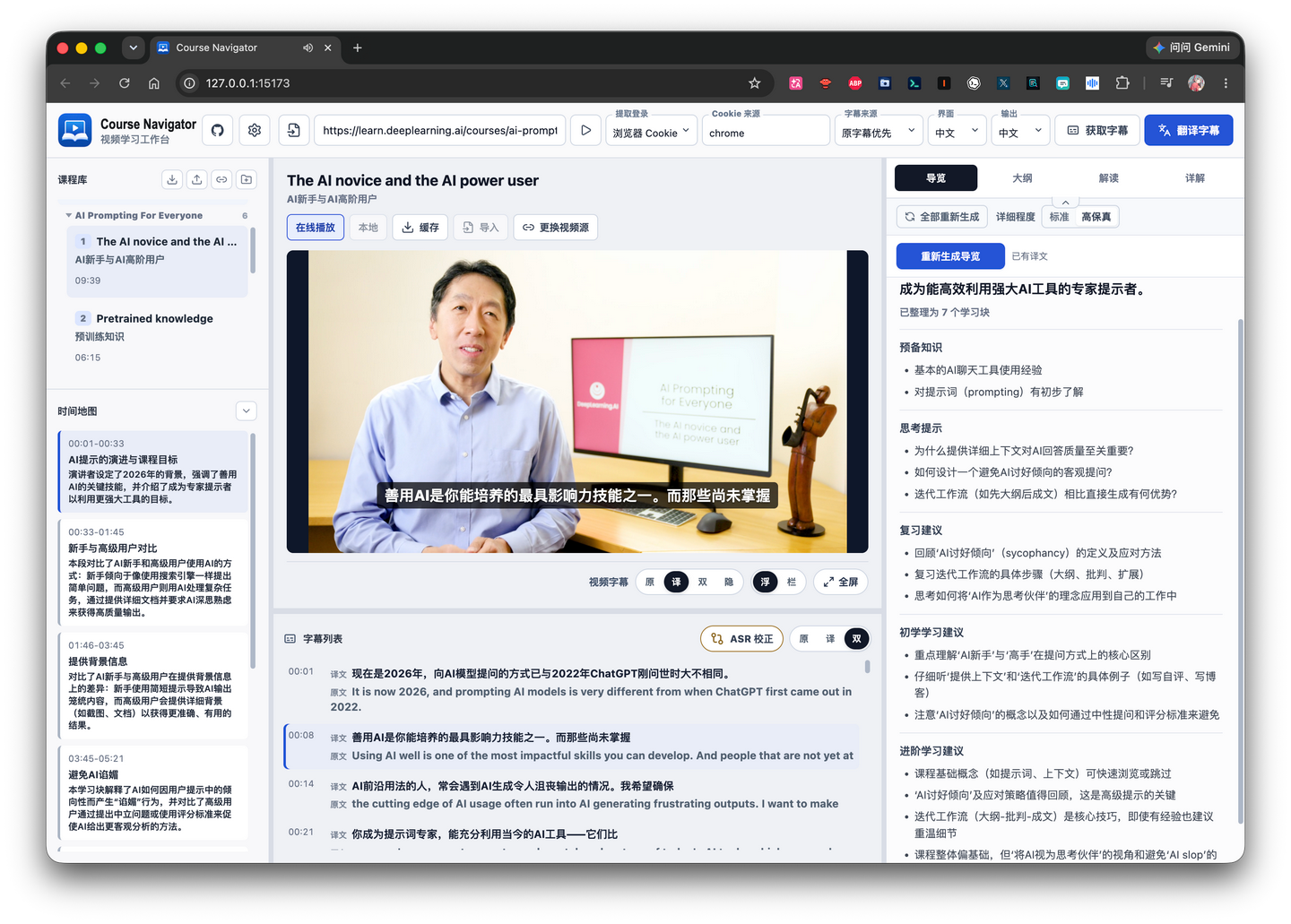
First, this project has the ability to read videos from a link. You can see in the image above, I directly filled in the public course link from deeplearning.ai, and then the corresponding video can be played online in the video window below.
Of course, different websites may have slightly different situations. For example, Bilibili videos cannot achieve subtitle-based timeline positioning within the Bilibili webpage, so it’s not suitable to directly embed the online player into the project’s workbench page for playback. However, the project provides a video caching feature; you can cache the video locally first, and then continue using it.
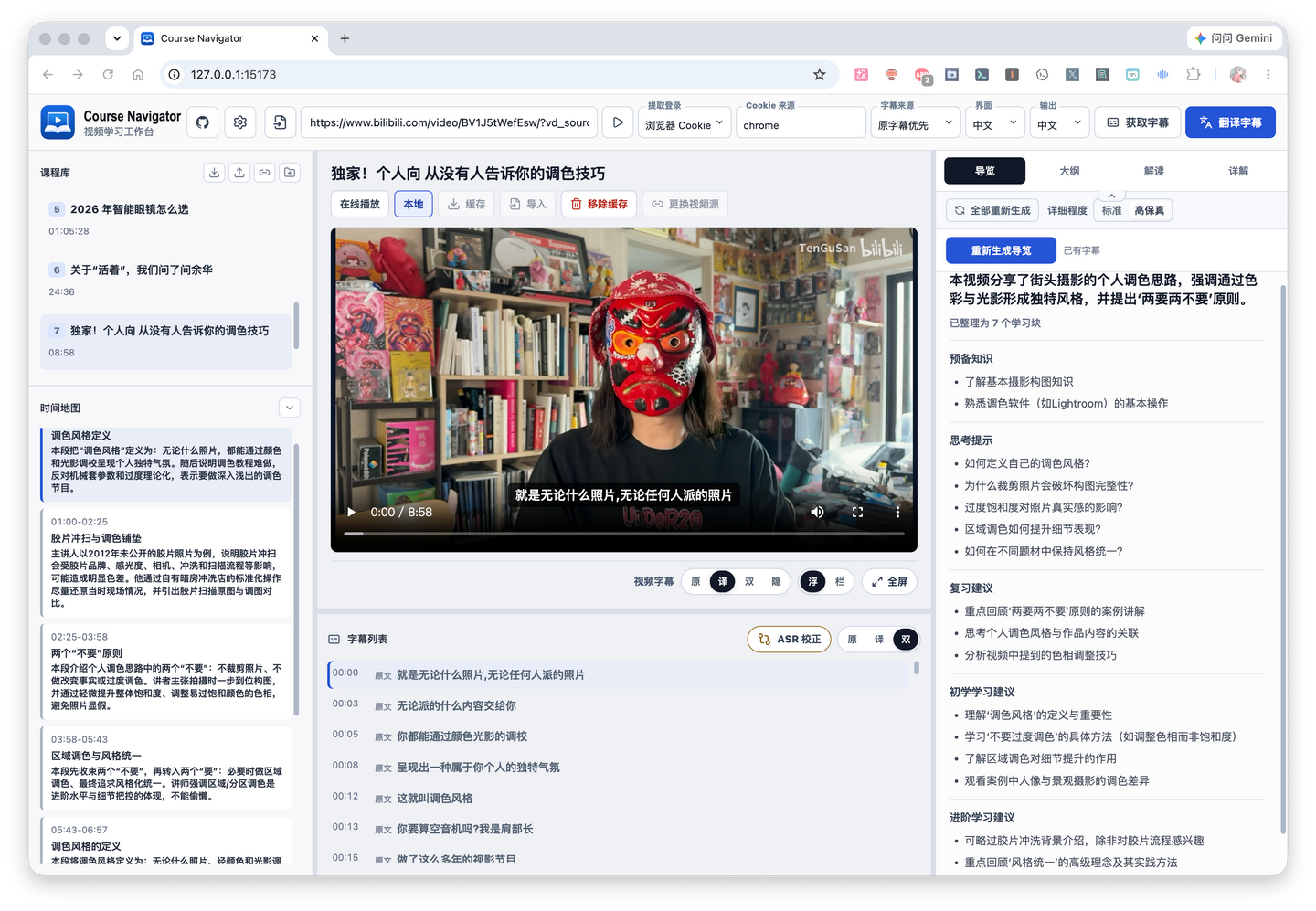
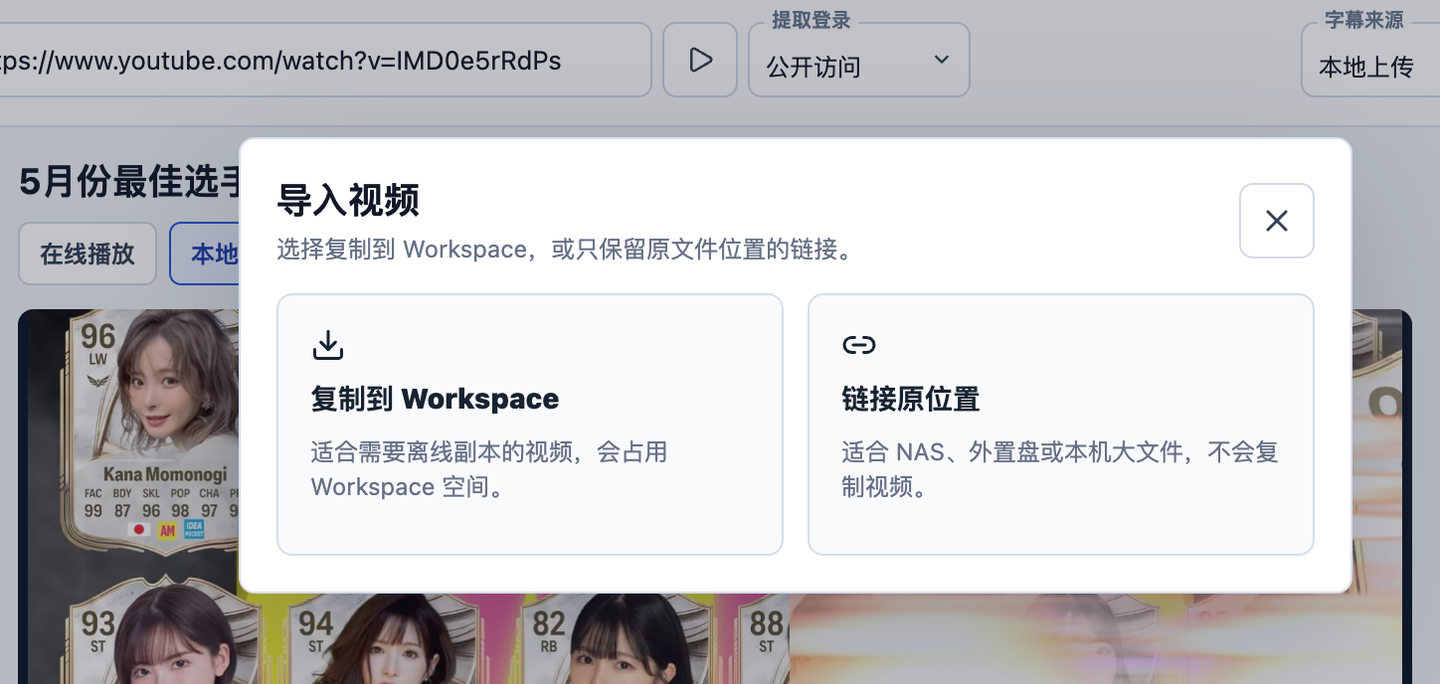
At the same time, I also provided the ability to import local videos later. You can choose to import local videos into the workspace, or directly link to a local directory or LAN device, such as a NAS.
If the video itself has subtitles, it will try to obtain the original subtitles; if there are no subtitles, it extracts the audio and then obtains subtitles through subsequent ASR transcription; if you have existing subtitles locally, you can also choose to upload them directly. The obtained and uploaded subtitles essentially represent the video’s content. (Of course, the actual code implementation also retrieves the video’s title, description, and uploader information, which can also be considered part of the video content.)
To make this happen, I must thank two great open-source projects: yt-dlp and ffmpeg. If you install using the package in the Release, both components are included, so you don’t need to set up the runtime environment yourself.
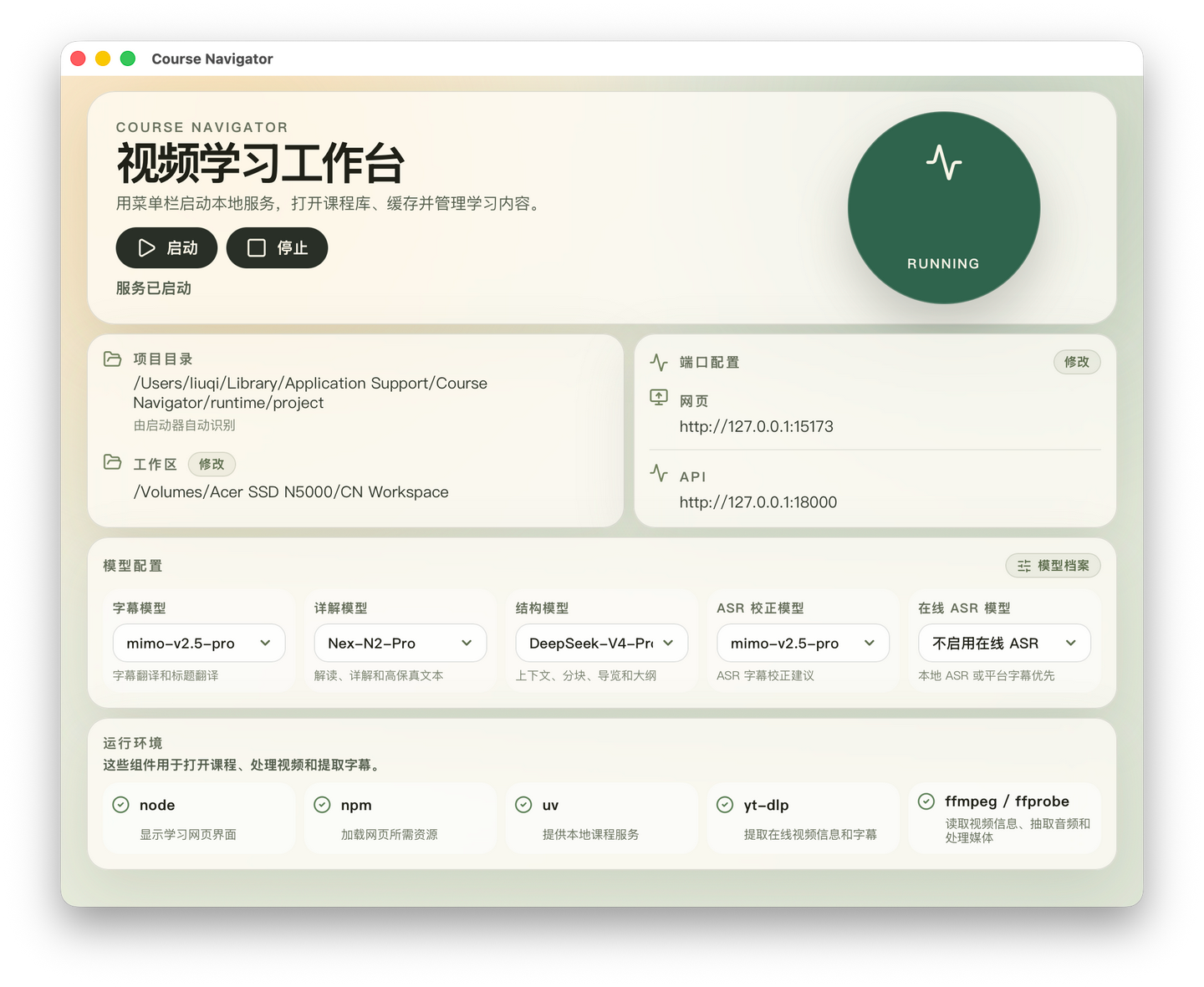
yt-dlp is really a very handy tool. Combined with browser cookies, I can import the courses I bought on Bilibili Classroom and study them the way I want.
(*But I don’t encourage using technical means to infringe copyright or freely distribute copyrighted content without permission.)
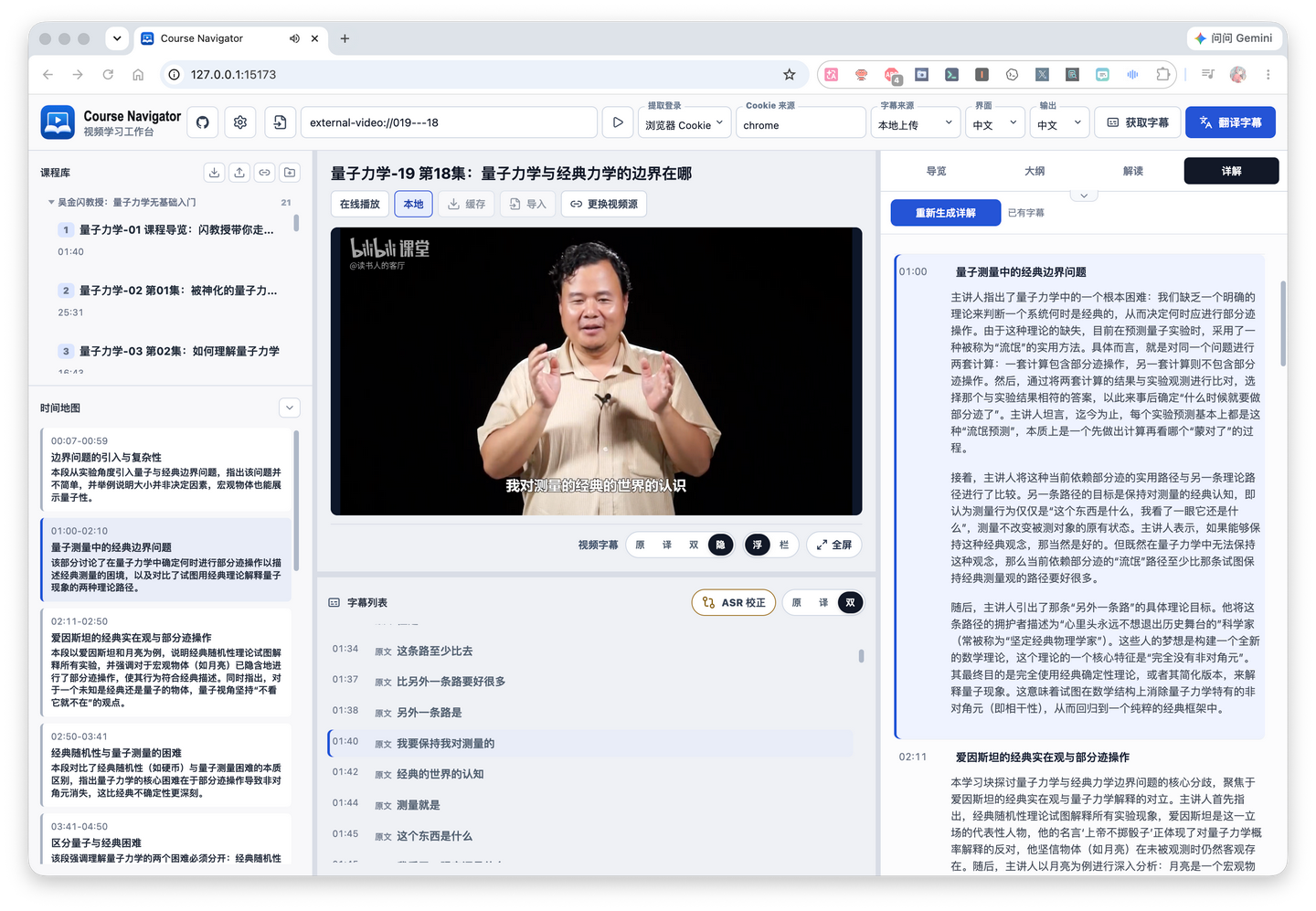
Once the subtitles are obtained, if they don’t match the target language, they go into translation first. The translation model can be configured separately; the subtitle model in the image above is the one used for translation.
For example, the open course AI Prompting for Everyone we mentioned earlier originally only had English subtitles, but I needed Chinese. So I can use this subtitle model to translate it into Chinese. Usually, this subtitle model doesn’t need a very large context window, so you can choose a cost-effective model as needed.
After getting the subtitles, you can adjust their display in this area:
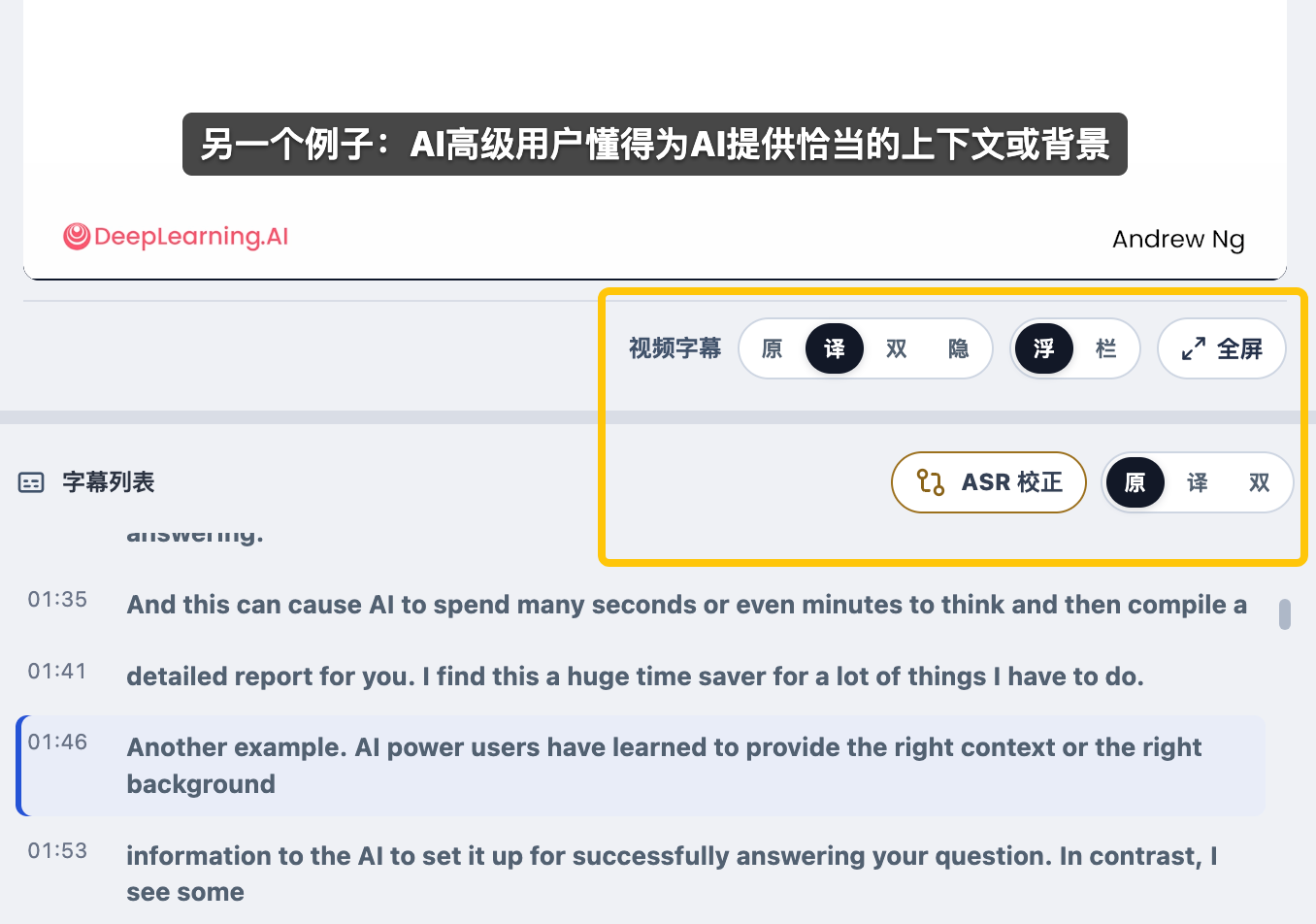
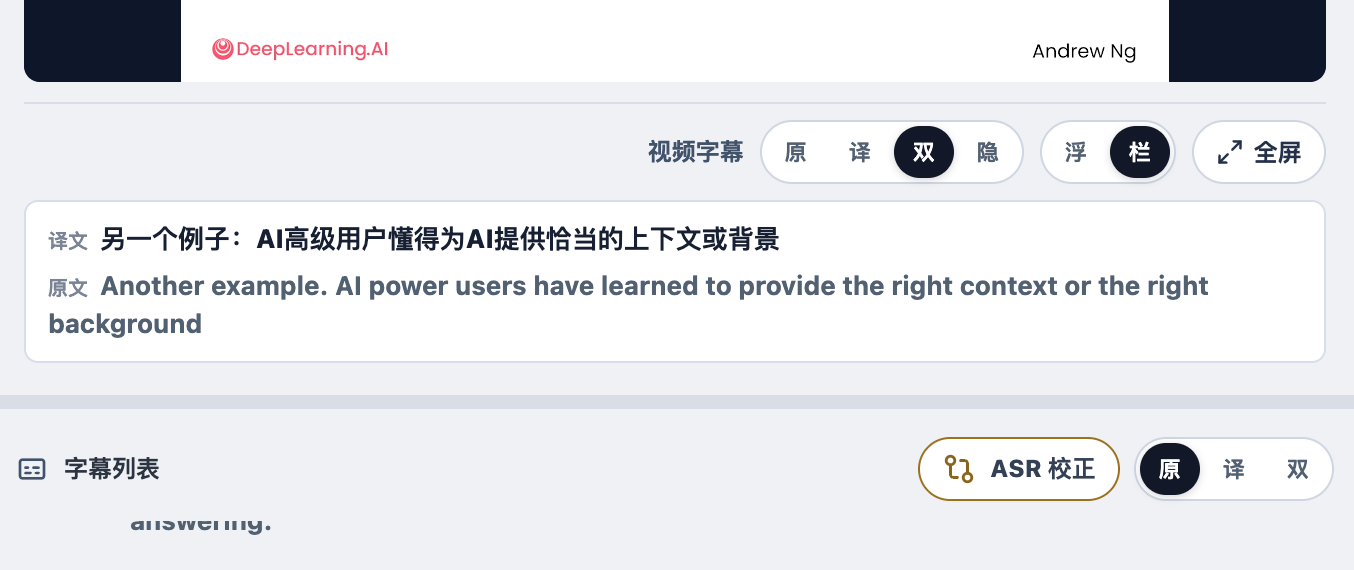
The video subtitles above and the subtitle list below can each be set to show the original text, the translation, or both. For the video subtitles, you can also choose to display them as a floating subtitle bar, show a current subtitle bar directly below the video, or hide the video subtitles entirely.
Before officially processing the subtitles, there’s actually a practical issue.
Except for a very few subtitles that are uploaded after being proofread by the author, most subtitles come from ASR recognition. The difference is just whether we extract the audio and recognize it ourselves, or websites like YouTube and Bilibili help recognize it before we download it. Any subtitle from speech recognition has an accuracy issue.
So I added an ASR correction feature here.
Click the ASR correction button to enter the ASR correction workspace. You should understand what it does from this image:
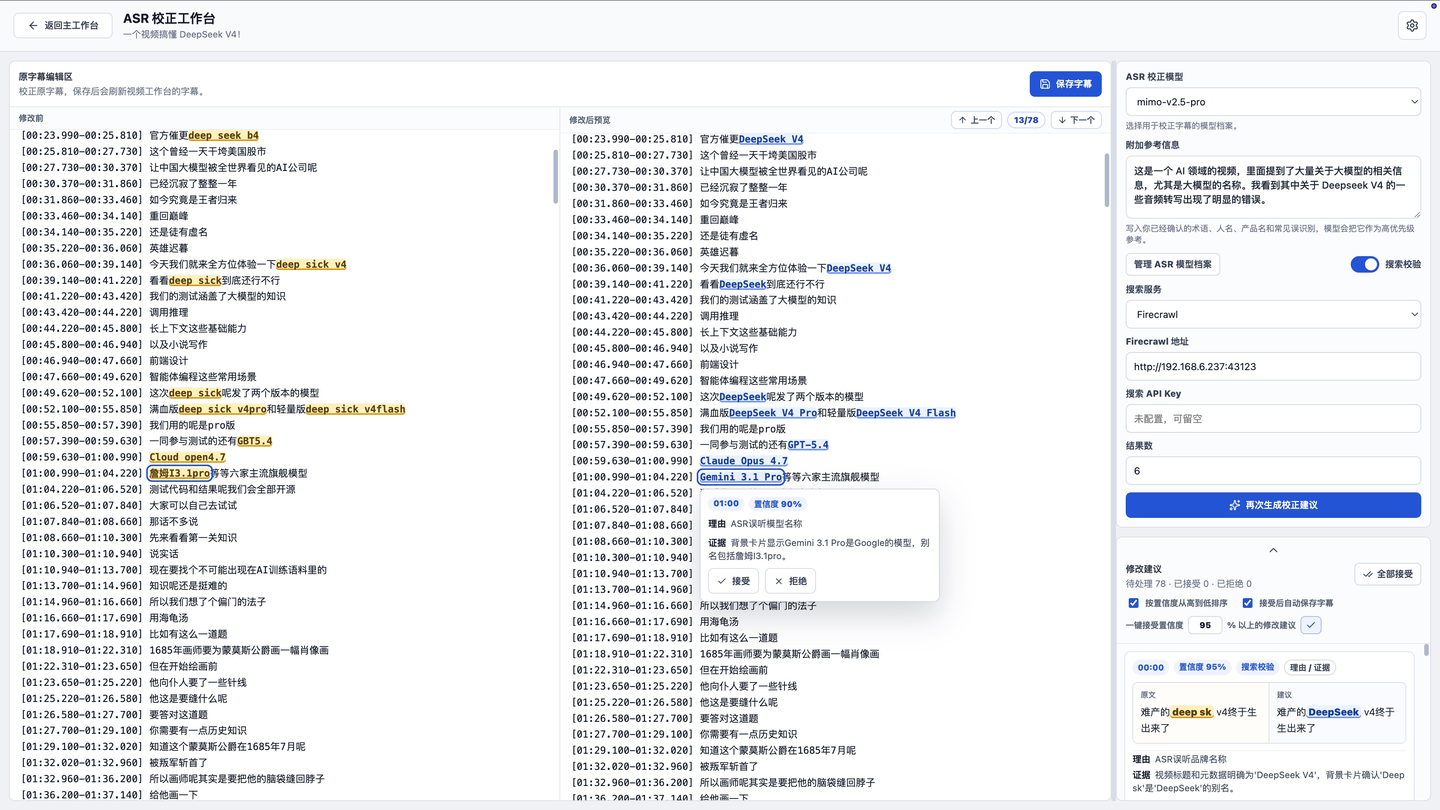
The core function of the correction here is still implemented through a large model.
It mainly relies on three layers of insurance:
The first is the world knowledge and reasoning ability inherent in the large model itself, which depends on which model you choose to execute the task; the second is that you can manually input additional reference information, for example, directly tell the AI in the additional info: “The girl who often appears with Xiao Shuai is called Xiao Mei, not Xiao Mei, correct all the wrong names,” then this information will be injected into the Prompt, and the AI will execute according to your additional information; the third is that you can enable the search service, for instance, I have deployed a self-hosted Firecrawl on my NAS, and I often let the AI use it to search. Knowledge that the large model itself does not possess, or possibilities with low probability in its cognition, can be well corrected through search. For example, brand or product names like Lovart, M5Stack, Ling in the image below:
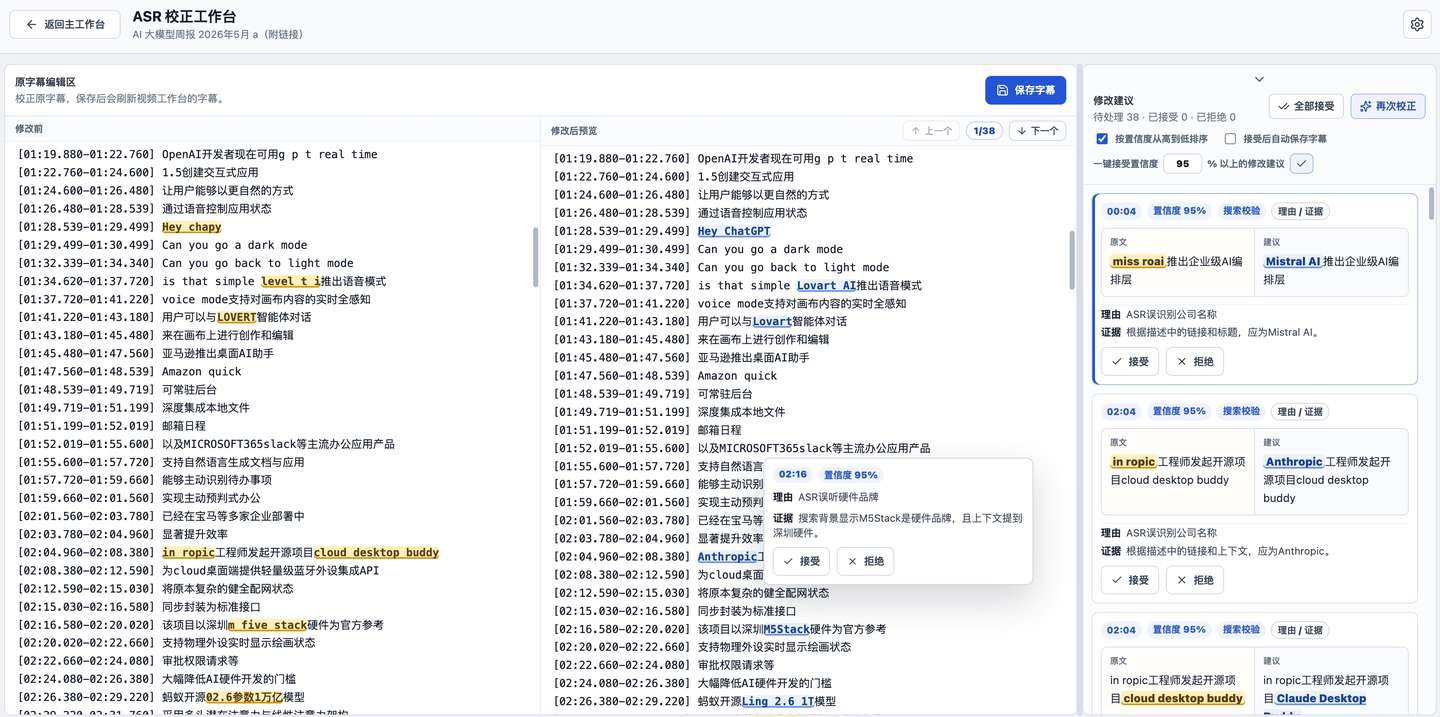
When using different models, there will be different recognition omissions. So after one correction, you can click to generate correction suggestions again, and it will run once more.
Of course, this subtitle editing area can be directly edited. Manual modification is still a very quick way in many cases, so there’s no need to stubbornly fight with the large model.
Once the subtitles are done, it means we have the content of the video. Next, it’s time to hand the content over to the AI for processing.
At this point, what we need are the other two AI models that haven’t been mentioned earlier.
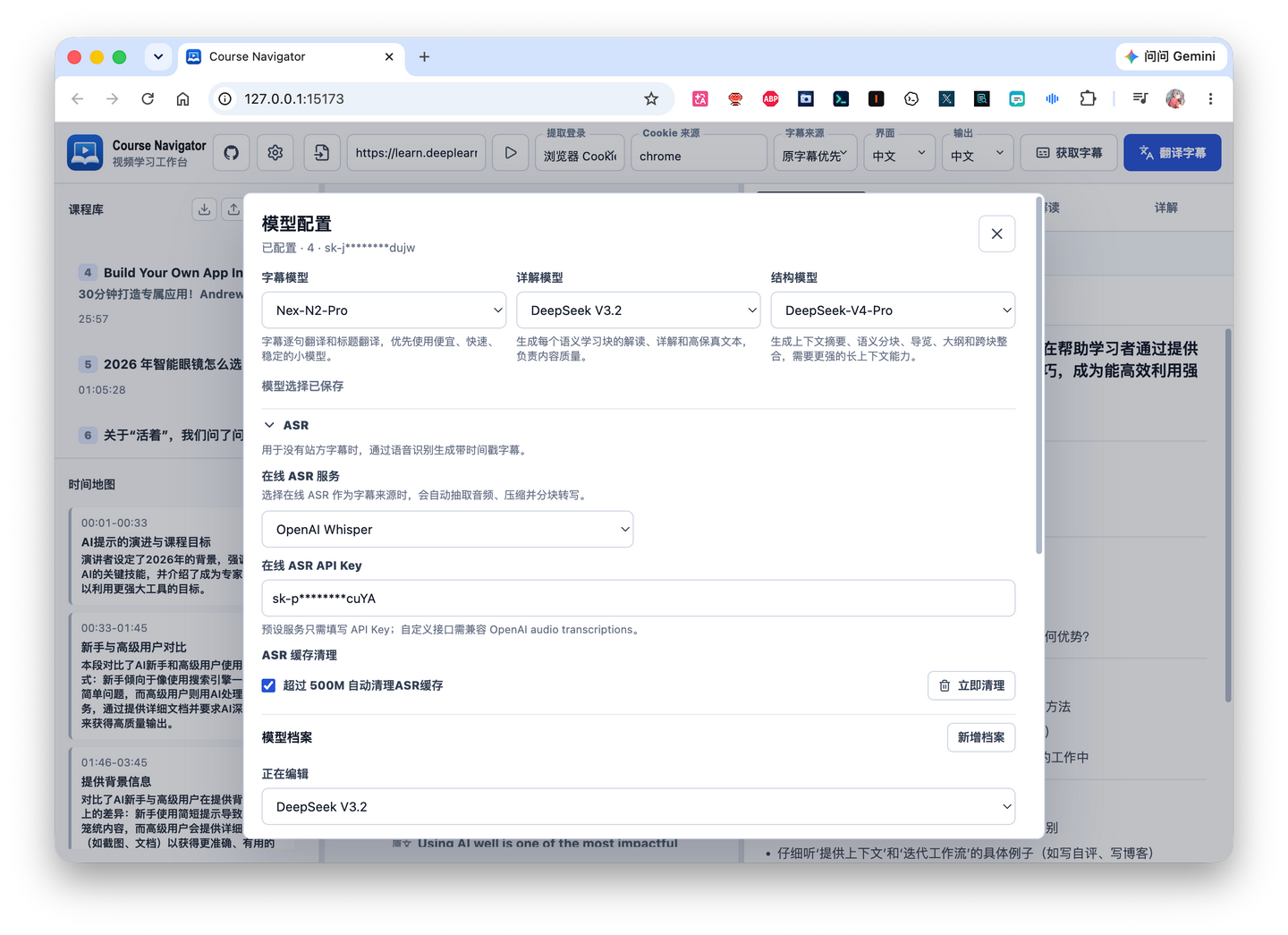
Their division of labor is roughly as follows: first, a structure model will divide the entire subtitle into different learning blocks based on semantics, and then a detailed explanation model will generate specific content for each learning block. Generally speaking, if the video is relatively long, the structure model requires a model with a larger context window, while the detailed explanation model has lower requirements for the context window. You can choose accordingly in actual use.
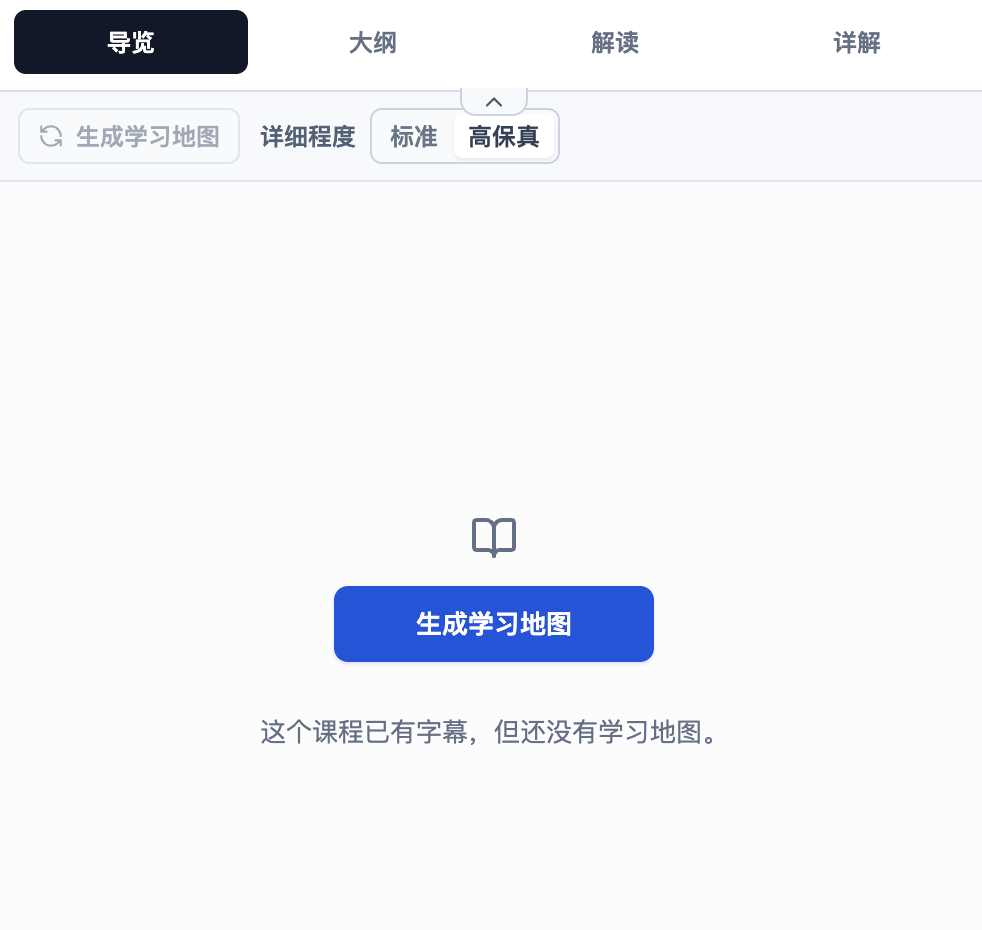
Additionally, attentive friends should notice that I have hidden a small dropdown arrow here.

After opening it, you can choose the level of detail for AI generation. The default level of detail is standard; using high fidelity will yield more detailed results, but it may require higher capability from the model you choose.
After configuring the corresponding models, click “Generate Learning Map” to let the AI generate content to assist your learning.
At this stage, the AI-generated sections mainly include the four sections visible in the image above, as well as the time map section on the left side of the interface.
First is the guide.
Guide is essentially what I mentioned earlier: what I wish the video course had proactively told me before I started learning it.
Let me give you a concrete example.
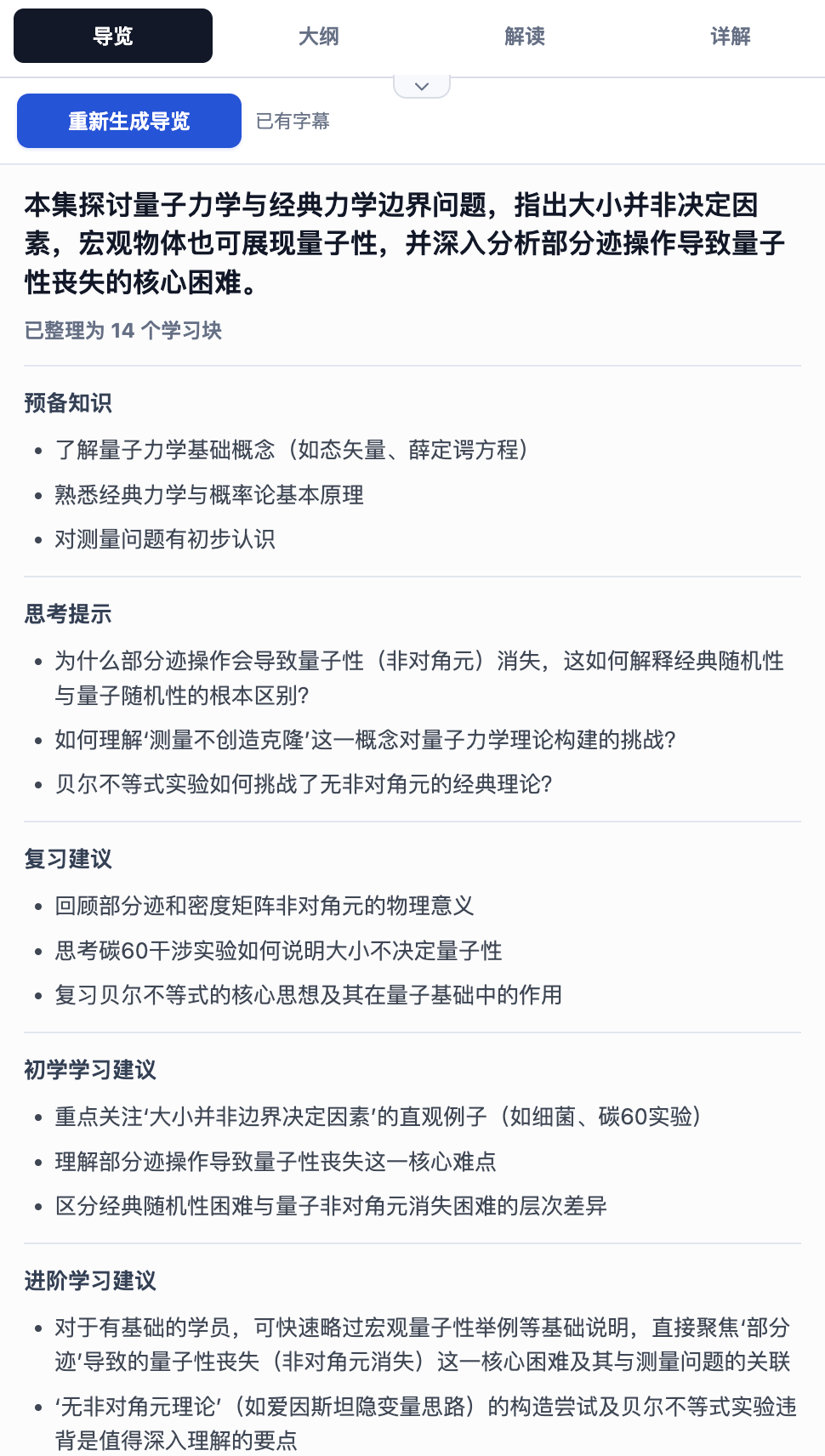
For instance, the topic of the lesson above is the boundary between quantum mechanics and classical mechanics.
Then I could have the video tell me that to study this lesson, I should first:
- Understand basic concepts of quantum mechanics (such as state vectors, Schrödinger equation)
- Be familiar with the basic principles of classical mechanics and probability theory
- Have a preliminary understanding of the measurement problem
Then I would know that if I don’t have any understanding of these things, I probably won’t be able to follow the lesson. So I can go ahead and learn the necessary background knowledge in advance.
At the same time, seeing the beginner learning tips, I also know that when watching this video, I should focus on listening to intuitive examples like bacteria, the C60 experiment, and others that show ‘size is not the determining factor of the boundary.’ For the part about partial trace operations leading to loss of quantumness, I can consciously watch it repeatedly to understand it.
And Outline → Interpretation → Detailed Explanation is actually a breakdown of the lesson content at several different granularities.
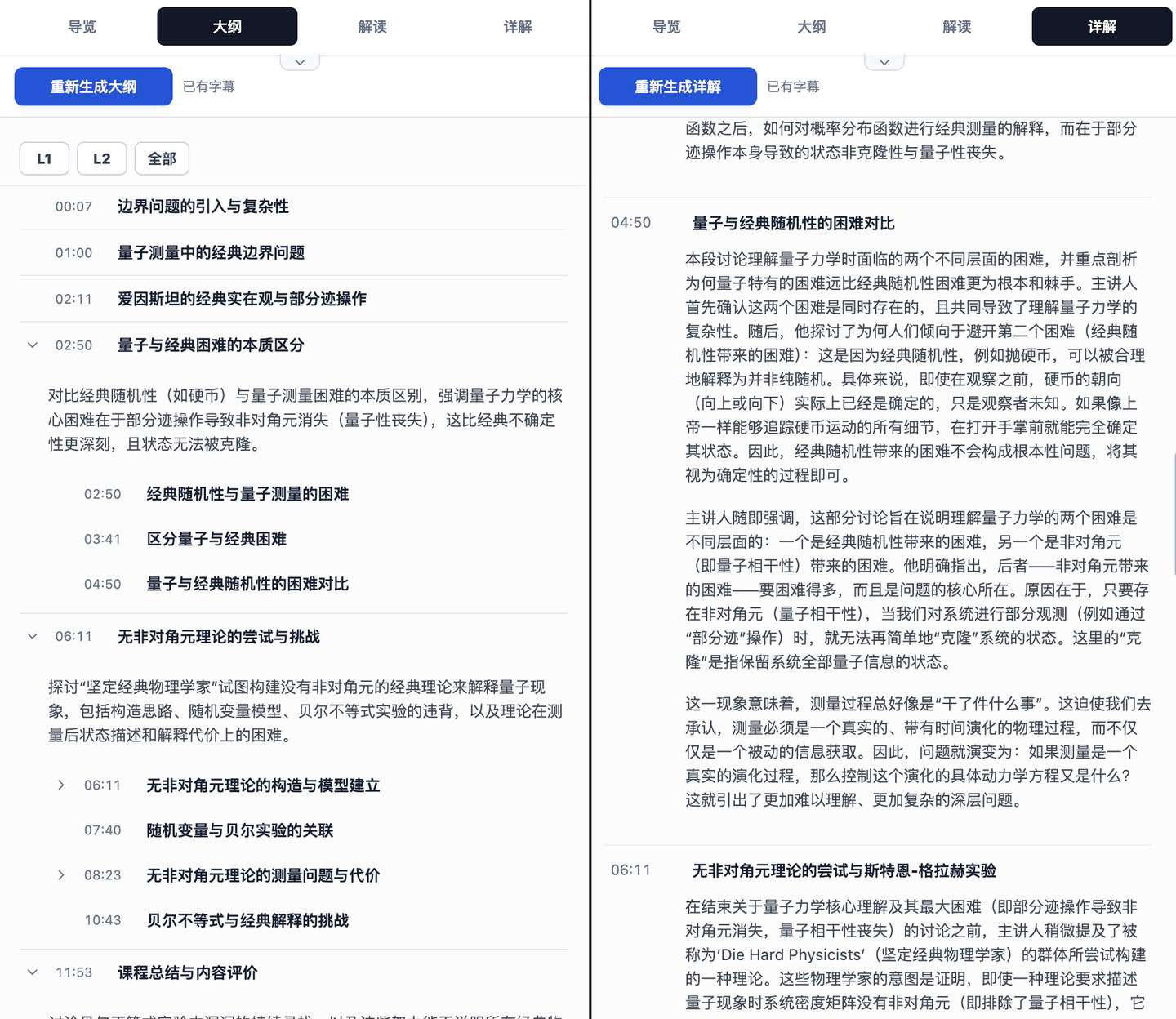
Through the outline, I can quickly navigate each knowledge block in the lesson by clicking directly to jump to the corresponding video content. In the detailed explanation, I have the AI recount the video content in detail, striving to let me understand what is being said through text even without watching the video.
On the left, the timeline map is more of a quick sliding navigation tool for scenarios like review. Its blocks roughly correspond to the L2 of the outline, but with a brief summary of the content in that section. If you feel you don’t need it during the initial learning phase, you can also click the collapse button in the upper right corner of this block to fold it away.
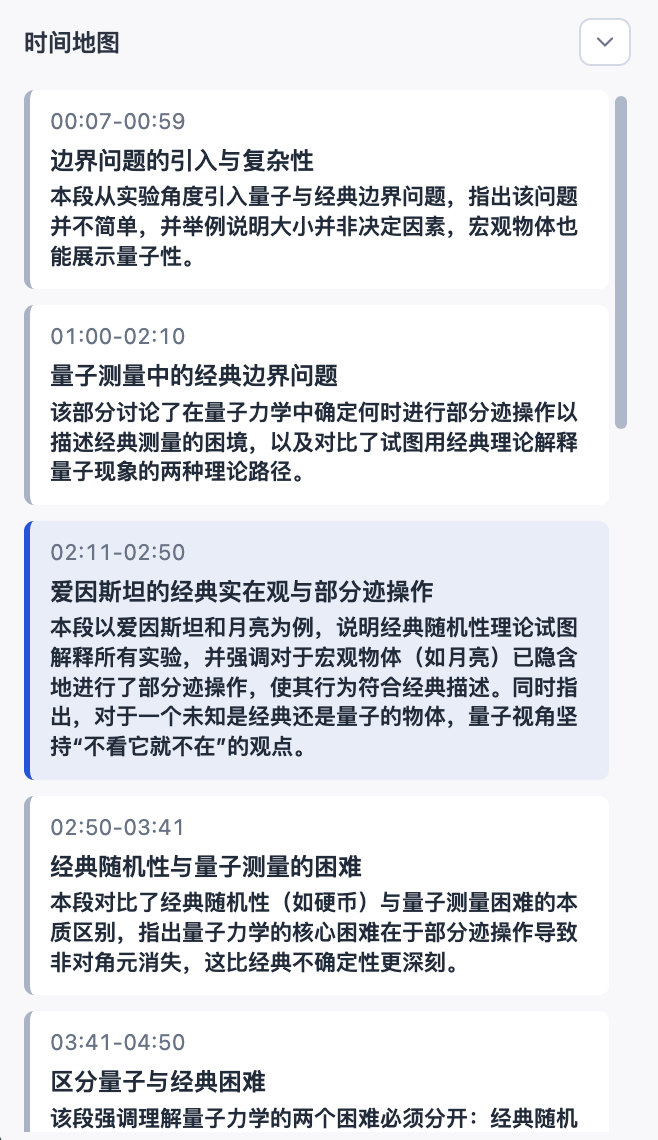
That’s roughly the functionality you’ll use in the processing flow for an individual video.
After processing multiple individual videos, as the video course accumulates, some management features become necessary. So I provided a course library for simple course management.
You can organize all processed videos into three levels: individual videos can form albums, and multiple albums can be grouped into categories. Videos within an album and albums within a category can be reordered by moving them up or down.
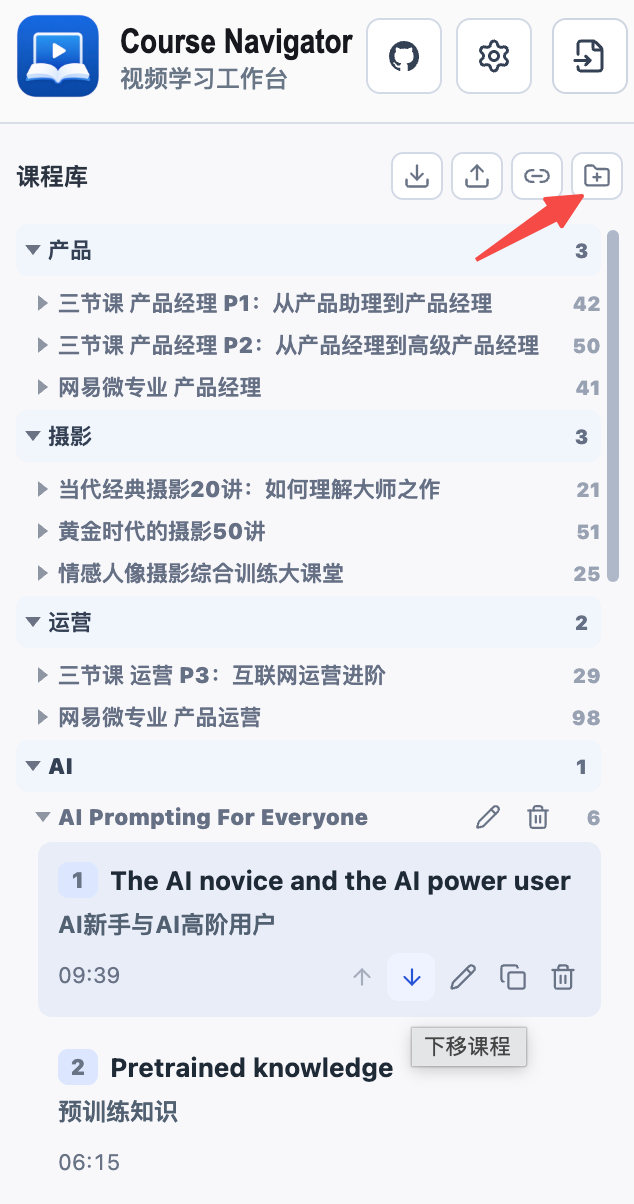
Click the button indicated by the red arrow in the image above to create new albums and categories.
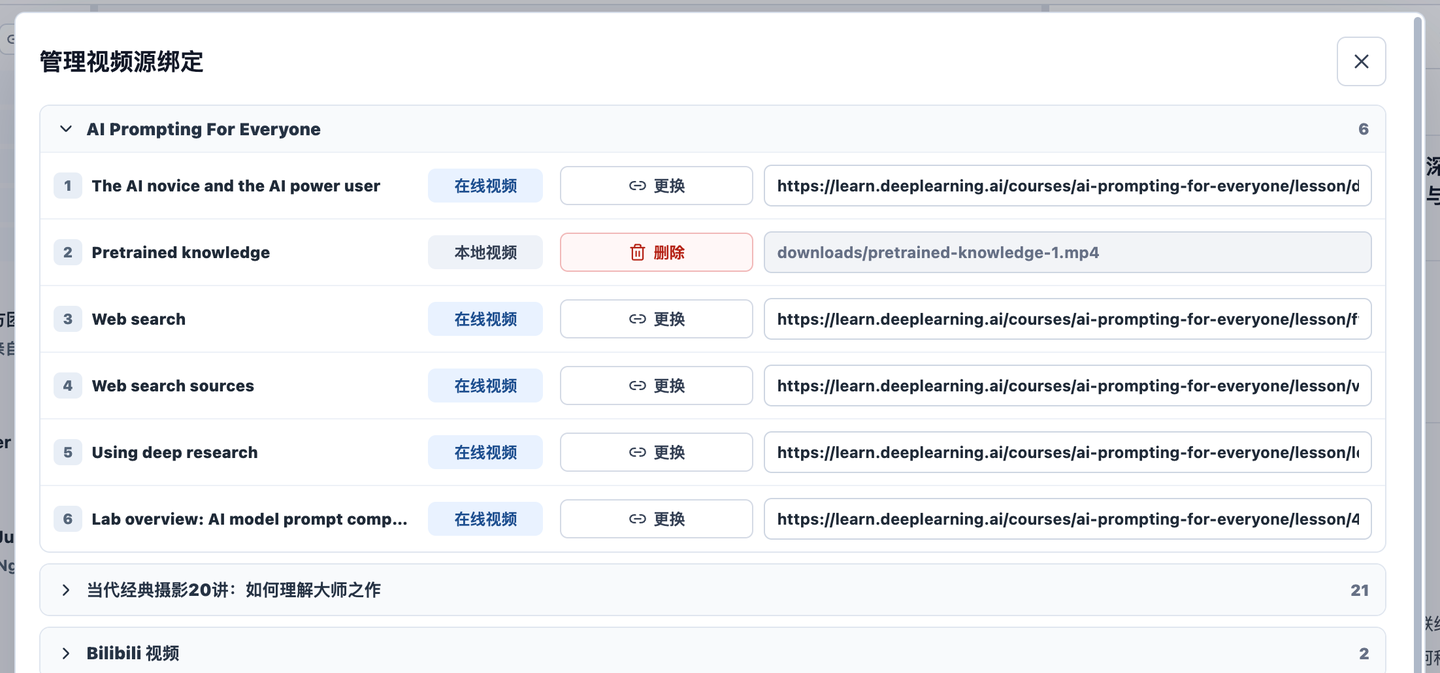
The button to the left of the create button lets you batch manage video source bindings. If you, like me, prefer to keep local videos on a NAS, this feature should come in pretty handy.
The two buttons on the left are for importing and exporting course packages.
That’s right, it’s a sharing feature.
We don’t waste double tokens on the same video. You can export the proofread subtitles and generated learning map, then send them to your friends.
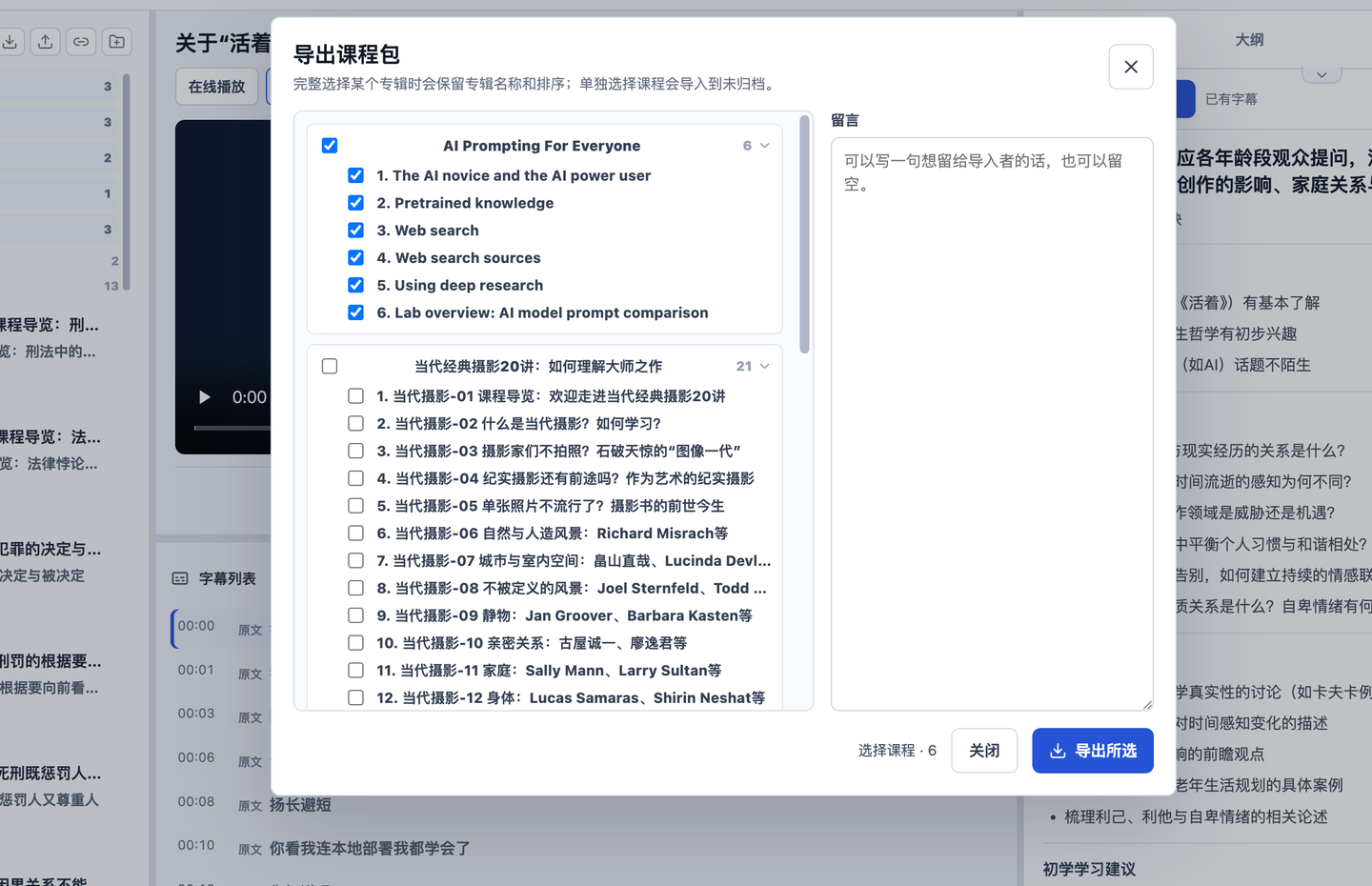
Note that the exported file is a small JSON package, like this:
https://share.playai.ren/d/the-ai-novice-and-the-ai-power-user-6.course-nav.json
(↑ This is a real course package—it’s the public course “AI Prompting for Everyone.” You can actually import it.)
If the original course video is an online video, the original link will be preserved. After your friend imports it, they can open it directly and see both the video and the learning map. However, if the original course video is a local or NAS video, the local or NAS path information will be removed by default. In that case, you’ll need the video source binding management feature mentioned earlier.
That covers most of the core features. For other details like the bilingual interface, model and download parameter configuration, and how to install it, you can check the README document on the project’s GitHub page.
Oh, right.
Just a heads-up: although this project is called the Video Learning Workbench, you can actually import other types of videos too, like product recommendations and buying guides:
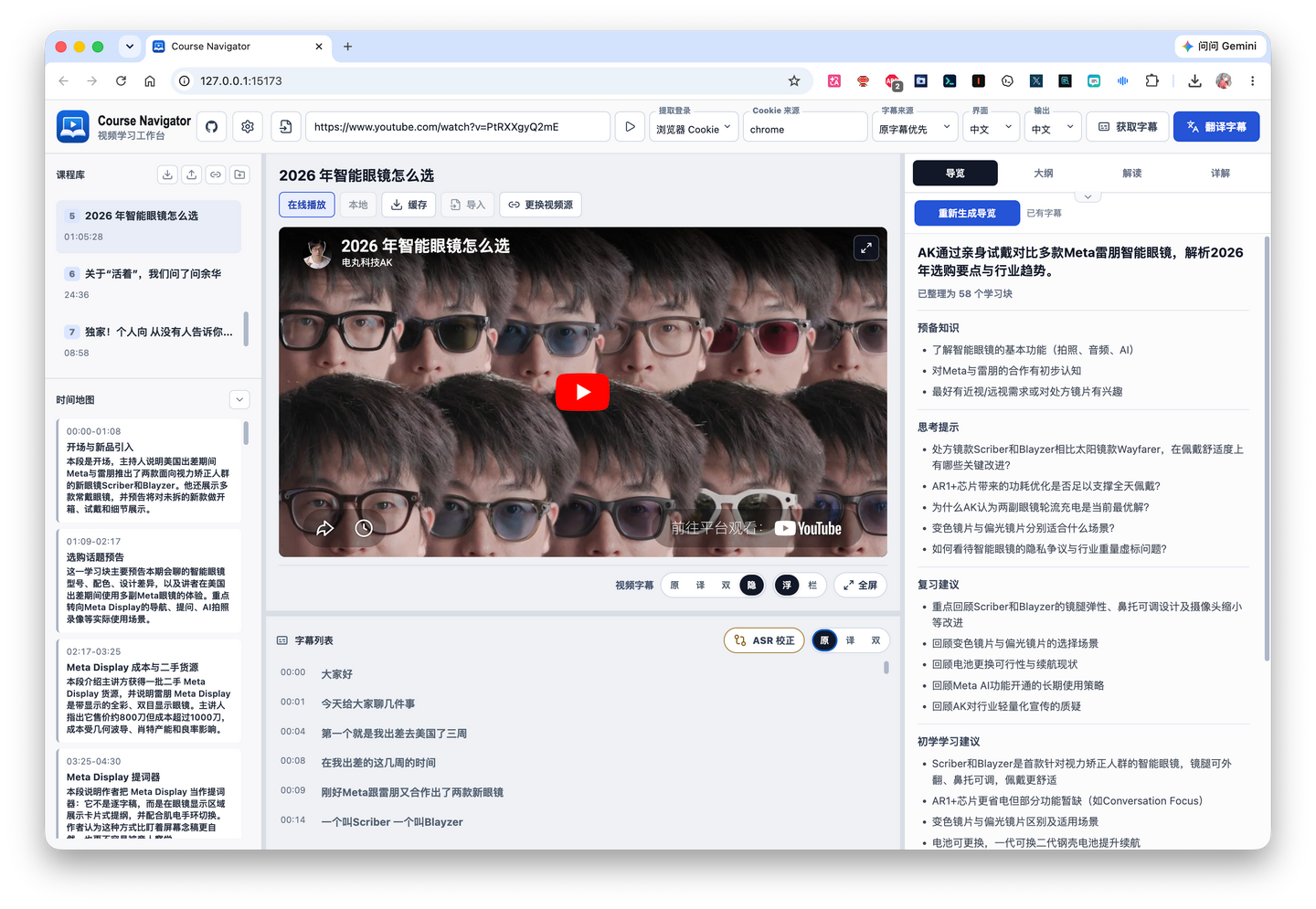
Or you can import some weird videos that aren’t meant for learning. The AI will analyze them from a learning perspective, and you might end up with some strange yet interesting results. I’ll leave it to you to explore these kinds of creative uses.
Also, I actually built an iOS app for learning on the go. I use it on my iPad, and it looks like this:
This app strips out all the AI generation features. Its purpose is to connect to the Course Navigator server on your computer so you can browse existing videos and learning maps.
On top of that, it adds the ability to cache videos and learning maps to the iOS app and enable offline mode. In other words, this iOS app doesn’t support creating new video courses or generating new learning maps, but it can cache courses you’ve already imported and processed on your computer, and you can even view them without an internet connection.
So learning is no longer bound by location—whether you want to study lying down or lounging around, it’s entirely up to you.
However, unlike the Mac app, the iOS app can’t be packaged and distributed to others without a developer account. If you find it useful, you can have Codex or Claude Code build the app from source and install it on your own device:
https://github.com/Liu-Bot24/course-navigator/tree/codex/ipad-ios-app
Summer break is here—happy learning!